
HighLevel Voice AI Agent Review and Setup Guide
An honest look at what HighLevel's AI Voice Agent does and who it fits, then a complete visual walkthrough: build the agent, teach it your business, put it on your website and phone line, and connect it to the rest of HighLevel.
Our link gives you a 30-day free trial, double the 14 days on HighLevel's own homepage, plus a free live bootcamp where a HighLevel coach walks you through setup. HighLevel asks for billing details to start the trial.
What's Inside
- 1 The big picture: from call to closed deal
- 2 How I put this together
- 3 What the HighLevel AI Voice Agent does
- 4 How it compares to Jobber, Housecall Pro, and ElevenLabs
- 5 Before you start
- 6 The 12-step setup walkthrough
- 7 When you cannot find the AI Employee
- 8 What is behind the voice agent
- 9 The real limitations
- 10 Who it is best for
- ? Frequently asked questions
How does the HighLevel AI Voice Agent fit into HighLevel, from call to closed deal?
HighLevel's AI Voice Agent is the front door of a much bigger system. On its own it answers the phone and the voice widget on your website. Because it lives inside HighLevel, every conversation also lands in a CRM, kicks off follow-up workflows, and becomes an opportunity your team can work through to a closed, paid job. Here is the whole path on one page.
How it gets you more business. A receptionist working a full-time schedule covers about 40 of the 168 hours in a week. The calls that slip through are the 7pm call, the Saturday morning call, and the second call that comes in while someone is already on the phone. On every one of those, the AI Voice Agent:
- Answers instead of voicemail, on your phone line and on your website, at any hour you choose.
- Answers from your own information, the services, hours, and policies in the knowledge base you give it.
- Books the appointment on the call, into the HighLevel calendar you connect.
- Hands the caller to a person when your rules say so, and captures the details when nobody is free.
- Starts the follow-up, because the contact and the conversation are already in your CRM.
The journey, stage by stage. Each stage has its own in-depth guide:
- Set it up: the 12-step walkthrough with screenshots further down this page.
- Teach it your business: the HighLevel AI Voice Agent knowledge base and guardrails.
- Put it where customers are: the website widget and your phone line.
- Book the appointment: how the HighLevel AI Voice Agent books into your calendar.
- After the call: what happens in the CRM, pipeline, and workflows.
- What it costs: the HighLevel AI Voice Agent cost breakdown.
How I put this together
I built a HighLevel AI Voice Agent in my own account in May 2026, and the screenshots in the walkthrough come from that build: the AI Employee settings, the agent configuration, a knowledge base I created by crawling 27 pages of this site, and the voice widget running on one of my funnels.
HighLevel has reorganized the Voice AI builder since then. Where today's screens differ from my screenshots, each step says so, based on HighLevel's Help Center as checked in October 2026. Costs are kept off this page; see the HighLevel cost breakdown and the AI voice agent pricing hub.
What does the HighLevel AI Voice Agent actually do?
The AI Voice Agent is part of HighLevel's AI Employee, the set of AI tools inside the HighLevel platform. According to HighLevel's Voice AI overview, updated September 2026, an agent can:
- Answer inbound calls on an LC Phone or Twilio number, either as the first answer or as a backup when nobody picks up, and hold a natural conversation.
- Talk to website visitors through a voice chat widget, with no phone number needed.
- Make outbound calls for lead follow-up, appointment reminders, confirmations, and reactivation campaigns, with AI disclosure and verbal opt-out settings.
- Answer from a knowledge base of your website pages, documents, and written answers.
- Book appointments into one HighLevel calendar or spread them across several.
- Take actions during the call: transfer to a person or to another agent, update the caller's contact details, send a text, or trigger a workflow.
- Take actions after the call, silently: send a follow-up text or email, create or update an opportunity, assign a task, or start a workflow based on what happened.
- Log everything, with call history, transcripts, recordings, summaries, and a dashboard of call volume and outcomes.
It supports multiple languages and multiple agents, each with its own number and instructions, so a business can run separate agents for sales and service. A Prompt Optimizer suggests improvements to the instructions you write.
How does the HighLevel AI Voice Agent compare to Jobber, Housecall Pro, and ElevenLabs?
The biggest difference is what kind of software sits behind the voice. HighLevel is a sales and marketing platform. Jobber and Housecall Pro are job management systems for home service trades with a receptionist built in. ElevenLabs is a voice company whose agents connect to your other tools.
| Option | What it is | Books into | Setup effort | Best for |
|---|---|---|---|---|
| HighLevel AI Voice Agent | Voice agent inside a CRM and marketing platform | HighLevel calendars | You build it: knowledge base, actions, workflows | Appointment businesses, outbound follow-up, one platform for marketing and the phone |
| Jobber AI Receptionist | Receptionist built into Jobber | Your Jobber schedule | Low, it learns from your Jobber account | Trades already running on Jobber |
| Housecall Pro CSR AI | Receptionist built into Housecall Pro | Your Housecall Pro schedule | Low, uses your booking settings | Trades on Housecall Pro who want a live-agent backup |
| ElevenLabs | Voice platform, plus the ready-made Reception.ai | Google Calendar, Cal.com, Calendly, or Reception's own scheduling | Low with Reception.ai, high with ElevenAgents | The most natural voice, or a custom agent |
Capabilities from each vendor's documentation and our own reviews, checked October 2026. Prices are on the pricing hub, not here.
If your jobs already live in Jobber or Housecall Pro, their built-in receptionist books straight into the software you use every day, and HighLevel would mean running two systems. HighLevel makes the most sense when the agent is one part of how you win and follow up with customers, not only how you answer the phone.
What do you need before you set up the HighLevel AI Voice Agent?
- A HighLevel account. A trial is enough to build and test the agent on your website.
- A rough idea of agency and sub-account. HighLevel is built for agencies that manage many businesses, so even a single business has an "agency" level and a "sub-account" for the business itself. Step 1 happens at the agency level; everything else happens in the sub-account.
- A calendar with a team member assigned, if you want the agent to book appointments.
- Your website and your answers. Service pages, FAQs, hours, service area, and policies become the agent's knowledge base.
- An LC Phone or Twilio number, only if you want it on your phone line. The website widget works without one.
How do you set up the HighLevel AI Voice Agent?
In twelve steps: build the agent (steps 1 to 5), put it on your website (6 to 9), connect a phone number (10 and 11), and plug it into your workflows (12). The 12-step video covers the same ground if you would rather watch.
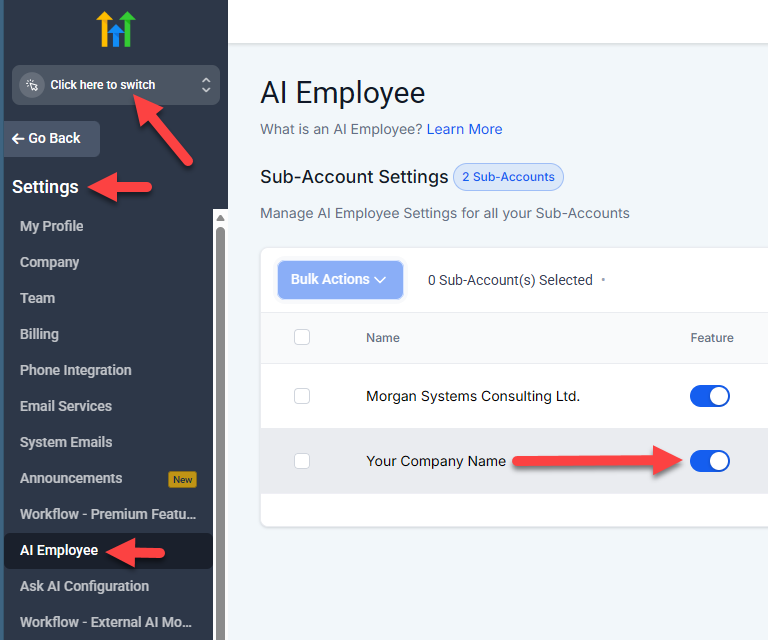
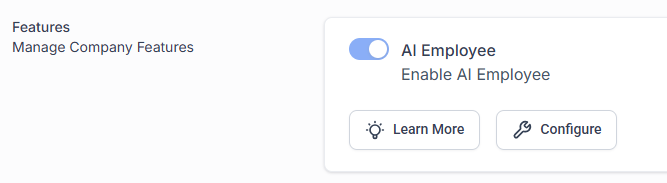
The AI Voice Agent is part of HighLevel's AI Employee, which is switched on at the agency level before you can use it in your sub-account.
- Click the agency switcher at the top left of the sidebar and choose Switch to Agency View.
- Under Settings, Company, make sure AI Employee is turned on.
- Then open AI Suite, Plans & Limits, find your sub-account, and turn on AI Agents for it.
- Switch back to your sub-account with the agency switcher.
 Click to expand
 Click to expand
My screenshots show the sub-account switch under Settings, AI Employee. HighLevel's Help Center now puts it under AI Suite, Plans & Limits, as a control called AI Agents. The company-level AI Employee switch is still under Settings, Company. If you still cannot see Voice AI after this step, see when you cannot find the AI Employee.
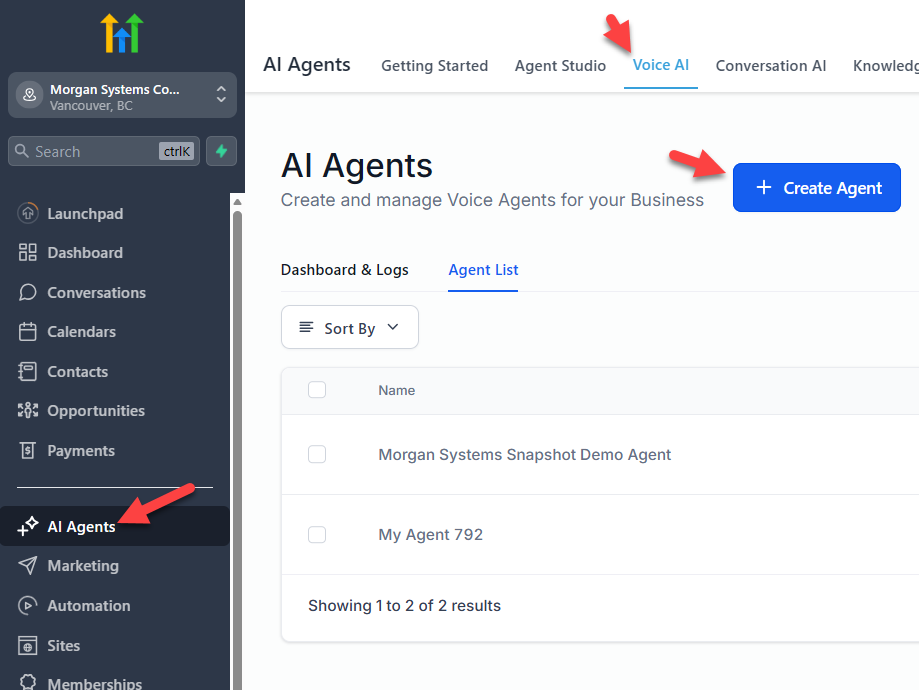
In your sub-account, open AI Agents, then Voice AI, and the Agent List tab. Click + Create Agent. HighLevel now offers three ways to start:
- Create Custom Agent: build it yourself. The best choice for your first agent, so you learn how the settings fit together.
- Browse Marketplace: start from a prebuilt agent.
- Flow Based Builder: design the conversation as a flow of steps.
Give the agent a name that describes its job, such as "Front Desk Agent" or "After-Hours Line."
 Click to expand
Access to Voice AI depends on your user role. If you do not see Voice AI under AI Agents, ask an admin to give your role the View & Manage Voice AI Agents permission.
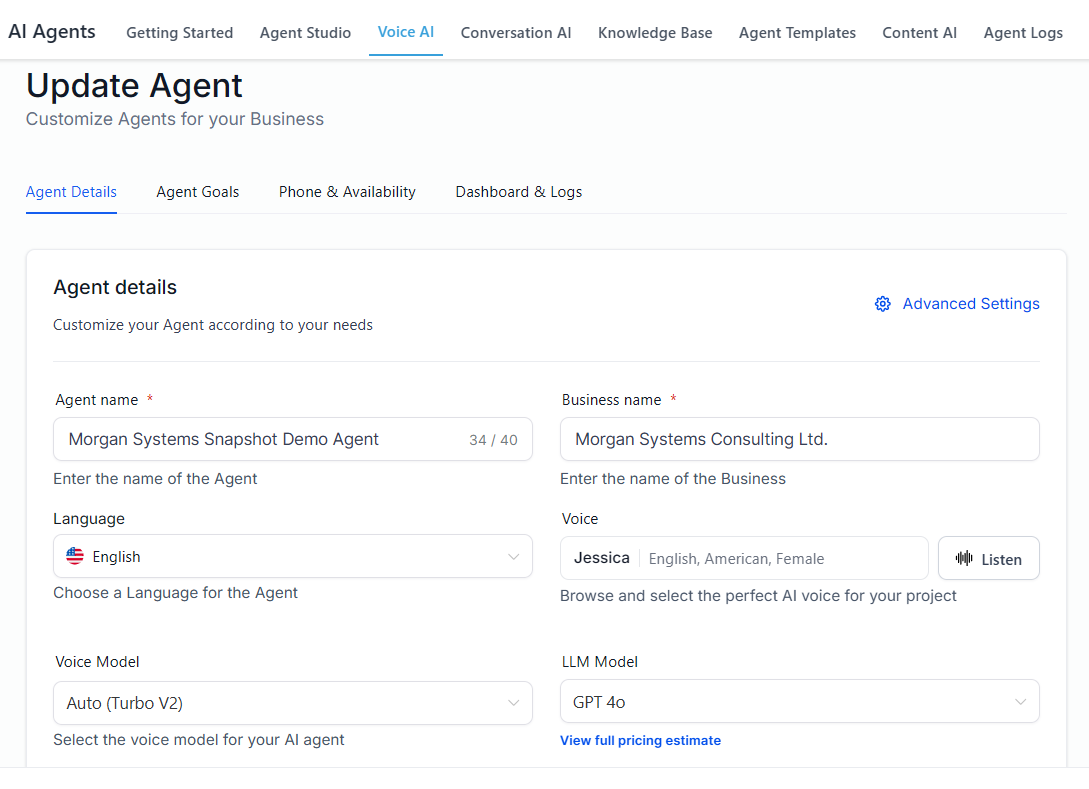
The agent opens in a full-screen builder. Set the basics first:
- Agent Name: the name you see in the Agent List and when you connect the agent to a widget or number.
- Voice: preview the options and pick one that suits your business.
- Model, Language, and Timezone: the AI model, the main language, and the time zone it books in.
- Prompt: the agent's instructions, in plain language: who it is, what it helps with, and what it should never do.
- Welcome message: the first thing it says, for example "Hi, thanks for calling. I can answer questions about our services or book you in. How can I help?" You can also choose who speaks first.
 Click to expand
 Click to expand
Callers want to know straight away what the agent can do for them. Leave the details to the knowledge base once the conversation is going. In May 2026 this field was called Agent's Initial Message; it is now the welcome message, with separate inbound and outbound versions.
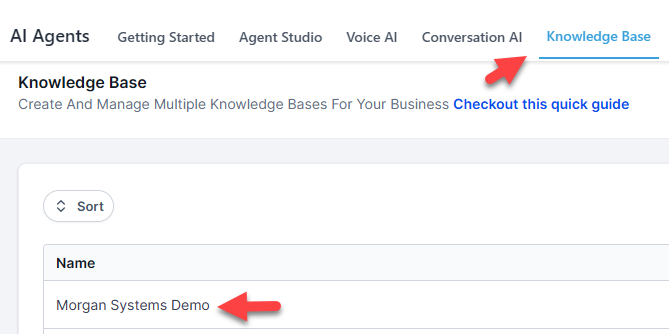
The knowledge base is what keeps the agent on message: it answers from what you give it. Create one under AI Agents, Knowledge Base, then attach it in the agent's Knowledge Base panel and describe when the agent should search it. You can add content three ways:
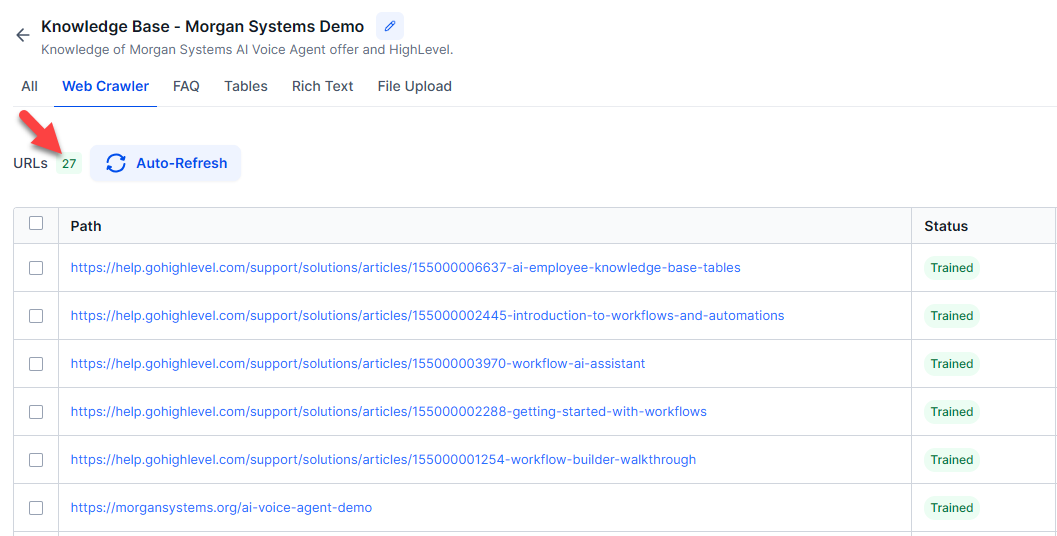
- Web crawler: enter your website address and it pulls in your pages. The fastest start if your site already explains your services.
- Manual entry: questions and answers or text you write, for anything not on your website yet.
- File upload: PDFs and documents, such as a price sheet or policies.
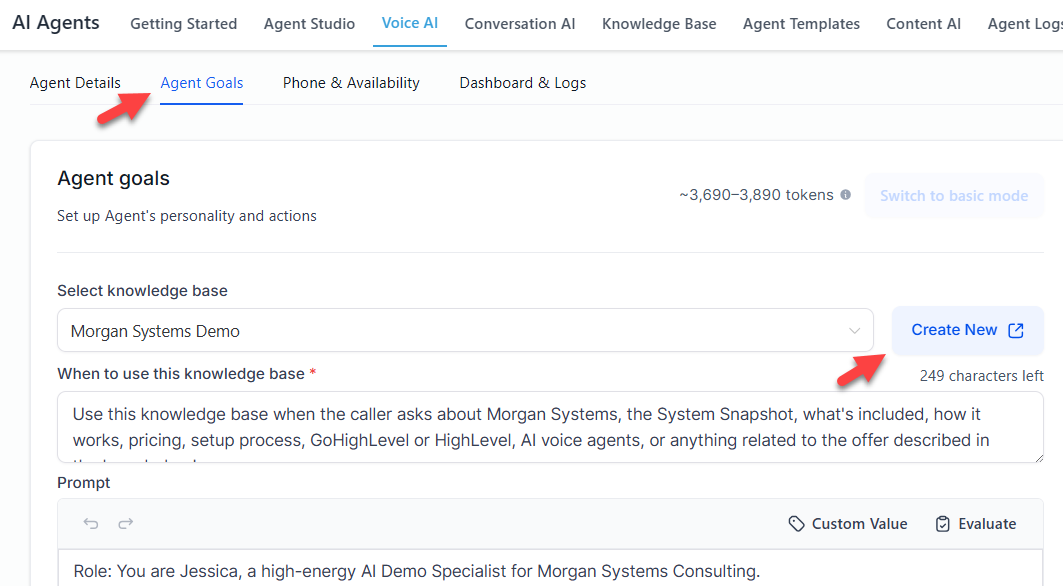 Click to expand
I built mine with the web crawler, pulling in 27 pages of this site:
 Click to expand
 Click to expand
What to put in it, how to keep it from giving vague answers, and the other guardrails that keep the agent on script are covered in our guide to the HighLevel AI Voice Agent knowledge base and guardrails.
Next, tell the agent what it can do, not just what it knows. Open Actions, click + New Action, choose a type, name it, describe when it should happen, and fill in the details. HighLevel's action types are:
| Action | What it does |
|---|---|
| Appointment Booking | Books into the calendar you choose; needs a calendar with a team member assigned |
| Call Transfer | Sends the caller to a phone number, such as your cell or the office |
| Agent Transfer | Hands the call to another of your AI agents |
| Update Contact Field | Saves what the caller tells it, such as email or service needed, to their CRM record |
| Send SMS | Texts the caller, for example a link or a confirmation |
| Trigger a Workflow | Starts one of your HighLevel workflows |
| Custom Action | Calls another system through a webhook |
Action types from HighLevel's How to Create Voice AI Agents article, updated October 2026. In my May 2026 build, booking, contact collection, and transfer rules sat in a section called Agent Goals.
Begin with the knowledge base and appointment booking only. Add transfers, contact updates, and workflows once you have seen the basics work. Booking setup in detail is in our guide to how the HighLevel AI Voice Agent books appointments.
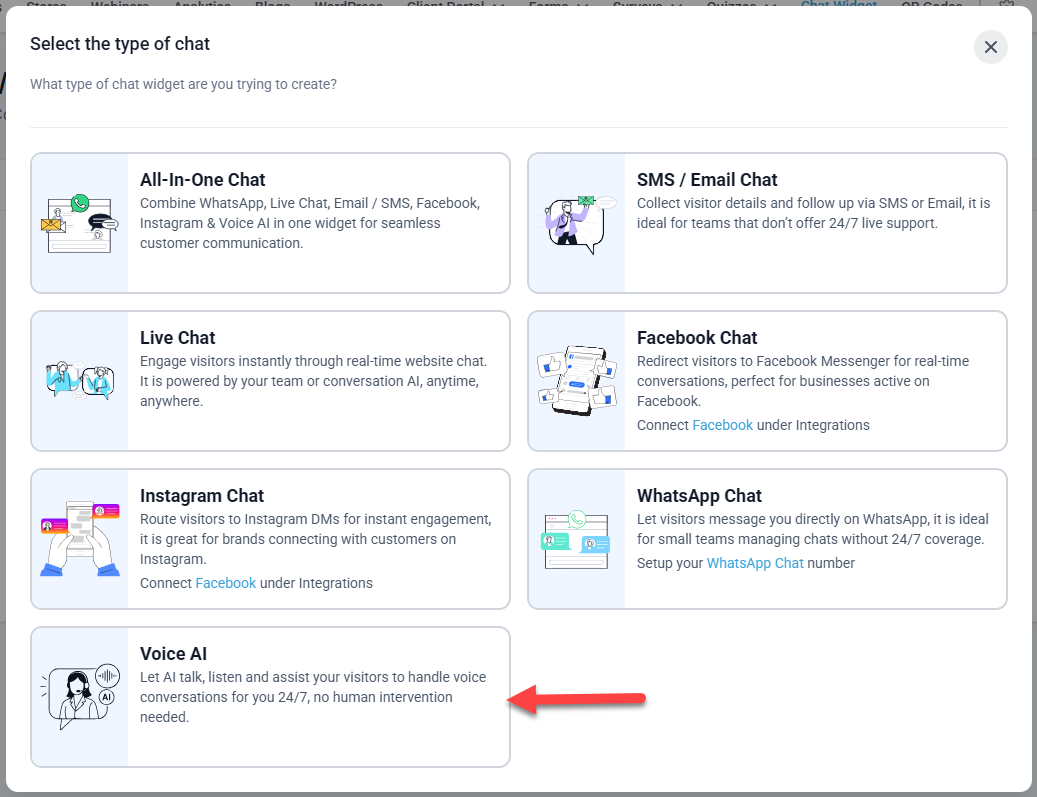
To put the agent on your website, create a Voice AI chat widget. Go to Sites, Chat Widget, click + New, and choose Voice AI. You can also connect an existing widget, or create one, from the agent's Deploy tab.
 Click to expand
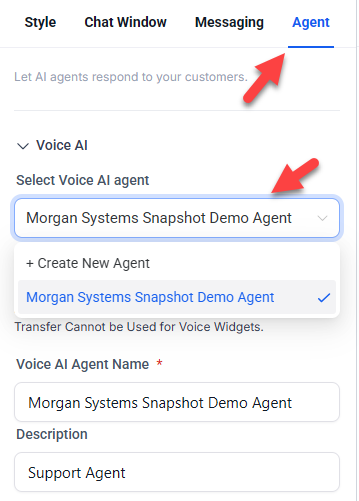
The widget builder has four tabs: Style, Chat Window, Messaging, and Agent. On the Agent tab, choose your agent and enter the name visitors will see.
 Click to expand
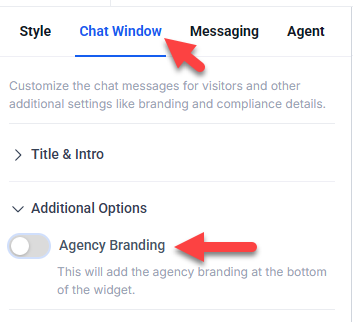
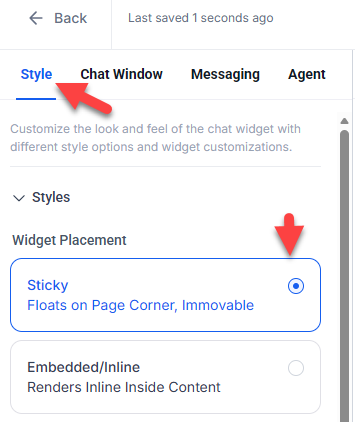
On Chat Window, set the title; on Style, choose the Sticky placement so the widget stays in the corner as visitors scroll. Then click Save.
 Click to expand
 Click to expand
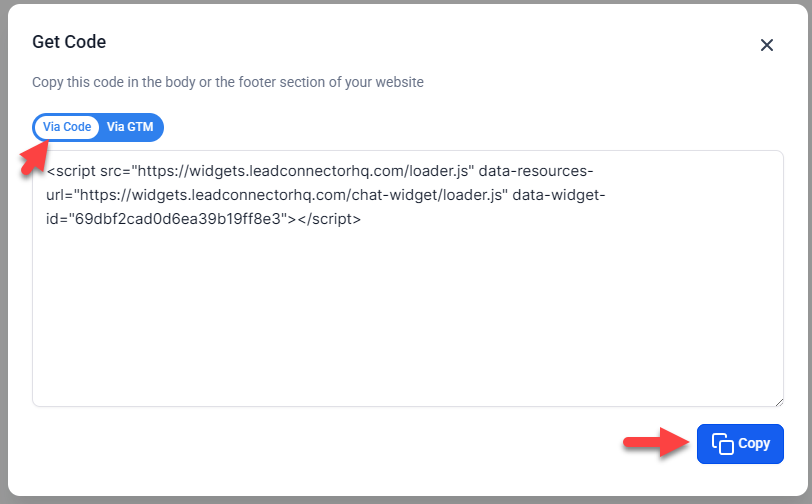
In the widget builder, click Get Code beside Save and copy the <script> tag.
 Click to expand
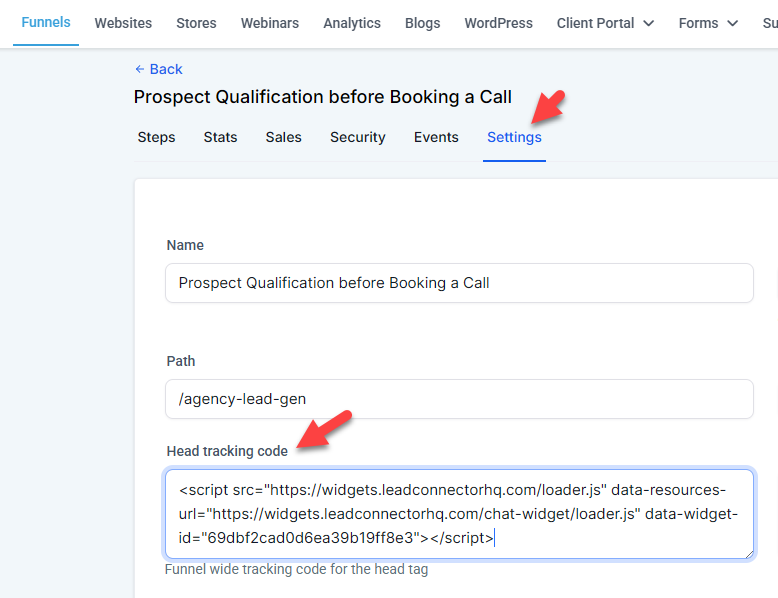
On a HighLevel funnel, open the funnel's Settings and paste the code into Head Tracking Code; the widget then appears on every page of that funnel. On any other website, paste it into the site-wide header code.
 Click to expand
Adding it to WordPress, Wix, Squarespace, and other site builders is covered in our guide to the HighLevel AI Voice Agent website widget and phone line.
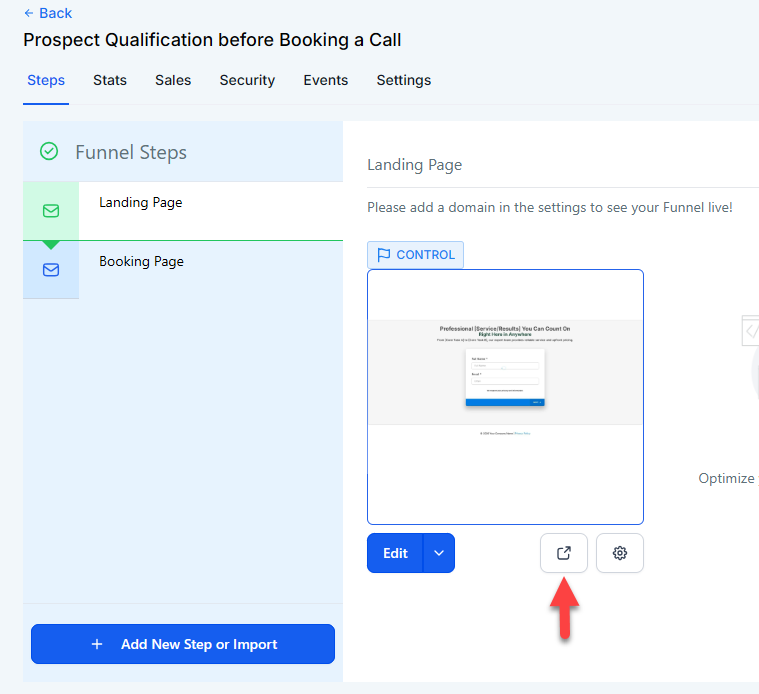
Open the page in a new browser tab. The widget sits in the bottom right corner; click it, allow microphone access, and ask a question from your knowledge base.
 Click to expand
Before you send real visitors to it, run it through several conversations:
- Questions from your knowledge base: are the answers accurate and in your words?
- Questions it should not know: does it offer a follow-up instead of guessing?
- A full booking: does the appointment land in your calendar?
- The contact record: after the test, is the contact in your CRM with the details it collected?
Run at least three to five different conversations. Small changes to the instructions and actions make a big difference to how it handles the awkward ones.
To have the agent answer phone calls, open its Deploy tab:
- Phone: choose an LC Phone or Twilio number from your account, or a number pool. You can also buy a new number from this screen.
- Call routing: choose Answer Calls Directly, so the agent picks up every call, or Use as Backup, so it only answers calls your team misses.
- Working hours: All Hours, or a custom schedule, such as evenings and weekends only.
- Fallback: check the number's forwarding, timeout, and voicemail settings for anything the agent does not handle.
A number already set up for something else, such as an IVR menu, cannot also be assigned to the agent. If you need a dedicated number, add one in your phone settings first. In May 2026 these settings were on a tab called Phone & Availability; they now sit on Deploy.
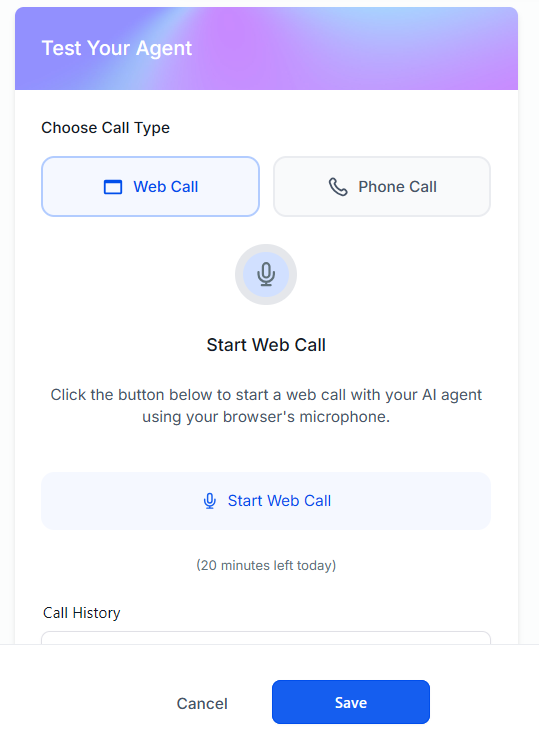
Open the Test panel and choose Web Call, which runs in your browser, or Phone Call, which uses real telephony. Then call the number from your own phone and try the same questions, a booking, an out-of-hours call, and a request for a person.
HighLevel notes that call transfers do not run during Web Call tests. Test transfers with a Phone Call or a real call to your number.
This is where the agent becomes part of a system. During a call, it can update the contact, transfer the caller, or trigger a workflow. After the call, HighLevel can quietly send a follow-up text or email, create or update an opportunity, assign a task to your team, or start a workflow based on what happened.
Confirmations and reminders for appointments the agent books come from the calendar's own Notifications tab, the same as any other booking, so turn those on before you go live or nothing reminds the customer. Build workflows for anything more.
What if you cannot find the AI Employee or Voice AI in HighLevel?
This is the most common place people get stuck on a first setup. Voice AI only appears once three separate switches are on, and they live in different places. Check them in this order:
If all three are on and you still cannot see it, contact HighLevel support through the question mark at the top right of your dashboard. On a trial through our link, the bootcamp is also a good place to ask.
What is behind the HighLevel AI Voice Agent?
The voice agent is the front door. Behind it is a whole platform, and that is what turns a caught call into a paid job:
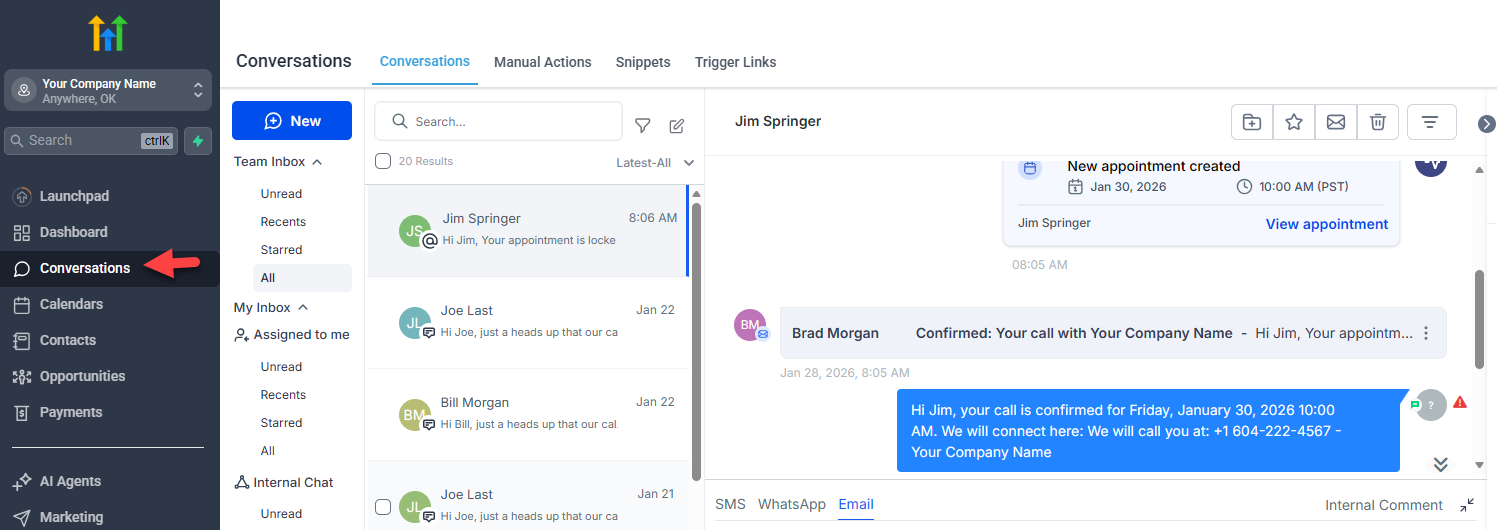
Conversations: pick up where the AI left off
Calls and chats the agent handles land in one inbox with your texts, emails, and social messages, so you can take over in the same thread.
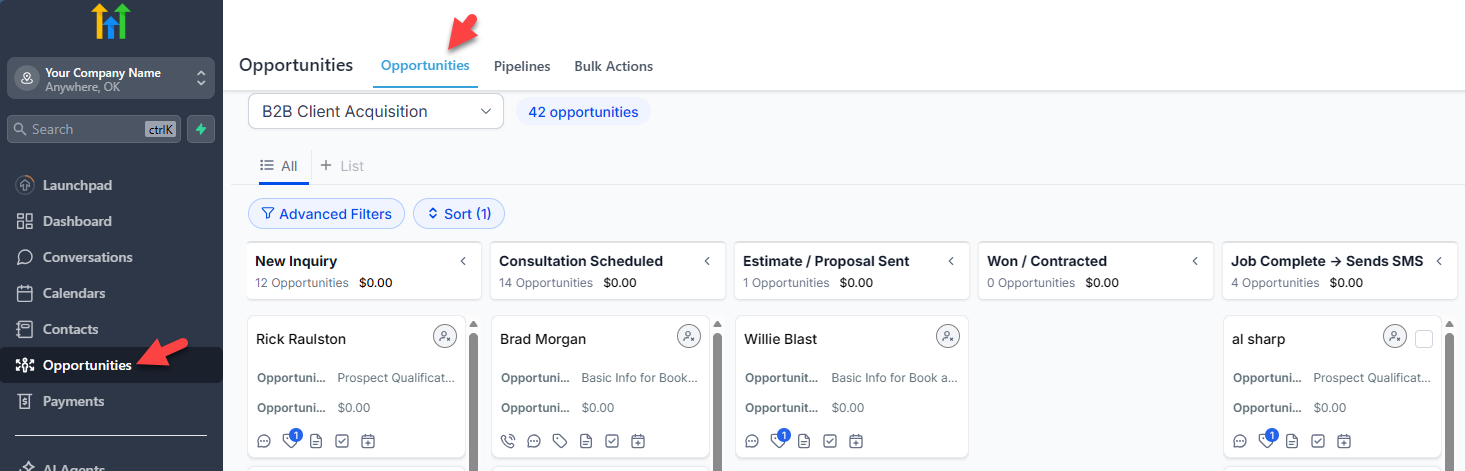
Contacts and the opportunities pipeline
When the agent books a call or captures a lead, the contact and an opportunity can land in your pipeline, with stages you name to match how you sell.
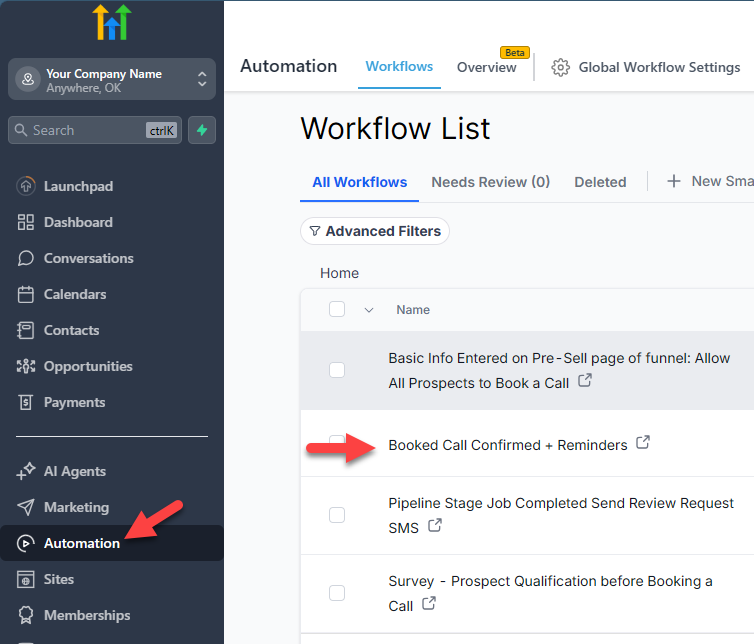
Workflows: the follow-up you never have to remember
Follow-up for people who did not book, alerts to your team, review requests, and reactivation, all built once and run every time. Booking confirmations and reminders come from the calendar's own notification settings.
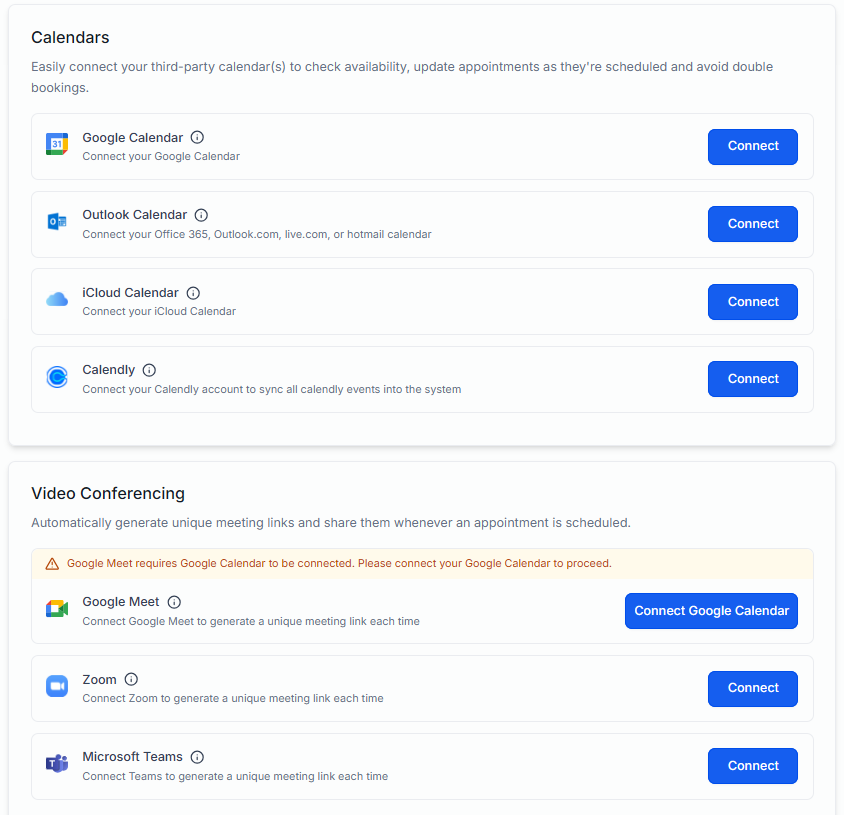
Calendar connections
HighLevel's calendars connect to tools such as Zoom, Google Meet, and Microsoft Teams, so a booked video call gets its meeting link without anyone sending one.
How each of these works after a call is covered in our guide to what happens after the HighLevel AI Voice Agent takes a call.
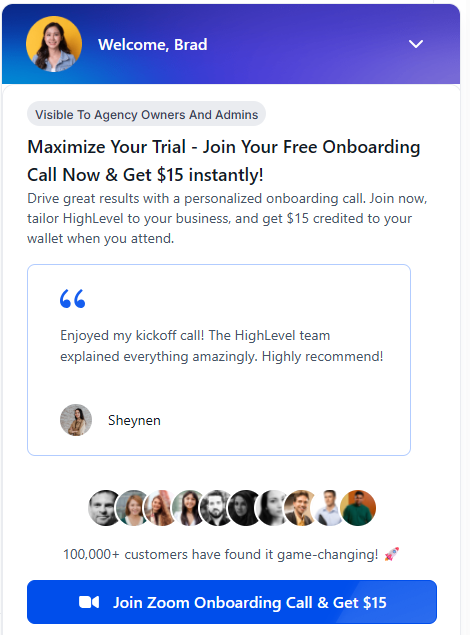
Signing up through our link includes a free live bootcamp, a free one-on-one onboarding call where a HighLevel specialist shares your screen and walks you through setup, and 90 days of premium chat and video support from the question mark at the top right of your dashboard.
 Click to expand
What are the real limitations of the HighLevel AI Voice Agent?
- You build it. Nothing is set up for you: the knowledge base, actions, workflows, and testing are yours to do. That is the price of its flexibility, and it is real work compared with the built-in receptionists in Jobber or Housecall Pro.
- It is a marketing platform, not job software. There is no job dispatch, price book, or field crew scheduling. A trades business that runs its jobs elsewhere ends up with two systems to keep in step.
- Agency-style menus. Agency View, sub-accounts, and switches in three places confuse many single-business owners on day one.
- The screens change often. HighLevel reorganized the Voice AI builder between May and October 2026, so older guides and videos, including parts of mine, show menus that have moved.
- Costs stack. The platform, the AI Employee plan, and phone charges are billed separately, and phone charges apply even on the Unlimited AI plan. Our cost breakdown adds them up.
- Phone numbers must be HighLevel's. Voice AI works only with LC Phone or Twilio numbers in your account, so keeping your existing number means porting it or forwarding calls to a HighLevel number.
- Outbound calling carries rules. Calling people with an AI voice is regulated, and the rules vary by country and state; HighLevel provides disclosure and opt-out settings, but compliance is yours.
Who is the HighLevel AI Voice Agent best for?
There is no single winner among AI receptionists, only the right fit for how your business runs. Here is where HighLevel fits.
Best for: businesses that sell by appointment and follow up
Consultations, estimates, and service calls where a booked appointment starts a sale. The agent books it, and HighLevel's CRM, workflows, and pipeline carry it to a close.
Best for: owners who want one platform
If you want your phone, website chat, texting, email follow-up, reviews, and pipeline in one place, HighLevel replaces several separate tools.
Best for: outbound follow-up and reactivation
Reminder calls, follow-up on leads that went quiet, and reactivation campaigns are where HighLevel goes beyond the built-in receptionists.
Consider Jobber or Housecall Pro instead if
Your jobs, quotes, and invoices already live in one of them. Their receptionists book straight into your schedule with far less setup; see our Jobber AI Receptionist review and Housecall Pro CSR AI review.
Consider ElevenLabs instead if
Voice quality matters most, or you want a ready-made receptionist without a whole platform; see our ElevenLabs AI receptionist review.
If HighLevel sounds like your fit, join the free bootcamp and start a 30-day trial and follow the walkthrough above in your own account. The full offer, and an honest check on whether HighLevel suits your business, is on our HighLevel AI Voice Agent QuickStart Bootcamp page.
The bottom line: the HighLevel AI Voice Agent answers your phone and website, books appointments, and hands callers to your team, and because it sits inside HighLevel, every conversation flows into a CRM and workflows that follow up for you. It takes more setup than a built-in receptionist, and it rewards that work if you sell by appointment or want one platform for marketing and the phone. Next, teach it your business with the knowledge base and guardrails guide, or compare every option on the best AI voice agent for small business page.
Frequently Asked Questions
Sources
HighLevel Support Portal (help.gohighlevel.com), checked October 2026: Overview of Voice AI Agents (updated September 17, 2026), How to Create Voice AI Agents (updated October 1, 2026), AI Employee: Access, Rebilling and Reselling (updated September 14, 2026), and How to Test Voice AI Agents. Screenshots are from my own HighLevel account, May 2026.
Signup offer as shown on the bootcamp landing page our link opens, October 2026.