
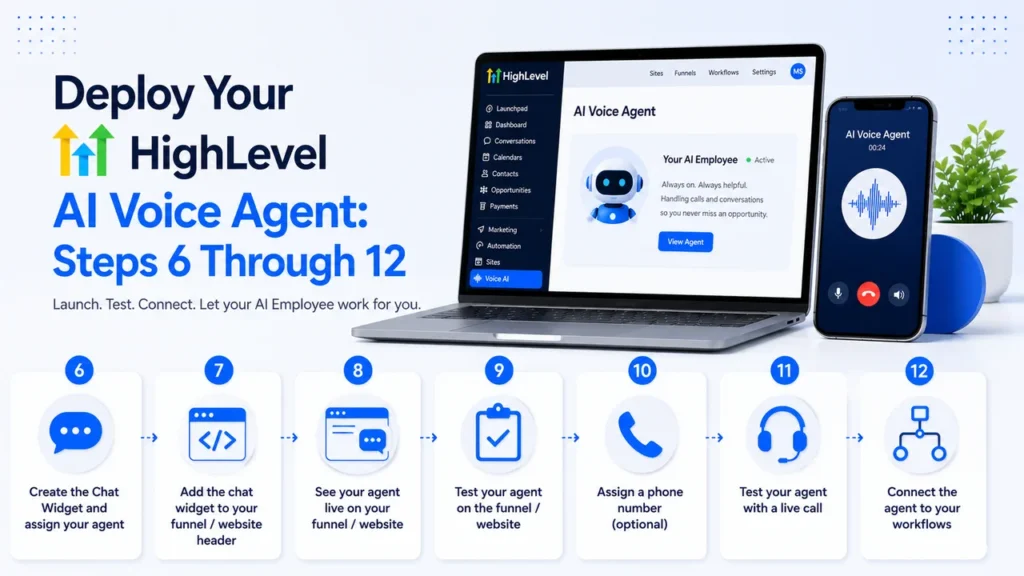
Deploy Your HighLevel AI Voice Agent: Steps 6 Through 12
The short answer: deploying your HighLevel AI Voice Agent means building the Voice AI chat widget, embedding it on your website with a single code snippet, optionally assigning a phone number for inbound calls, testing three to five real conversation scenarios including a full booking, and connecting workflows so the agent updates your CRM and fires confirmations automatically. The widget works on any site platform, the phone number is optional, and the workflow connections are what turn the agent from a chatbot into a working business system.
This guide picks up where the initial configuration leaves off. If you haven't built and configured your agent yet, start with setting up your HighLevel AI Employee in Steps 1 through 5, which covers agency-level access, creating the agent, and building the knowledge base it runs on. For the wider context, the cost breakdown and the AI voice agent pricing comparison cover what it costs and how it stacks up. Prefer to watch? The video below walks through the deployment steps.
- The Voice AI chat widget embeds on any website platform with a single code snippet, no developer needed.
- A phone number is optional — your agent runs fully as a website widget and you can add phone capability later.
- Test at least three to five conversation scenarios, including the full booking flow, before routing real traffic.
- Workflow connections are what transform the agent from a conversational tool into a full business automation, handling CRM updates, confirmations, reminders, and live call transfers automatically.
- The agent extends your team's reach rather than replacing it, catching every lead your staff cannot physically get to.
Building and Embedding the Chat Widget (Steps 6 and 7)
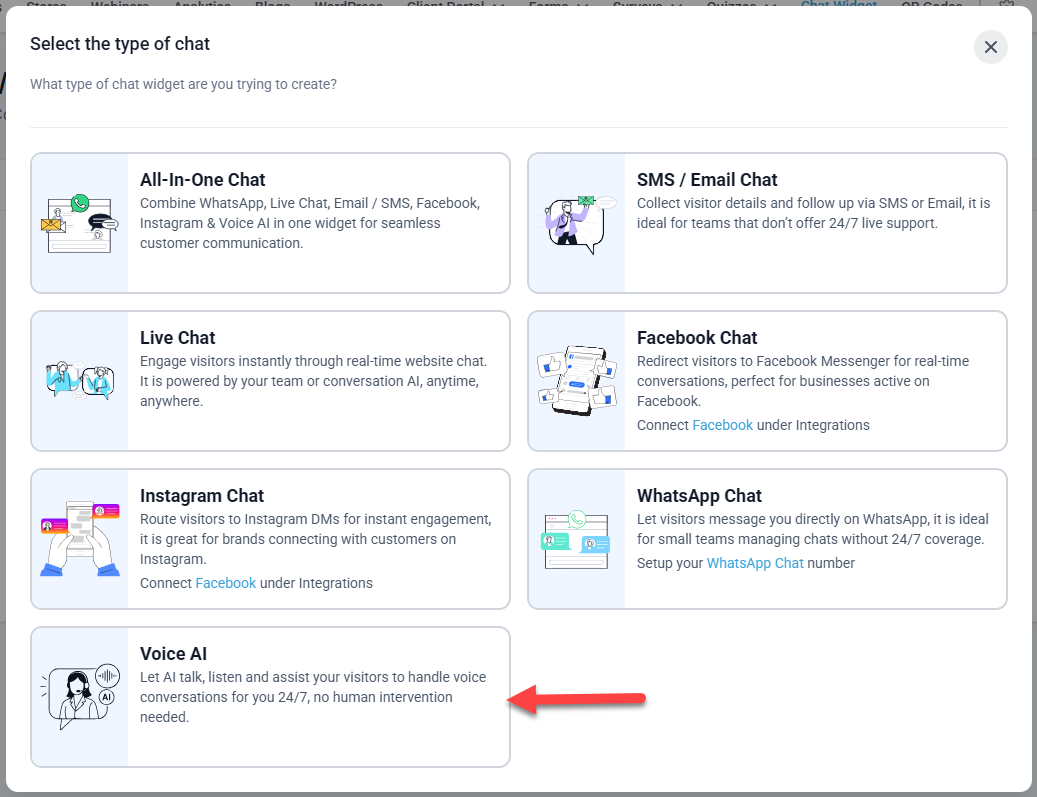
Getting your AI Voice Agent visible on your website starts in the Sites section of HighLevel. Navigate to Chat Widget, click New, and when prompted for a widget type, select Voice AI. This is the step where you connect the agent you built to an actual interface your website visitors can interact with.
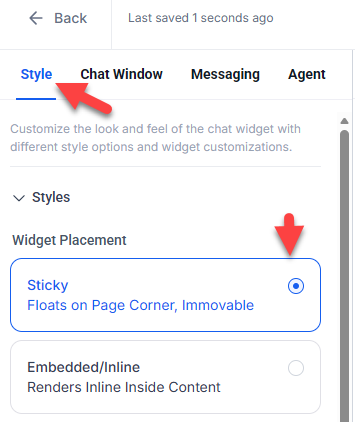
Inside the Agent tab, select the agent you configured in the earlier steps of the setup process. From there, set a display name that matches your brand (your business name works well here), turn off agency branding so visitors see your identity rather than HighLevel's, and choose the Sticky placement style. Sticky keeps the widget icon anchored to the bottom right corner of the screen as visitors scroll, which maximizes the chance they notice and engage with it. Save the widget once those settings are in place.
The embed step is where many people expect complexity and are surprised by how simple it actually is. Click Get Code, copy the JavaScript snippet that appears, and paste it into your site's header. In HighLevel funnels, that means the head tracking code section. On WordPress, it goes in a header script plugin or directly in your theme's header. On Squarespace, Wix, or Shopify, each platform has a custom code section in its settings. If a platform has a header and allows custom code, this snippet works there. One paste, and the widget appears on every page of the site. No additional configuration per page is required.
Seeing It Live and Testing It Properly (Steps 8 and 9)
After the code is in place, open your site in a fresh browser tab. The widget icon should appear in the bottom right corner within a second or two of the page loading. Click it, grant microphone permission when your browser asks, and you are talking to your agent in real time. That moment of hearing your own business information come back to you through an AI voice is a useful gut check: does it sound right, does the tone match your business, and does it respond accurately to basic questions?
That initial test is not enough to go live with. Before routing real visitor traffic to your agent, run it through a structured set of scenarios. Three to five is the minimum, and each should cover a different category of interaction. Start with your most frequently asked questions directly from your knowledge base, verifying that the answers match what you intended. Then try questions you know are outside its scope, specifically to see how gracefully it handles the unknown. A well-configured agent should acknowledge it cannot answer rather than inventing something plausible, which is exactly what the agent guardrails are built to enforce.
The booking flow deserves its own focused test. Walk all the way through from initial inquiry to confirmed appointment, then check your connected calendar to confirm the appointment actually landed. Follow that by checking your CRM to verify the contact record was created with accurate information. If either of those fails, you want to find out now rather than after a week of missed bookings.
Adding Phone Capability (Steps 10 and 11)
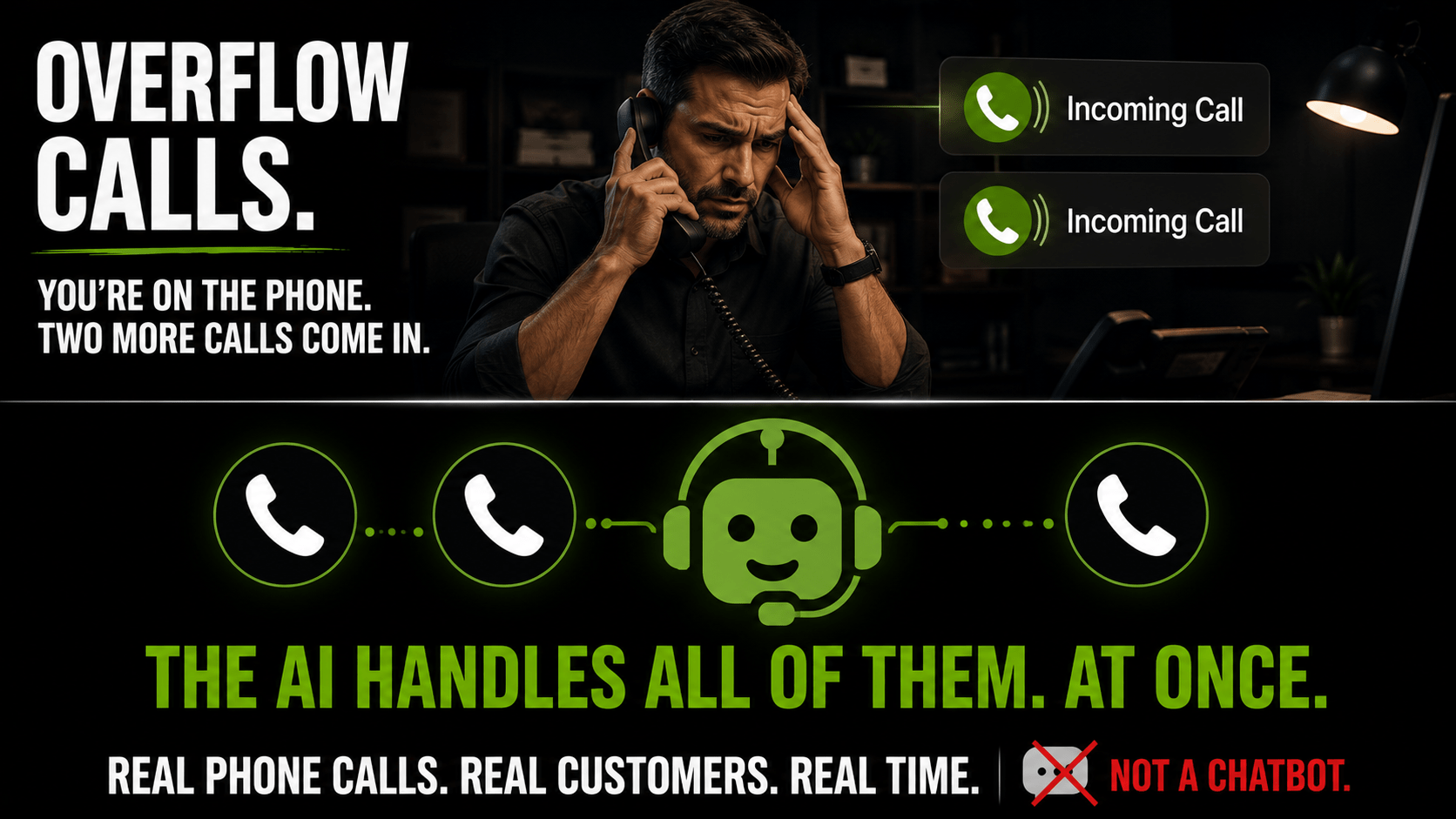 The phone number step is genuinely optional, and it is worth being clear about that because some businesses will find it immediately useful and others will not need it at all. If your primary goal is capturing web visitors and converting site traffic into booked appointments, the widget alone accomplishes that. The phone number becomes relevant when you want the same agent handling inbound calls, particularly calls that come in when your team is unavailable. That after-hours coverage is the core case for answering every call around the clock.
The setup lives in the Phone and Availability tab of your agent settings. Assign an LC Phone number (HighLevel's native option) or a Twilio number if you have one, set your business hours, and configure your fallback rules. Those fallback rules are what determine what happens when a call arrives outside your set hours: whether it goes to voicemail, routes to the AI agent, or follows some other logic you define. For most small businesses, routing after-hours calls to the AI rather than voicemail is a straightforward win. Callers get a real response at 10 PM on a Sunday instead of a dead end.
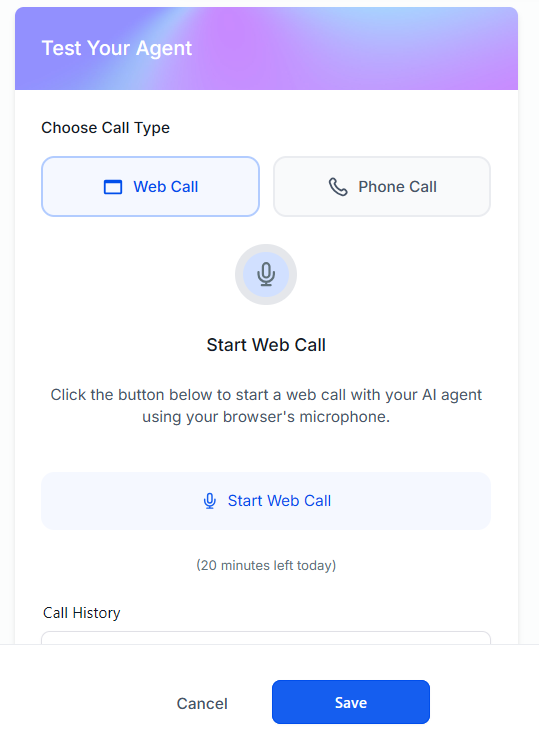
Testing the phone capability is similar in structure to testing the widget, but the experience is different enough that it warrants its own session. Use the built-in Test Your Agent panel to place a test call to your own phone first. Then call the assigned number directly, as a real caller would. Put the agent through the same knowledge base questions, edge cases, and booking flows you tested on the widget. Also test what happens when a caller calls outside your business hours to confirm the fallback behavior works exactly as you configured it.
Connecting Workflows: Where the Agent Becomes a System (Step 12)
The workflow connections are the step that separates a voice agent acting as a novelty from one that is doing real business work. Each connection you configure extends what happens after the agent finishes a conversation. Without workflow connections, the agent handles the conversation and stops. With them, it hands off to a chain of automated actions that keep running without anyone touching them.
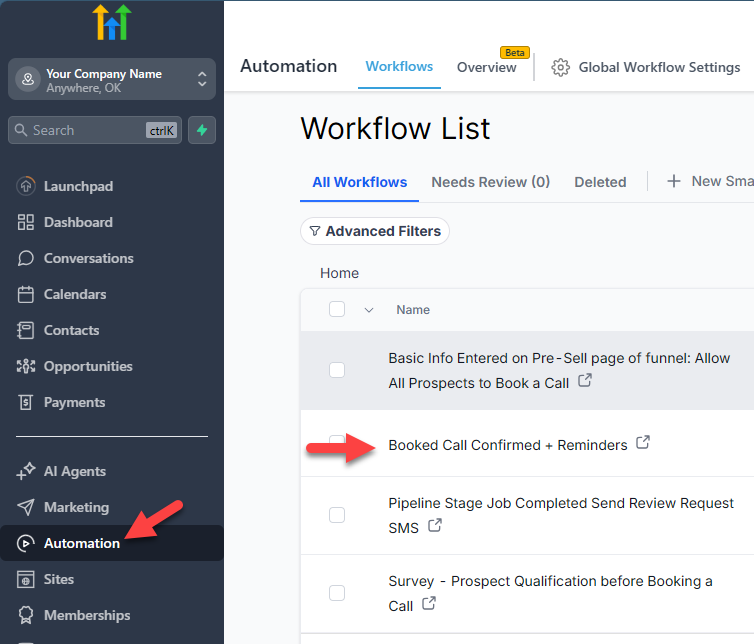
The most common connections are CRM field updates, which write information the agent collected during the conversation directly to the contact record; appointment booking, which places the appointment in your connected calendar and creates the contact in a single action; and workflow triggers, which can kick off confirmation emails, SMS reminders, or any other sequence you have built in HighLevel. If you built your booking confirmation and reminder workflows before reaching this step, they activate automatically the moment the agent books an appointment. Nothing additional is required. The agent and the workflows simply work together. The full chain, from the moment of booking through every automated follow-up, is covered in the booking automation breakdown.
Call transfer rules are worth configuring even if you rarely expect to use them. Defining conditions under which the agent transfers a caller to a live team member gives you a safety valve for complex or sensitive conversations the agent is not suited to handle. That handoff capability is part of what makes the system feel professional rather than rigid to callers who need it.
What Your Business Actually Gains From This Deployment
There is a straightforward business case here that has nothing to do with AI enthusiasm. Most small and mid-size businesses lose leads not because they have a bad product or weak marketing, but because no one answered. A call went to voicemail. A site visitor clicked away at 7 PM when the office was closed. A form submission sat unanswered until the next morning. Each one of those is a lead that had enough interest to make contact, and the conversion rate on those missed touchpoints is near zero.
An AI Voice Agent running on your site and optionally on your phone line covers those gaps without requiring your team to be available around the clock. Every appointment the agent books is a lead your team would otherwise have had to chase or, more likely, lost. Your team still does the actual work: the consultations, the service delivery, the relationship-building that turns a new client into a repeat one. The agent handles the intake. That division of labor is not about replacing anyone. It is about making sure qualified leads make it to your calendar in the first place.
The platform sitting behind the agent matters here too. A unified inbox, CRM, visual sales pipeline, and the workflow engine that ties everything together means the agent is not operating in isolation. It is feeding a system that tracks every contact, every conversation, and every stage of the relationship from first touch to closed deal. For businesses that have been managing leads in spreadsheets or relying on memory, that infrastructure shift alone can change how the business operates, independent of the voice agent layer on top of it.
The Fastest Path to a Working Setup
Building all twelve steps from scratch takes time, and the most common point of friction is not any individual step but the cumulative setup of knowledge base, workflows, agent configuration, and widget deployment all at once. If you are starting a HighLevel trial through the demo link on this site, you can bypass much of that build time. The snapshot that loads into your account when you sign up installs a working AI Voice Agent, a pre-configured knowledge base structure, and the core workflows as a starting foundation. You customize from there rather than building from zero.
That approach also comes with an extended thirty-day trial instead of the standard period, live bootcamp training sessions, and ninety days of premium support including live video screen-share with a HighLevel specialist. For anyone who wants to move quickly without working through configuration details alone, that combination makes the first thirty days significantly more productive than starting from a blank account.
The full visual setup guide linked at the top of this page covers all twelve steps with annotated screenshots if you want to work through the build manually. Either path gets you to the same place. The snapshot just compresses the timeline considerably.
Frequently Asked Questions
Does the HighLevel AI Voice Agent chat widget work on platforms other than HighLevel funnels?
Yes. The embed code you copy from the Get Code button is a standard JavaScript snippet that can be pasted into the header of any website, including WordPress, Squarespace, Wix, Shopify, Webflow, or any custom HTML site. If the platform lets you add code to the site header, the widget will load on every page.
Is a phone number required to use the AI Voice Agent?
No. The phone number is entirely optional. Your agent works fully as a website chat widget without any phone number assigned. Adding a phone number simply extends its reach, letting you route unanswered or after-hours calls to the agent instead of voicemail. You can deploy the website widget first and add phone capability later.
How many test scenarios should I run before sending live traffic to my AI Voice Agent?
A minimum of three to five distinct conversation scenarios is a reasonable baseline. Cover your most common customer questions, at least one complete booking flow from start to finish, a few edge-case or out-of-scope questions, and a test of after-hours behavior if you have business hours configured. The goal is to find gaps in your knowledge base before real leads encounter them.
What workflows can the AI Voice Agent trigger automatically?
The agent can update contact fields in your HighLevel CRM, trigger any workflow you have built in the platform, book appointments directly into your connected calendar, and transfer calls to a live team member based on rules you define. If you already have booking confirmation and reminder workflows set up, they fire automatically the moment the agent completes a booking, without any additional configuration.
Will the AI Voice Agent replace my front desk or customer service staff?
The more useful way to think about it is coverage, not replacement. Your human team handles the conversations that matter most. The agent handles the calls and chats that come in when your team is busy, in a meeting, or simply not available. Every lead the agent books or qualifies is a lead that would otherwise have gone to voicemail or left your site without converting. The agent feeds your team better leads and more appointments. It does not replace the people who do the actual work.
What is the Sticky placement style for the chat widget, and should I use it?
The Sticky placement style pins the chat widget icon to a fixed position on the screen, typically the bottom right corner, so it stays visible as visitors scroll. For most business websites this is the right choice because it keeps the agent accessible throughout the entire visitor session without interrupting the page layout. Other placement options exist, but Sticky is the default recommendation for general site-wide deployment.
Can the AI Voice Agent handle calls outside of my set business hours?
Yes, and this is one of its most practical applications. In the Phone and Availability tab, you set your business hours and configure fallback rules for calls that arrive outside those windows. You can route after-hours calls directly to the AI agent so callers get a responsive experience rather than voicemail, and any appointments booked after hours land directly in your calendar for the next available slot.