
Does the Jobber AI Receptionist Book Into Your Calendar?
Yes, once online booking is set up. Here is what a booked call looks like on your Jobber schedule, what has to be in place before it can book, and where the limits are.
Free trial, no credit card, then 20% off your first 6 months. That deal runs through our dedicated Jobber ambassador link, so start from this page to lock it in.
What's Inside
- 1 The short answer
- 2 The three ways a call can end
- 3 Finding existing clients and creating new ones
- 4 What has to be set up before it can book
- 5 What a booked call looks like on your schedule
- 6 Google Calendar, Outlook, and double booking
- 7 When it will not book
- 8 Should you let it book straight into your schedule?
- ? Frequently asked questions
Does the Jobber AI Receptionist book jobs into your calendar?
Yes. When scheduling is switched on and your account has online booking set up, the Jobber AI Receptionist books jobs and on-site assessments straight into your Jobber schedule while the customer is still on the phone or texting. It books through the same online booking form and settings your website booking page uses, so it only offers the services, team members, and time slots you have already said are open.
The catch is in that first condition. If online booking is not set up, the Receptionist cannot put anything on your calendar. It still answers the call, but the result is a request for you to review or a message with a follow-up task, not a booked visit. It also books into Jobber's own schedule, not into Google Calendar or Outlook directly, which matters if that is where you run your day (section 6 covers it).
This page goes deep on one question from our Jobber AI Receptionist review, which covers the full feature set, the setup wizard, and how it compares to the alternatives.
- The Receptionist is live on a Jobber dedicated phone number. The free trial lets you build and test it, but going live is a paid plan step.
- Scheduling jobs is switched on in the Receptionist's actions.
- You have a job booking form or an assessment booking form under Settings, Requests and Bookings.
- Your Jobber plan includes online booking, which Jobber offers on select plans.
The screenshots below are from my own Jobber free-trial account and show the screens you would use to do each step by hand. The free trial does not let the Receptionist answer a live phone number, so I have not watched it book a real customer call. Everything about what the Receptionist does on a call comes from Jobber's own documentation: the Receptionist, Online Booking, and Calendar Syncing articles in the Jobber Help Center (updated July 9, July 8, and August 11, 2026) and getjobber.com, checked October 2026.
Cost is kept off this page on purpose. For current numbers see the AI voice agent pricing hub.
What are the three ways a Jobber AI Receptionist call can end?
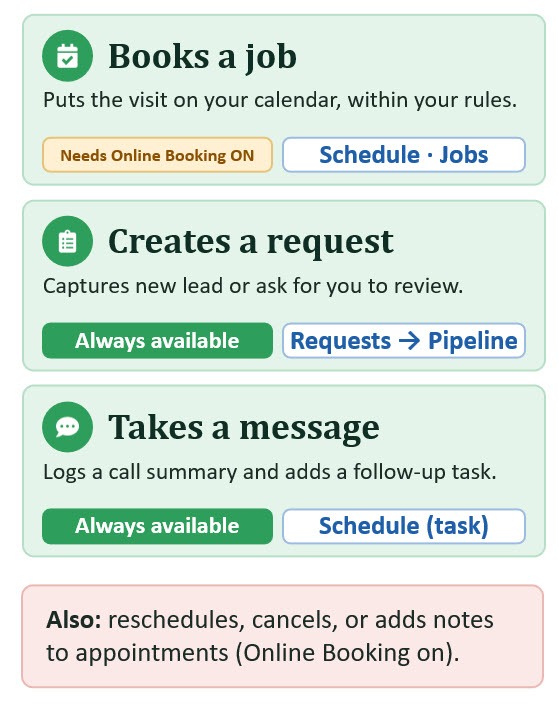
Every call or text the Receptionist handles ends in one of three outcomes. It books a job straight into your schedule, it creates a request for you to look over, or it takes a message and leaves you a follow-up task. On top of those, for callers who already have something booked, it can look up the appointment, move it to a new time, cancel it, or add a note the customer asks for.
The infographic below lays out all three, along with what each one needs and where it shows up in Jobber. The rule of thumb: only booking depends on online booking. Requests and messages work in any account.
 Click to expand
Booking a job has a close cousin worth knowing about. If your work needs eyes on site before you can price it, an assessment booking form lets the Receptionist book the on-site visit instead of the job itself. Jobber creates a request and puts the assessment on your calendar, and the Receptionist dashboard tags that conversation as an assessment scheduled.
Here is what each outcome leaves behind in your account:
| Outcome | What it needs | What lands in Jobber | Where you see it |
|---|---|---|---|
| Books a job | Job booking form, online booking on | One-off job with a scheduled visit1 | Schedule, Jobs |
| Books an assessment | Assessment booking form | Request plus a scheduled assessment | Schedule, Requests |
| Creates a request | A request form selected | Request to review, no time booked | Requests |
| Takes a message | Nothing extra | Follow-up task, same or next day2 | Schedule, Home |
| Changes a booking | Appointment handling on | Moved, cancelled, or noted visit3 | Schedule |
1. Jobber converts the request into the job automatically. 2. Scheduled for the day of the call, or the next day if the call came in after business hours. 3. Rescheduling also requires online booking. A cancelled visit becomes unscheduled with a cancellation note and keeps its original details. Source: Jobber Help Center, July 2026.
Does the AI receptionist find existing clients and create new ones?
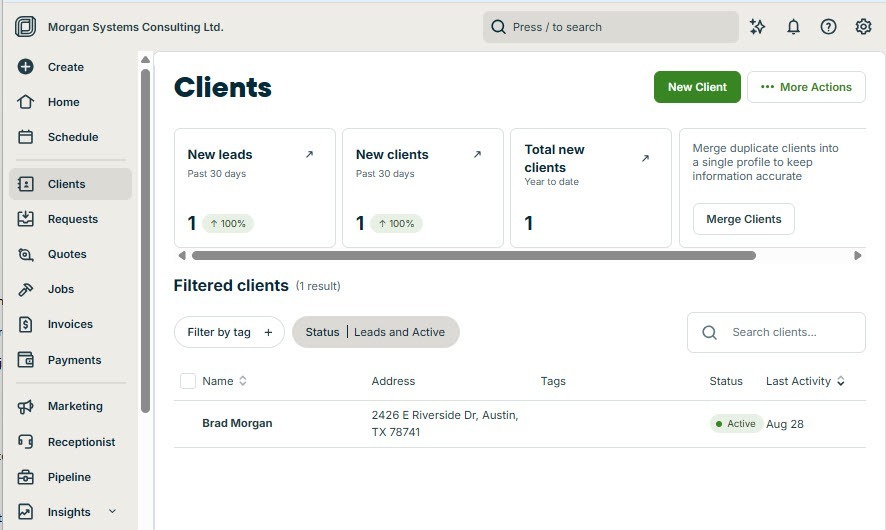
Every job, assessment, request, and task in Jobber hangs off a client record, so before the Receptionist can book anything it has to know who it is talking to. In the office, that starts on the Clients page: a searchable list of everyone you work for, with a green New Client button for someone you have never served.
 Click to expand
When you take a call by hand, this is where you begin: search the name to pull up an existing client, or click New Client to start a fresh record. The Receptionist does the same lookup on its own. With the Identify clients setting on, it matches the caller ID to a client already in your account, so a regular customer is not asked for their address all over again. It can also greet known callers by name and mention the date and time of their next appointment. Note the gear icon in the top right of this screen too, because that is where the booking setup lives (section 4).
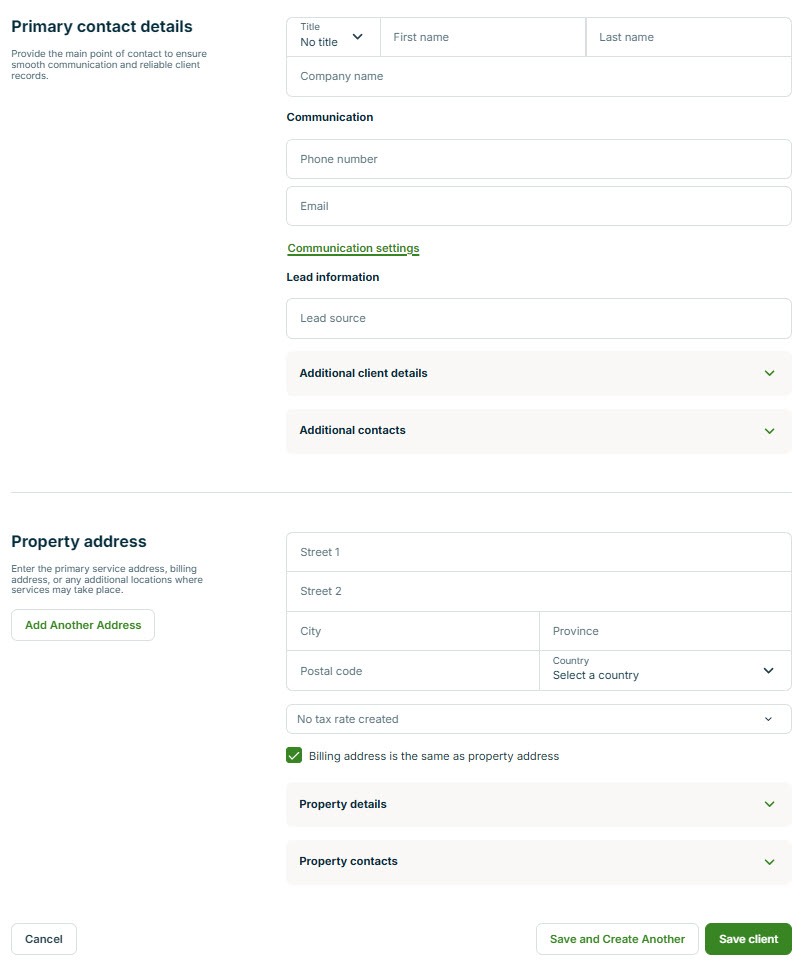
For a caller it does not recognize, the Receptionist collects what a new client record needs. Here is the form you would fill out by hand:
 Click to expand
The fields that matter for booking are the name, the contact details (phone and email), and the property address. The address is not a formality. Jobber uses it to check your service area and, if you turn on drive-time limits, to offer time slots that fit your route. On a manual entry, you type these in. On a Receptionist call, the AI asks for them in conversation. On your online booking page, the customer types them in. All three paths end in the same kind of client record, and Jobber says new leads and appointments booked by the Receptionist flow straight into your schedule and client list.
Caller ID matching only works when someone calls from a number already on their profile. A regular calling from a work phone or a family member's cell can look like a new caller. Jobber has a tool for merging duplicate clients, and the Receptionist dashboard shows the name, phone number, and property address for every conversation, so a quick weekly look keeps your client list clean.
What has to be set up before the AI receptionist can book jobs?
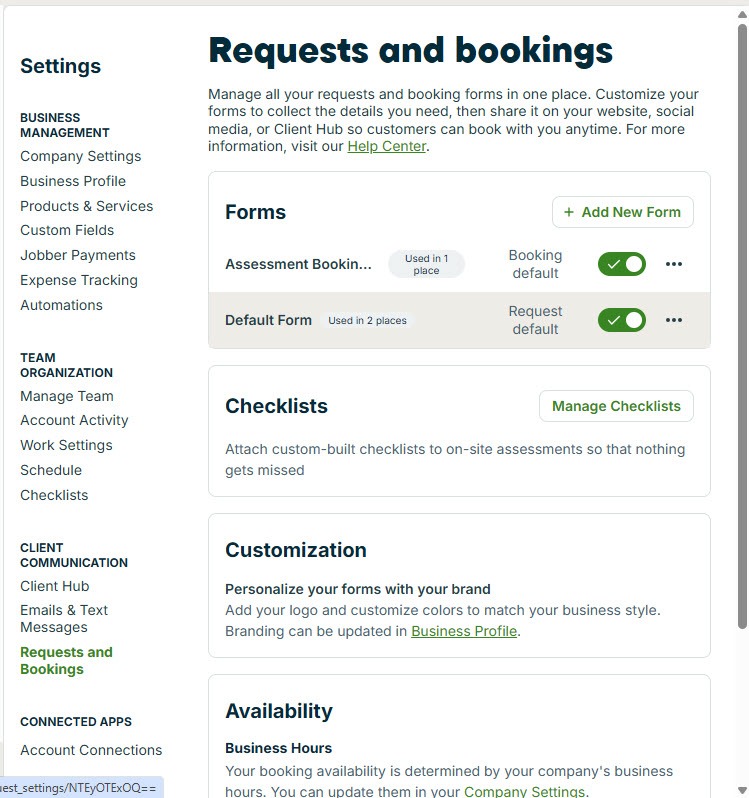
This is where most owners get stuck. The Receptionist does not have its own calendar rules. It borrows your online booking setup, and if there is no booking form, there is nothing for it to book through. You reach that setup from the gear icon: Settings, then Requests and Bookings in the settings menu.
 Click to expand
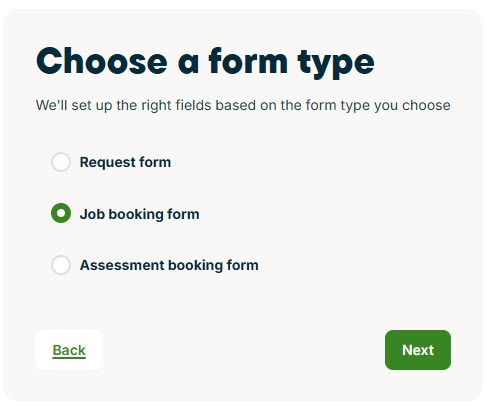
The Forms section on this page holds every intake form in your account. Click Add New Form and Jobber asks what kind of form it should be:
 Click to expand
The form type decides what the Receptionist can do with it:
- Request form: collects the job details and preferred dates, then lands as a request for you to review. Nothing goes on the calendar.
- Job booking form: the customer, or the Receptionist on their behalf, picks a bookable service and an open time, and Jobber schedules a one-off job.
- Assessment booking form: books an on-site visit so you can see the work and price it, and creates a request alongside it.
A form carries one booking type, not both, so if you sell some services at a set price and others that need a site visit, build two forms. In the Receptionist's own setup you then pick which booking form it uses for scheduling and which form it uses for requests. That step is shown in the setup walkthrough in our review.
Behind each booking form sit the rules that decide which slots the Receptionist can offer: business hours, each team member's availability, which services are bookable and how long they take, how soon a customer can book, and the spacing between visits. Those settings deserve their own page, so they have one: how Jobber online booking works, and how the AI Receptionist books through it.
Skip this step and the Receptionist still answers every call. It just cannot book. Callers who want a visit end up as requests or messages, and you are back to phoning them to set a time, which is the job you wanted the AI receptionist to do in the first place.
What does an AI receptionist booking look like on your Jobber schedule?
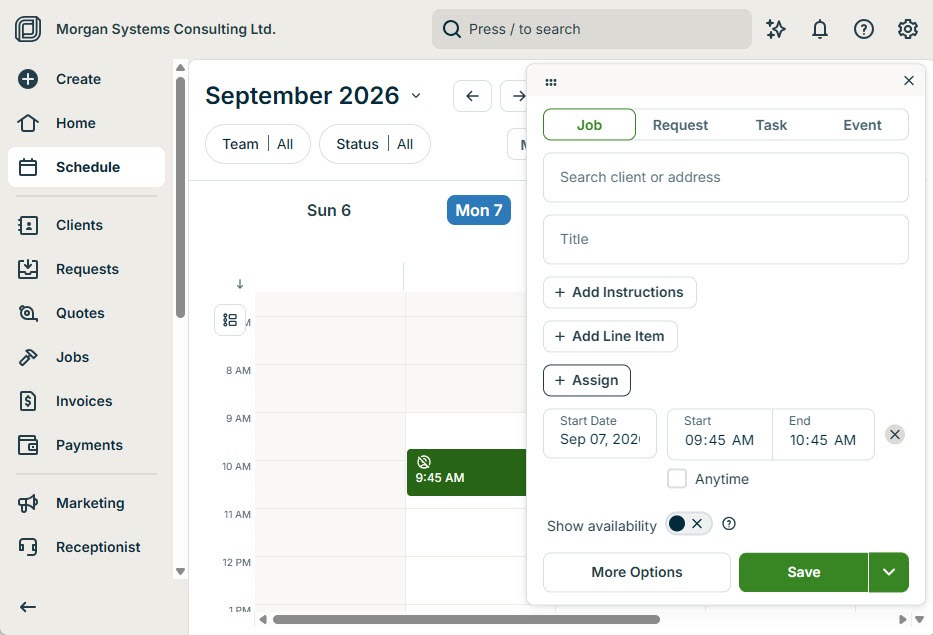
It looks the same as an appointment you added yourself, because it uses the same building blocks. Here is the Schedule in Jobber with an appointment on the calendar and its popup open:
 Click to expand
By hand, every calendar item is one of four types, a job, a request, a task, or an event, with a title, a date and time, and More options for the full details. The Receptionist fills in the same calendar without you clicking anything:
- A booked job appears as a scheduled visit, at a time your booking rules allow, assigned to a team member who is available for it.
- A booked assessment appears as an assessment on the calendar, tied to the request it came from.
- A taken message appears as a task, scheduled for the day of the call (or the next day if it came in after hours) and assigned to whoever you picked for Receptionist follow-ups. Opening the task and selecting View Receptionist activity shows the conversation summary.
- It never creates events. Events are for your own time, and that turns out to matter, as the next section explains.
On the Receptionist dashboard, every conversation is tagged with what happened, such as job scheduled, assessment scheduled, request created, or took a message, with the summary, call recording, and transcript one click away. When more than one team member is free for a slot, Jobber's online booking assigns the visit at random among them, or only to someone within your drive-time limit if you use one.
Can the Jobber AI Receptionist book into Google Calendar or Outlook?
Not directly. The Receptionist books into Jobber's schedule and nowhere else. If you keep your day in Google Calendar, Outlook, or your iPhone calendar, you can still see Receptionist bookings there through Jobber's calendar sync, but the sync only runs one way, from Jobber out to your calendar app.
Two details from Jobber's Calendar Syncing article matter before you rely on it. The sync is not real time: Jobber says Google Calendar pulls updates roughly every 12 hours, while Apple Calendar can refresh as often as every 5 minutes. And it covers a window from 2 weeks back to 20 weeks ahead. So a job the Receptionist books at 9pm may not show in your Google Calendar until the next day. Jobber itself, or the Jobber mobile app, is the live picture.
Because the sync is one way, nothing in your personal calendar blocks the Receptionist. A dentist appointment in Google Calendar is invisible to Jobber, so the Receptionist can book a customer into that slot. Even inside Jobber, a calendar event does not block online booking. To keep time off-limits, put a task with a start and end time on your own schedule, or adjust your availability for online booking in Manage Team. Jobber's own documentation recommends a task for blocking vacation time for exactly this reason.
If booking straight into a Google or Outlook calendar is a must, that is a genuine reason to look beyond the built-in Receptionist. Our comparison of the Jobber AI Receptionist vs dedicated AI voice agents covers when a standalone agent that connects to the calendar you already use is worth the extra setup.
When will the Jobber AI Receptionist not book a job?
Even with booking switched on, there are situations where the Receptionist takes a request or a message instead of putting a visit on your calendar. Knowing them up front saves you from assuming it is broken.
- No booking form, or online booking off. It can only create requests and take messages. Rescheduling existing visits stops working too, since that also needs online booking.
- Nothing open that fits. It only offers times inside your business hours, team availability, and earliest-booking setting, for services you have marked as bookable. If your settings say Sunday is closed, it tells the customer Sunday is closed, even if you would happily take the job. One owner on Jobber's community forum described watching the text receptionist turn down a day that was actually open; the fix lives in your availability settings, not in the Receptionist.
- It is paused. If your setup pauses the Receptionist when it reaches its monthly conversation allowance instead of continuing, it only takes messages until the next billing cycle and cannot book anything.
- The work needs a price first. The Receptionist books visits; it does not write quotes, create invoices, or take payment. If a job cannot be booked without a quote, an assessment booking form lets it book the site visit while you do the pricing in person.
Should you let the AI receptionist book straight into your schedule?
It depends on how predictable your work is. There is no single right setting, so here is how I would think about it.
Turn on job booking if your services are standard
Fixed-scope work with a known duration, such as a recurring lawn cut, a standard carpet clean, a routine pest treatment, or a seasonal tune-up, is where direct booking shines. The customer gets a confirmed time on the call, and you skip the callback.
Use assessment booking if every job needs a look first
Roofing, remodels, larger repairs: anything you cannot price over the phone. Let the Receptionist book the site visit and keep the pricing in your own hands.
Stick with requests and messages if your day is unpredictable
If you run mostly emergency calls, fit the business around another job, or simply do not want customers booking your time without you, requests give you the lead without handing over the calendar. The call still gets answered, the details still get captured, and you get a task to follow up.
If you are not on Jobber yet, you can build the booking forms and the Receptionist itself on a Jobber free trial before paying for anything; going live on a dedicated number is the step that needs a paid plan. For what that costs and how it compares with the rest of the category, see the AI voice agent pricing hub.
The bottom line: yes, the Jobber AI Receptionist books into your calendar, but only through the online booking setup you give it. Get the booking form and your availability right and it fills your schedule while you are on a job. Skip them and it becomes a very good message taker. For the full picture of what the Receptionist does, how setup works, and how it stacks up against the alternatives, head back to the Jobber AI Receptionist review.