
Where the Jobber AI Receptionist Stops and Jobber Automations Take Over
The AI Receptionist handles the call. After that, Jobber's automations send the confirmations, reminders, follow-ups, and payment nudges. Here is who does what, from the first call to a paid invoice.
Free trial, no credit card, then 20% off your first 6 months. That deal runs through our dedicated Jobber ambassador link, so start from this page to lock it in.
What's Inside
Where does the Jobber AI Receptionist stop, and what takes over?
The Receptionist's job ends when the conversation ends. By then it has booked a visit, created a request, or taken a message and left you a follow-up task. It does not phone customers back, chase quotes, or collect payment, because it only handles conversations customers start.
Everything after that is handled by three different helpers in Jobber. Automations are rules you switch on once that message customers for you: visit reminders, quote and invoice follow-ups, and job follow-up emails. Jobber AI can draft a quote from a new request for you to review. And reminders are tasks Jobber puts on your own schedule, such as a prompt to invoice a finished job. Together they carry a call all the way to a paid invoice, with you stepping in to price the work, do the job, and send the bill.
This page maps each hand-off. For what the Receptionist itself does, see the Jobber AI Receptionist review.
The screenshots are from my own Jobber free-trial account. How each automation behaves comes from Jobber's Help Center (the Automations, Custom Automation Builder, Emails and Text Messages Settings, Assessment and Visit Reminders, Job Follow-ups, Reminders on the Schedule, and Jobber Payments articles), checked October 2026. Several automations are only available on some Jobber plans, so check which ones your plan includes. Cost is kept off this page; see the AI voice agent pricing hub for numbers.
Who does what after a Jobber AI Receptionist call?
Here is a quoted job from start to finish, with each step labelled by who handles it. The Receptionist handles the first step. Automations handle most of the reminders and follow-ups in between, and the steps that need judgment, like pricing and the work itself, stay with you.
A job the Receptionist books directly skips the quote steps and goes straight to the visit reminder. Either way, the pattern holds: the AI starts the conversation, automations keep it moving, and you make the decisions.
Where are automations set up in Jobber?
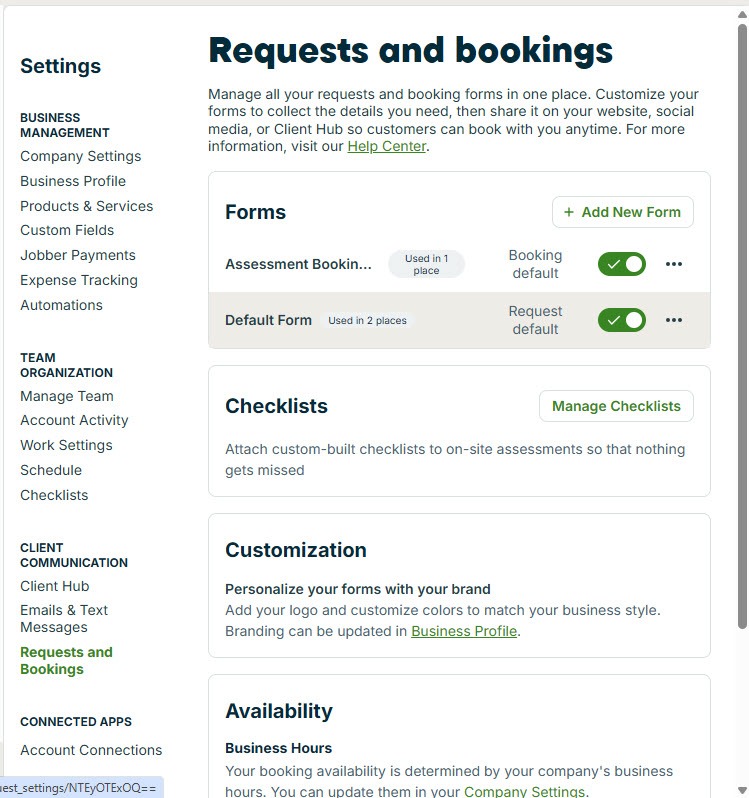
Automations live in Settings, reached from the gear icon. In the settings menu on the left, Automations sits in the Business Management section, alongside Requests and Bookings:
 Click to expand
The customer-facing automations are split across a few places:
- Settings, Automations: request automations (archiving stale requests), quote automations (drafting quotes from new requests, high-value quote alerts, and quote follow-ups), invoice follow-ups, and the custom automation builder.
- Settings, Emails and Text Messages: booking confirmations, assessment and visit reminders, and job follow-ups, each with templates you can edit.
- Settings, Work Settings: the defaults for reminders on your own schedule, such as quote reminders and invoice reminders.
If your plan does not show Automations in the menu, Jobber notes that quote and invoice follow-ups can be set up from Emails and Text Messages instead.
What does Jobber send automatically once a job is booked?
Once the Receptionist books a visit or an assessment, two kinds of messages keep the customer informed until you arrive, and the reminders run entirely on their own:
- Booking confirmation: a one-time text or email letting the customer know their job or assessment is in your books. You send it with one click from the job, or as you schedule a visit, using a template set up in Emails and Text Messages. Bookings made through your online booking page also send the customer a confirmation email on their own.
- Assessment and visit reminders: sent before every upcoming visit or assessment, by email or text. Customers can confirm from the reminder, which marks the visit as confirmed in Jobber, so you can see who is expecting you. If a visit is moved, Jobber cancels the old reminders and schedules new ones for the new time.
Two practical notes from Jobber's documentation. Text reminders for "anytime" visits with no set time only go out if you choose a reminder time, which keeps customers from getting texts in the middle of the night. And customers can be switched off reminders individually from their profile, which is handy for a commercial client who does not want them.
For what the booked visit itself looks like on your calendar, see our page on whether the Jobber AI Receptionist books into your calendar.
Which Jobber automations help turn requests into approved quotes?
When the Receptionist creates a request instead of a booking, the quote automations pick up from there:
- Automatically draft quotes from new requests: when any new request comes in, Jobber AI builds a draft quote from the request details, your quote templates, and your past quotes, ready for you to review and send. Jobber recommends switching it on once you have sent at least three quotes using the Draft for me button, and AI-drafted quotes carry a sparkle label so you know which ones to check.
- High-value quote alerts: a real-time alert when a drafted quote goes over a dollar amount you choose, so you can call that customer first.
- Quote follow-ups: up to two automatic reminders to customers whose quote is still awaiting a response. They go out the same way the quote did, by text or email, at the same time of day it was originally sent.
- Automatically archive requests: clears requests that have not become a quote or job after a set number of days, keeping your Sales Pipeline focused on live leads.
The draft quote is where the AI hand-off is closest. The Receptionist collects the details on the call, and Jobber AI turns them into a draft without you retyping anything. A person still decides the price before anything reaches the customer. The full path from request to approved quote, including when to skip the quote or book an assessment, is on our page about what happens when the Jobber AI Receptionist creates a request.
Jobber has two similar-sounding features. Quote follow-ups message the customer. Quote reminders, set in Work Settings, only put a reminder on your own schedule to follow up yourself. Use follow-ups if you want the nudge sent for you.
How does a Jobber job go from completed to paid?
This is the stretch furthest from the AI Receptionist, and it shows clearly where automations stop too. Jobber helps you remember to invoice and chases overdue bills for you, but creating the invoice is still your step unless you set up automatic payments.
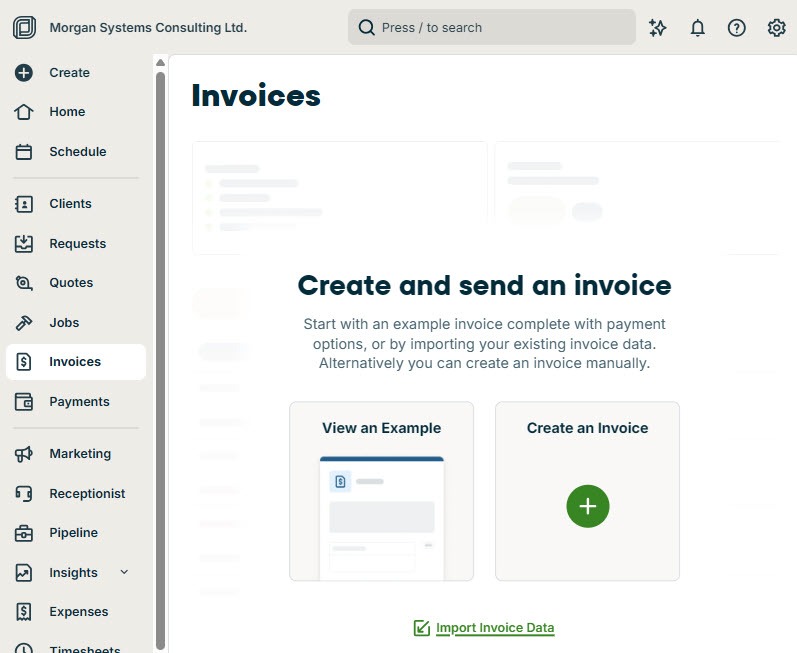
Invoice reminders. When you set up a job, its billing settings decide when Jobber reminds you to invoice, such as when a one-off job is closed or a visit is completed. The reminder appears on your schedule and the job moves to requires invoicing, so finished work does not go unbilled. Invoices themselves live under Invoices in the left menu:
 Click to expand
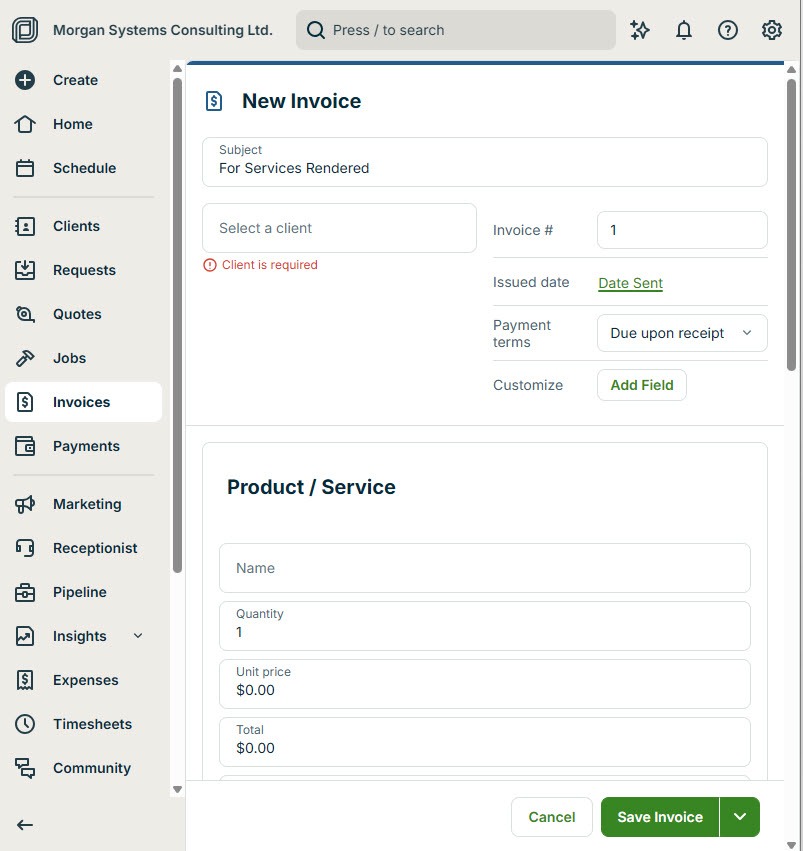
Creating the invoice. The new invoice screen works like a quote: a subject, the client, an invoice number, the issue date, and payment terms at the top, with Add Field for anything extra, then the products and services with quantity, unit price, and total.
 Click to expand
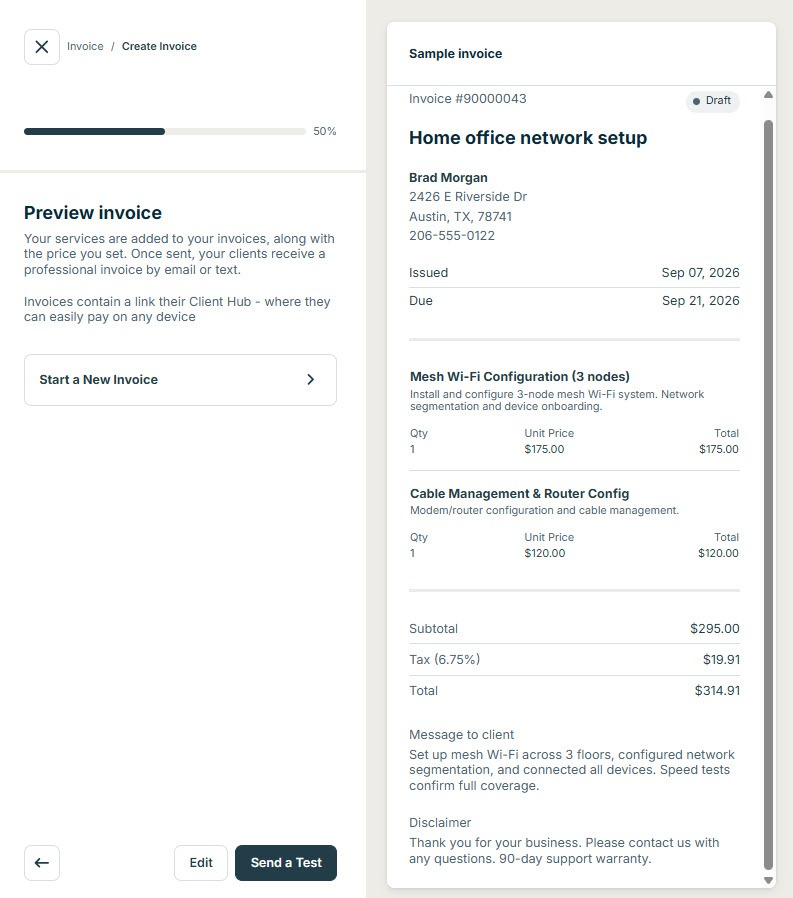
Here is a sample invoice ready to go, with two line items, the totals, a message to the client, and a disclaimer. You can send yourself a test copy before it goes to the customer:
 Click to expand
Invoice follow-ups. Once an invoice is past due, Jobber can send up to two automatic reminders, each with a one-click way to pay. Like quote follow-ups, they go out the same way the invoice did, and they send shortly after 8am local time on the day they are due.
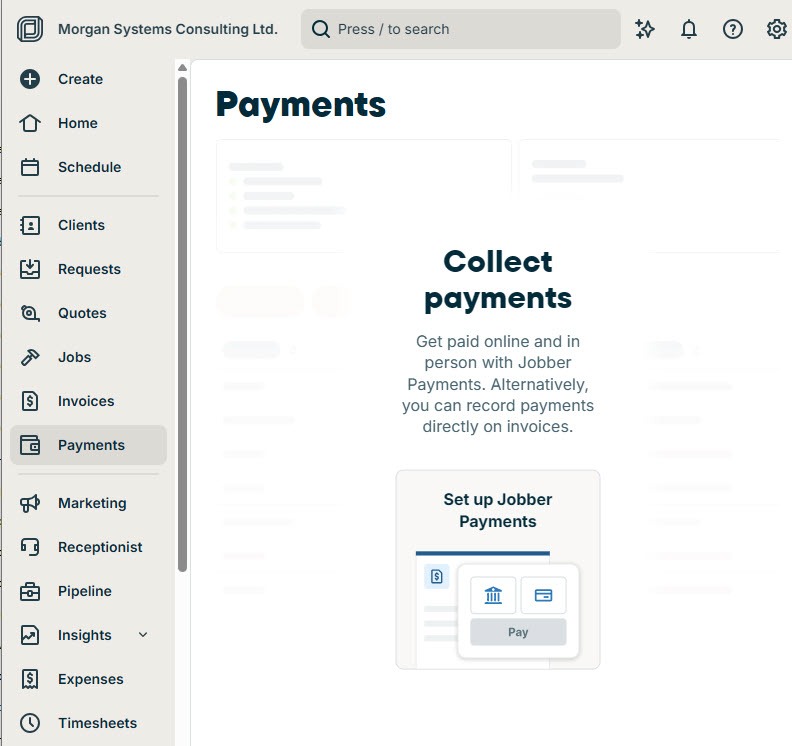
Getting paid online. Customers can pay online by card, or by bank payment where available, through Jobber Payments, Jobber's built-in payment processing. Without it, you record payments on invoices yourself. Payments are tracked under Payments in the left menu:
 Click to expand
Automatic payments. With Jobber Payments, a customer's card or bank account can be saved on file, and automatic payments can then be turned on for a job so the customer is invoiced and charged without you sending anything. You can even require customers to save a payment method when they pay a quote deposit, which lets automatic payments start as soon as the quote becomes a job. It suits recurring work like lawn care and cleaning especially well.
None of this is the AI Receptionist. Invoices, follow-ups, and payments are rules you set up in Jobber, and they work the same whether a job came from the Receptionist, your website, or a call you answered yourself.
Can you build your own automations in Jobber?
Yes, on select plans, with the custom automation builder in Settings, Automations. Every custom automation has the same three parts:
- Triggers are based on time: a set number of days after quotes are sent or approved, or after invoices are due or paid, up to 90 days, or the morning or evening an invoice is due or paid.
- Conditions narrow it down, such as a quote's status or a particular service on the quote.
- Actions include messaging the customer about an outstanding quote or invoice, changing a quote's status, and tagging clients.
Jobber's own examples include archiving quotes after 30 days with no response, tagging clients who are 30 days past due, and adding extra quote and invoice follow-ups beyond the standard two. One detail to know: a rule runs when an item reaches the exact number of days you set, so switching one on does not sweep up older quotes or invoices that have already passed that point.
For anything outside Jobber, its Zapier integration connects to thousands of other apps. Jobber events such as a new client, a new request, a quote approved, a job closed, or a new invoice can trigger actions elsewhere, like adding the client to a spreadsheet or a mailing list. Because the Receptionist's requests are ordinary Jobber requests, they can feed those workflows too.
Which Jobber automations should you switch on first?
It depends where your business leaks time or money. Here is where I would start for each situation.
If customers forget appointments: reminders
Visit reminders, backed by a quick booking confirmation, are the simplest win, especially paired with an AI Receptionist that books visits while you are on the tools. Customers who confirm from a reminder show up as confirmed in Jobber.
If quotes go quiet: drafted quotes and follow-ups
For businesses that quote most jobs, automatic draft quotes cut the time from request to quote, and two automatic follow-ups catch customers who meant to say yes and forgot.
If you chase payments: invoice follow-ups and saved cards
Invoice follow-ups handle overdue bills without awkward calls, and for recurring work, a saved card with automatic payments removes the chasing entirely.
You can try most of these on a Jobber free trial before paying, alongside the Receptionist setup; check which automations your chosen plan includes. For cost, see the AI voice agent pricing hub.
The bottom line: the Jobber AI Receptionist gets the job in the door, and Jobber's automations carry it the rest of the way: confirmations and reminders before the visit, drafted quotes and follow-ups while you are winning the work, and reminders and automatic payments once it is done. The AI handles the conversation; the automations handle the follow-through; you handle the pricing and the work. For everything else the Receptionist does, head back to the Jobber AI Receptionist review.