
What Happens When the Jobber AI Receptionist Creates a Request?
From request to assessment, quote, and booked job. Here is the path a phone inquiry takes inside Jobber, and when you can skip steps.
Free trial, no credit card, then 20% off your first 6 months. That deal runs through our dedicated Jobber ambassador link, so start from this page to lock it in.
What's Inside
- 1 The short answer
- 2 Before it can create a request: the request form
- 3 What a request holds: the client and property
- 4 The three paths from request to job
- 5 Tracking requests in the Sales Pipeline
- 6 Building the quote
- 7 From approved quote to job
- 8 Where each step lives in Jobber
- ? Frequently asked questions
What happens when the Jobber AI Receptionist creates a request?
A request is a lead that is ready for you to price. When a caller needs work that cannot be booked on the spot, the Jobber AI Receptionist creates a request using your request form: the caller's contact details, the property address, and their answers to your form's questions, all saved in Jobber and waiting for you. The caller becomes a client in your account if they were not one already.
From there, the request starts Jobber's sales path, and the Receptionist's part is done. You review it, then take one of three routes: convert it straight to a job, send a quote, or book an on-site assessment first. Once the customer approves the quote, you convert it to a job and schedule the work. Jobber AI can draft that quote for you, but a person decides what gets sent.
This page walks through each step with screens from Jobber. For the full feature picture, see our Jobber AI Receptionist review.
The screenshots are from my own Jobber free-trial account. The trial does not let the Receptionist answer a live phone number, so the request workflow described here comes from Jobber's Help Center (the Receptionist, Request Basics, Schedule an Assessment, Converting a Request to a Quote or Job, Sales Pipeline, and Automations articles), checked October 2026. Cost is kept off this page; see the AI voice agent pricing hub for numbers.
What has to be set up before the AI Receptionist can create a request?
The Receptionist does not invent its own intake questions for requests. Jobber's documentation says it submits requests using the request form you select in its settings, where you also decide whether it takes requests automatically or checks first. So the starting point is the same one used for online booking: Settings, then Requests and Bookings, then Add New Form.
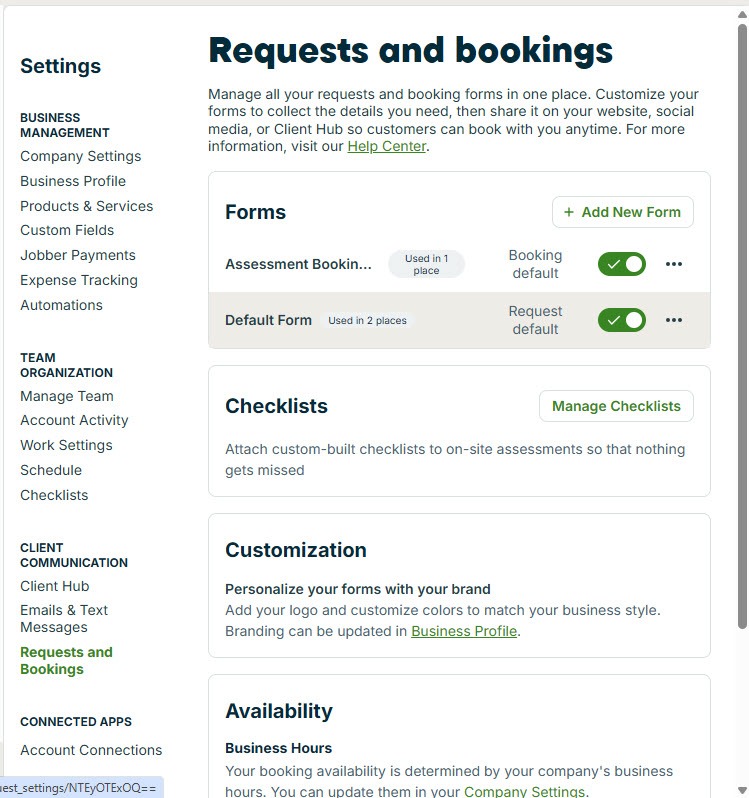 Click to expand
Jobber then asks what kind of form you are building. Job booking form is selected by default; for requests, choose Request form.
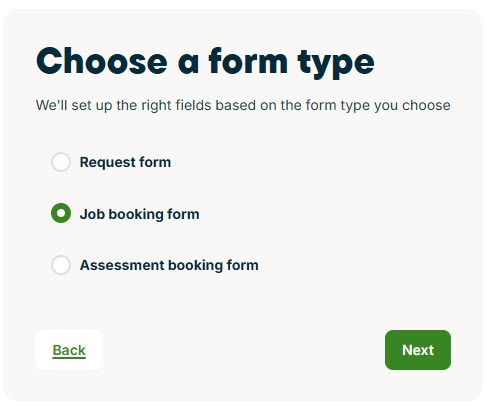 Click to expand
The form builder is the same one covered step by step in our guide to how Jobber online booking works with the AI Receptionist, so the difference here is in what you ask. A request form should collect what you need to price the job without a second phone call: the type of work, sizes or counts (rooms, windows, square footage), how soon they need it, and photos where they help. In Jobber's own sample cleaning call, the Receptionist asks for the type of cleaning and the number of bathrooms, exactly the details a cleaning company quotes from. Our page on what the Jobber AI Receptionist says to your customers walks through that call.
Every question you leave off the form is a callback you make later. Look at your last few quotes and add a question for each detail you had to chase.
What does a request from the AI Receptionist hold?
A request is only useful if you can get back to the person who made it, so every request in Jobber is attached to a client. When someone new submits one, Jobber adds them to your client list automatically. When an existing client calls, the Receptionist can match their caller ID to the record you already have.
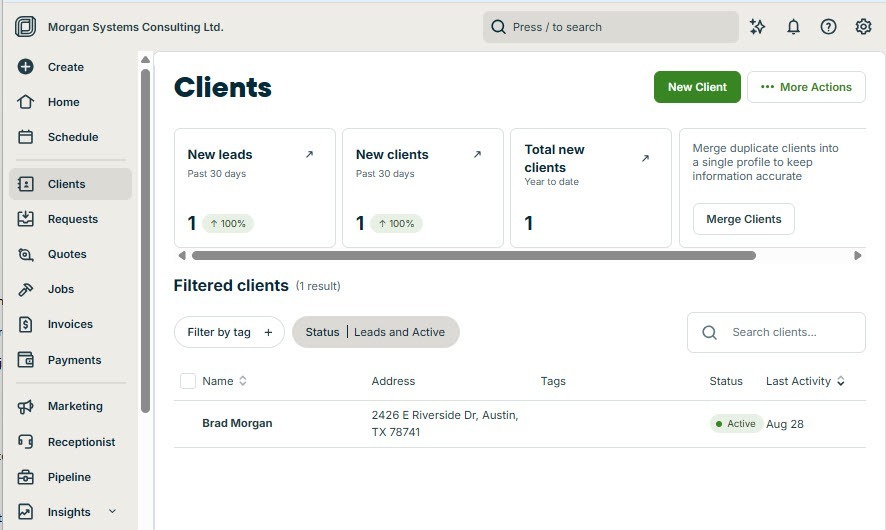 Click to expand
The client record carries the details the request depends on. Here is the new client form you would fill out by hand; on a call, the Receptionist gathers the same details in conversation:
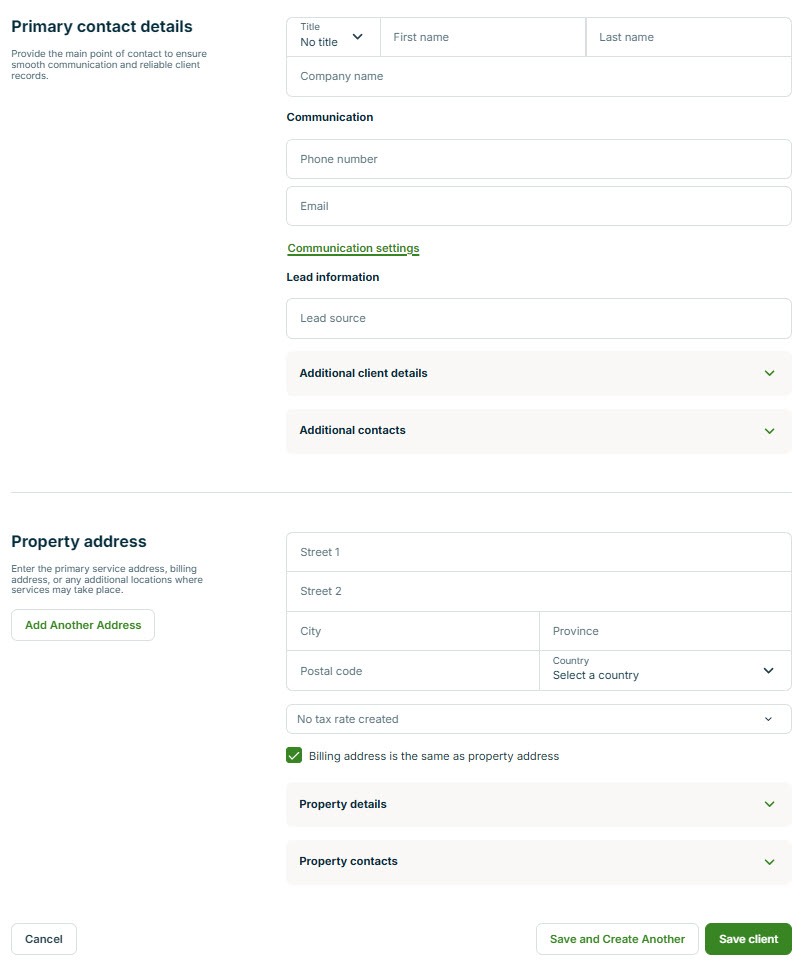 Click to expand
The property address matters most for what comes next. The request, any assessment, the quote, and the eventual job all attach to that property, so it is where your crew shows up and what the quote is written for. Alongside the client and property, the request holds the caller's answers to your form. The full conversation stays on the Receptionist dashboard, where each one has a summary, a call recording, and a transcript, and is tagged as request created.
Which path should a request take to become a job?
Not every request needs a quote, and not every quote needs a site visit. The right path depends on one question: can you price the work yet?
- Fixed price: convert straight to a job. If the work has a known scope and price, skip the quote. From the request, choose More Actions, then Convert to Job, and schedule it as a one-off or a recurring job. If you find yourself doing this for the same service again and again, make that service bookable so the Receptionist books it directly next time; our page on whether the Jobber AI Receptionist books into your calendar covers what that takes.
- Price from the details: send a quote. If the request form gathered enough, such as counts, sizes, and photos, you can quote from your desk or truck. Convert the request to a quote, send it, and wait for approval.
- Need to see it: book an assessment first. Roofing, remodels, larger repairs, anything you cannot price over the phone. From the request, click the truck icon, labeled as visiting the property to assess the job, then set the date, time, team member, and instructions. The assessment goes on your schedule. When it is marked complete, Jobber prompts you to convert the request to a quote or job, or archive it.
If you know a job always needs a site visit, give the Receptionist an assessment booking form instead of a request form. It books the visit on the call, and the third path starts with the assessment already on your calendar.
Where do you track AI Receptionist requests in Jobber?
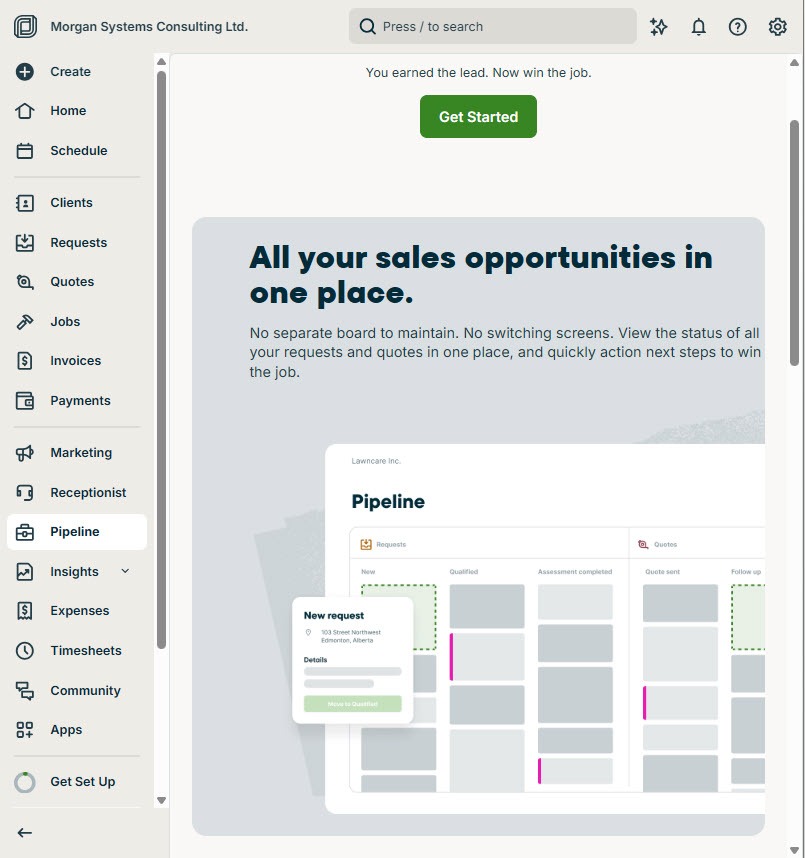
Requests land in the Requests list, and they also appear on the Sales Pipeline, opened from Pipeline in the left menu:
 Click to expand
Jobber describes the Pipeline as a Kanban-style board. Each request and quote is a card, and the cards move through stages on their own as you work: a request that becomes a quote moves along, and a quote that gets approved moves again. You do not have to drag anything. The Pipeline also flags opportunities that are overdue or have gone quiet, and you can add custom stages to match how you sell.
That makes it the natural daily stop for a business using the Receptionist. Overnight requests show up on the board in the morning, next to the quotes still waiting on an answer, so nothing the Receptionist captured sits forgotten in a list. The Requests list page adds key numbers, including how many new requests came in over the last 30 days and the share that converted into a quote or job.
How do you turn an AI Receptionist request into a quote?
The quickest route is from the request itself: choose More Actions, then Convert to Quote. Jobber opens a new quote with the client already selected and shows the request details in a panel on the right, so the caller's answers sit beside the quote while you build it.
One detail catches people out: the request's answers do not fill in the quote's line items for you. They are there for reference, and you add the line items yourself. The exception is Jobber AI. When converting a request to a quote, a Draft for me button has Jobber AI build a draft from the request details, your quote templates, and your past quotes, ready for you to review and send. Jobber can also run that automatically for every new request; we cover where the Receptionist stops and automations like this take over in our guide to the Jobber AI Receptionist and Jobber Automations.
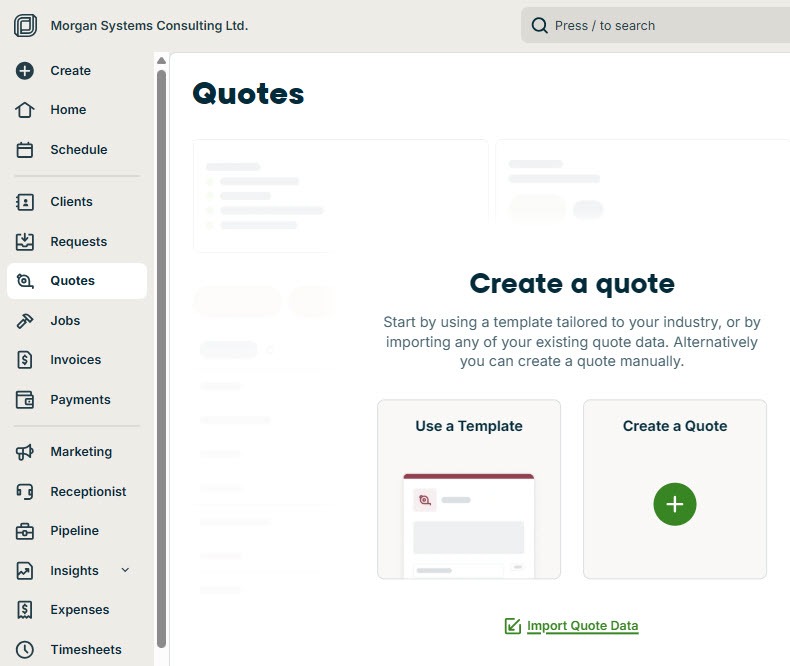
You can also start a quote without a request, from Quotes in the left menu, which offers to use a template, create a quote from scratch, or import quote data:
 Click to expand
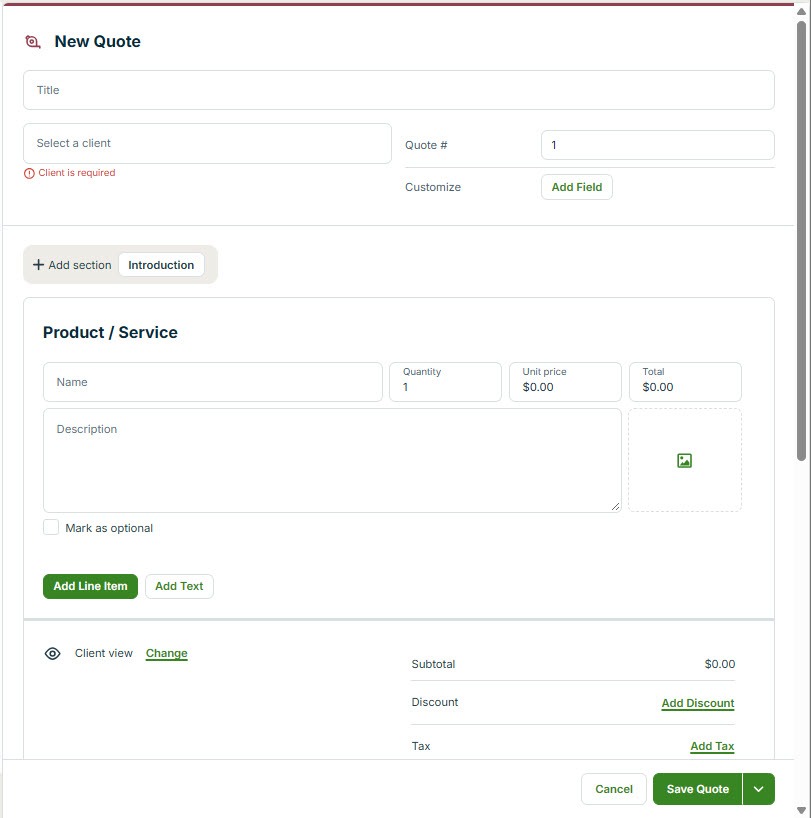
Either way, you end up on the quote screen:
 Click to expand
A quote needs a client and at least one line item. Each line item comes from your Products & Services list or is written on the spot, with a quantity, a unit price, a total, and a description the customer will read. Add Line Item builds out the rest, and Client View previews the quote the way your customer will see it. You can also require a deposit before the work goes ahead. When you send the quote, it moves from Draft to Awaiting response.
How does an approved quote become a job?
Customers can open the quote in Client Hub, Jobber's customer portal, and approve it online with a signature, or ask for changes. You can also mark a quote approved yourself, for a customer who says yes on the phone. Quote statuses track each of these: awaiting response, changes requested, approved, and finally converted.
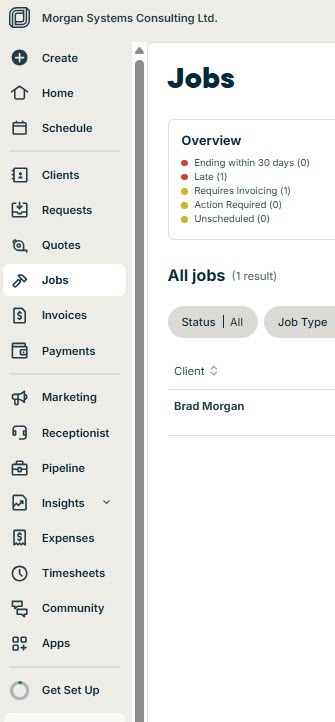
An approved quote is converted into a job, and the job is what goes on the schedule and later gets invoiced. The original request is marked Converted, with a reference to the quote or job it became, so you can trace any job back to the call that started it. Jobs live under Jobs in the left menu:
 Click to expand
This is a trial account, so the list is short, but in a working business this page fills with every job you have won, from every source. From here, the job is scheduled like any other, and our calendar booking page shows what booked work looks like on your Jobber schedule.
Where does each step live in Jobber?
Every stage of the path has its own place in Jobber's left menu, which is handy when you are learning where to look:
The Receptionist only handles the first box. Everything after it is you, your customer, or Jobber's automations, which is worth knowing before you buy: the AI gets the lead in the door with the details filled in, and winning the job is still your sales process.
The bottom line: when the Jobber AI Receptionist creates a request, it hands you a client, a property, and the answers you need to price the job. Convert it straight to a job when the price is fixed, quote it when the details are enough, and book an assessment when you need to see it first. Jobber tracks each step on the Sales Pipeline until the request becomes a job.
If you are not on Jobber yet, you can build the request form, try the quote and pipeline screens, and set up the Receptionist on a Jobber free trial; putting the Receptionist on a live phone number is the step that needs a paid plan. For cost, see the AI voice agent pricing hub, and for everything else the Receptionist does, head back to the Jobber AI Receptionist review.