
What Happens After the HighLevel AI Voice Agent Takes a Call?
Answering the phone is the easy part. What makes HighLevel different from a standalone AI receptionist is what happens next: the contact record, the inbox your team works from, the sales pipeline, and the workflows that follow up so nobody has to remember to. Here is how each piece connects, and which parts you have to build yourself.
Our link gives you a 30-day free trial, double the 14 days on HighLevel's own homepage, plus a free live bootcamp where a HighLevel coach walks you through setup. HighLevel asks for billing details to start the trial.
What's Inside
What does HighLevel do with a call after the AI Voice Agent answers?
It turns the call into a record, and the record into follow-up. The agent creates or updates the caller's contact, can save a call summary to their notes, and logs the whole call. From there, your team can pick up the thread in the Conversations inbox, the lead can land in your opportunities pipeline, and workflows can send confirmations, alert your team, chase people who did not book, ask for reviews, and bring old customers back.
The catch is that most of that follow-up does not exist until you build it. The agent and the CRM are connected out of the box; the workflows are yours to set up. If you have not built the agent yet, start with the 12-step setup walkthrough.
The screenshots come from my own HighLevel account in May 2026, while I was setting up the agent, not from a live business taking customer calls. How the agent hands calls to the CRM and workflows follows HighLevel's Help Center, checked October 2026, and HighLevel has renamed some screens since my screenshots, as noted where it matters.
What does the HighLevel AI Voice Agent save to the contact?
HighLevel's Voice AI overview, updated September 2026, says the agent can collect details such as name, email, and address and create or update the contact record as it goes. Three settings decide how much you get:
- Update Contact Field actions: one for each detail you want saved, such as the service needed, the address, or how they heard about you. This is how custom fields get filled instead of a few notes and a phone number.
- The call summary: a post-call setting decides whether the AI summary is saved to the contact's notes. Turning it off only keeps it out of the notes; the summary still sits in the call logs.
- Recording: if it is on, the recording plays back from the call log. Widget conversations are not recorded, as our HighLevel website widget and phone guide explains.
| You want to see | Where it is |
|---|---|
| Who called and what they need | The contact record, with the summary in notes if you turned that on |
| The full conversation and recording | AI Agents, then Agent Logs |
| Which actions ran, and anything that failed | The execution timeline inside each Agent Log |
| Call volume and trends | The Voice AI dashboard |
From HighLevel's Voice AI Agent Logs and Call Details (updated June 24, 2026), How to Create Voice AI Agents, and Overview of Voice AI Agents (updated September 17, 2026).
If a caller says they booked and nothing is on your calendar, the Agent Log's execution timeline is the first place to look. It lists every action, delay, transfer, and failure in order, so you can see whether the booking ran at all.
How does your team follow up in the HighLevel Conversations inbox?
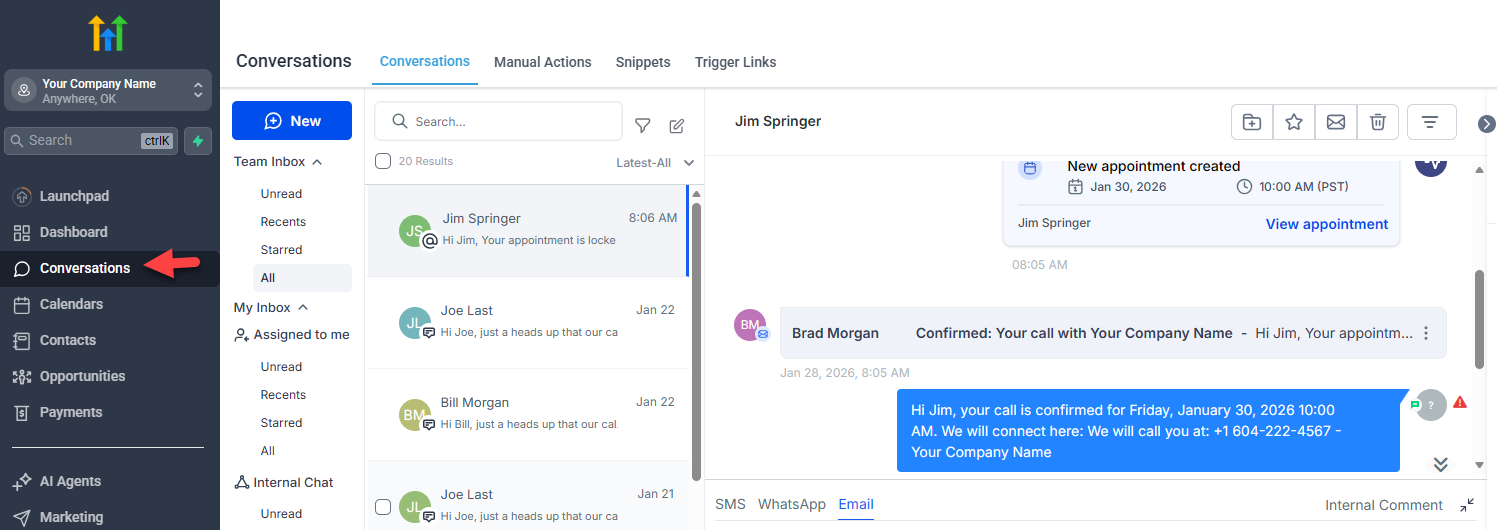
Conversations is HighLevel's shared inbox: texts, emails, calls, and social messages for each contact in one thread. When the agent has taken a call and sent a follow-up text, a person on your team can open that contact and reply in the same thread, with the agent's summary in the notes beside it.
 Click to expand
This matters most for the calls the agent should not finish on its own: a quote that needs a human, an unhappy customer, or a website visitor who asked for a person, since the widget cannot transfer. A workflow can flag those for you, as in section 6.
Can the HighLevel AI Voice Agent add callers to your pipeline?
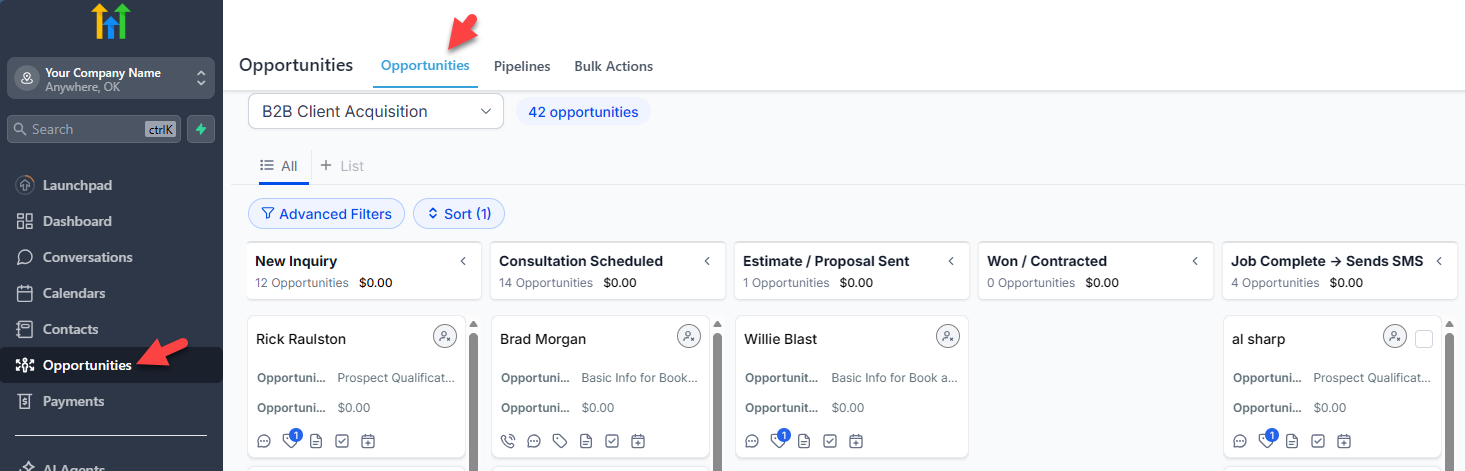
Yes. In HighLevel, a pipeline is your sales process, its stages are the steps, and each opportunity is one potential deal tied to a contact. HighLevel lists "creating or updating opportunities" as one of the agent's silent after-call actions, and a workflow with the Create or Update Opportunity action can do the same with more control over the pipeline, stage, and lead value.
 Click to expand
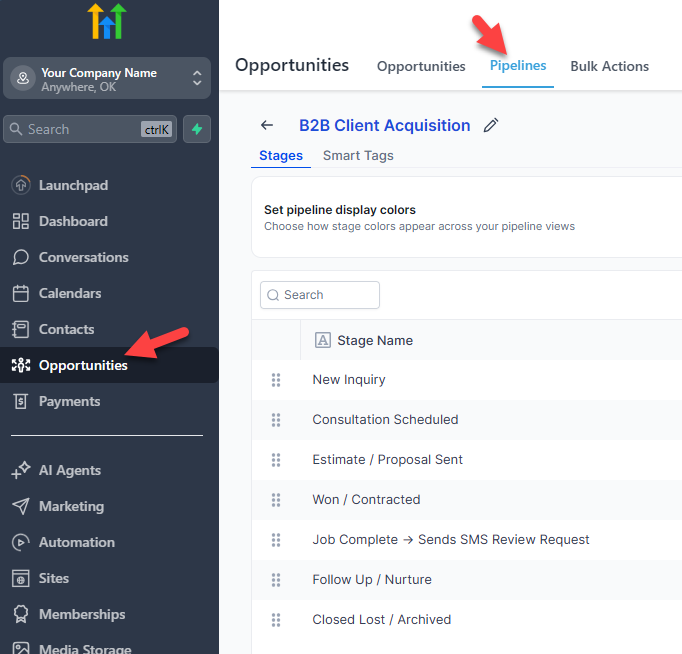
You name the stages yourself. HighLevel's getting-started article suggests examples such as New Lead, Booked Call, Hot Lead, No Show, and Closed. For a small business taking calls, a simple version might be:
| Stage | How a lead gets there |
|---|---|
| New lead | The agent took the call but nothing was booked |
| Booked | The agent or your team booked an appointment |
| Quoted | Your team sent a price |
| Won or lost | You mark the result, which can start the next workflow |
Stage names are examples. Each opportunity also has a status, which HighLevel's Pipeline Stage Changed article lists as Open, Won, Lost, or Abandoned.
 Click to expand
Moving a lead between stages, or marking it Won, can start a workflow through the Pipeline Stage Changed and Opportunity Status Changed triggers. That is how a closed job can lead to a review request without anyone remembering to send one.
Which HighLevel Voice AI actions run during the call, and which after?
HighLevel splits the agent's actions by when they happen. During the call, the agent does things the caller hears it do. After the call, it works silently, with no confirmation to the caller:
The action types on the agent's Actions panel, in HighLevel's October 2026 build, are Call Transfer, Agent Transfer, Trigger a Workflow, Send SMS, Update Contact Field, Appointment Booking, and Custom Action. In my May 2026 build these sat under Agent Goals. Trigger a Workflow is the bridge to everything else on this page: the agent hands the contact to a workflow, and the workflow does the rest.
There is a second way in. The Transcript Generated workflow trigger starts a workflow once a call's transcript is ready, with filters for call type (choose Voice AI), direction, and a minimum length, so short hang-ups do not set anything off. HighLevel's article says the full transcript is available inside the workflow, for example to log objections on the contact or to let an AI step decide what happens next.
What follow-up workflows should you build for the HighLevel AI Voice Agent?
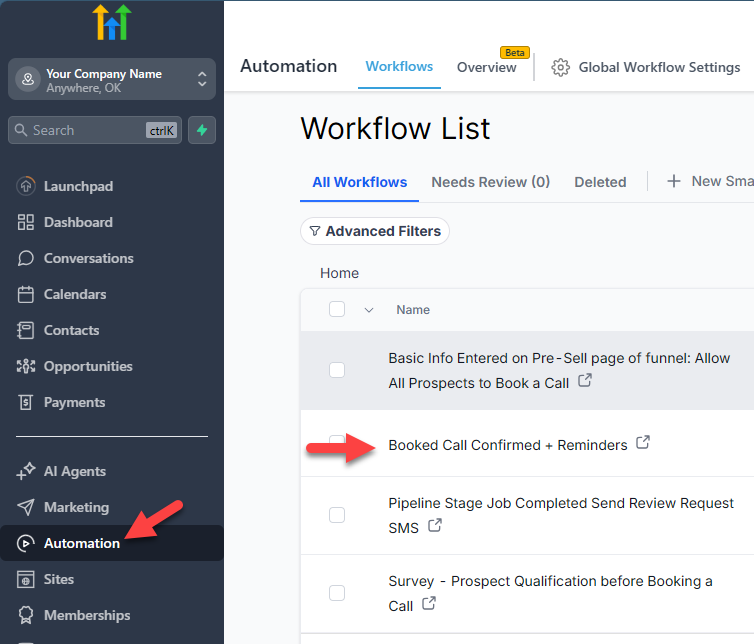
Workflows are built under Automation, Workflows: a trigger, then the steps that follow. Here is an example from my account, a booking confirmation:
 Click to expand
These five cover most of what a small business needs after the agent takes a call. Build them one at a time, and test each with a real call before adding the next.
| Workflow | Starts from | What it does |
|---|---|---|
| 1. Confirm the booking | The calendar's own Notifications tab; no workflow needed | Sends a confirmation, then reminders at the times you set |
| 2. Flag calls that need a person | Transcript Generated, or the agent's Trigger a Workflow action | Notifies or assigns a task to the right person on your team |
| 3. Follow up with people who did not book | The agent's Trigger a Workflow action when no booking was made | Sends a text with your booking link, then a reminder a day or two later |
| 4. Ask for a review | Opportunity Status Changed, moved to Won | Sends a review request by email or text with the Review Request action |
| 5. Bring old customers back | A list or tag you choose, on your schedule | Has the agent call them with the Voice AI Outbound Call action |
Triggers and actions named as in HighLevel's Help Center, October 2026. The timings are examples; you set them. Number 1 is a calendar setting rather than a workflow; use a Customer Booked Appointment workflow only for messages the calendar cannot send, or customers get two confirmations.
Booking confirmations and reminders, and how the agent books in the first place, are covered step by step in our HighLevel AI Voice Agent booking guide.
HighLevel's outbound calling article, updated September 18, 2026, says it does not check whether a contact has agreed to receive AI calls, and that accepting its outbound terms does not count as consent from any contact. It also limits each number to one call a day and calls only between 8 a.m. and 8 p.m. in the contact's time zone. Whether you can call a contact with AI, and how you handle opt-outs, depends on the rules where they live, so check those before workflow 5.
What should you know before relying on HighLevel's CRM and workflows?
- Nothing follows up until you set it up. The contact record and logs come with the agent. Booking confirmations and reminders are notifications you turn on in each calendar; alerts, follow-up, and review requests are workflows you build. The free bootcamp and onboarding call from our link are a good place to get help with the first few.
- It is a sales CRM, not job software. HighLevel tracks leads and deals. It has no dispatch board, price book, or crew scheduling. If you already run Jobber or Housecall Pro, their built-in receptionists book straight into that, as our Jobber AI Receptionist review and Housecall Pro CSR AI review explain.
- Long transcripts do not fit in one field. HighLevel's Transcript Generated article says custom fields hold up to 16 KB, so long calls belong in a note or a file, not a contact field.
- Only HighLevel calls count. The Transcript Generated trigger works for calls recorded and transcribed inside HighLevel, not for calls on another phone system.
- Outbound calling is your responsibility. HighLevel provides the tool and the limits; consent and opt-outs are yours to manage.
Workflows, the CRM, and the pipeline come with the HighLevel subscription; the AI agent and phone minutes are what add to the bill. See the HighLevel AI Voice Agent cost breakdown for how that adds up.
Who gets the most from HighLevel's after-call automation?
Best fit: businesses that sell by appointment
Consultations, estimates, and discovery calls, where the money is in following up quickly and moving leads through a pipeline.
Strong fit: anyone replacing several marketing tools
If you pay separately for a CRM, texting, email, and review requests, having the phone agent feed all of them in one place is the real value.
Weaker fit: field service on Jobber or Housecall Pro
You would be running two systems. The receptionist built into your job software is the simpler choice; see the best AI voice agents for small business.
Not yet: if you only want calls answered
If you will not build workflows, a standalone AI receptionist may be simpler and cheaper; compare them in the AI voice agent pricing hub.
To build these workflows in your own account, join the free bootcamp and start a 30-day HighLevel trial. You can see what the offer includes on our HighLevel AI Voice Agent QuickStart Bootcamp page.
The bottom line: after the HighLevel AI Voice Agent takes a call, it creates or updates the contact, can save a summary to the notes, and logs everything in Agent Logs. From there, the Conversations inbox lets your team take over, the opportunities pipeline tracks the lead, calendar notifications send confirmations and reminders, and workflows you build handle alerts, follow-up, review requests, and reactivation. For setup, the website and phone line, and every other part of the agent, head back to the HighLevel AI Voice Agent review and setup guide.
Frequently Asked Questions
Sources
HighLevel Support Portal (help.gohighlevel.com), checked October 2026: Overview of Voice AI Agents (updated September 17, 2026), How to Create Voice AI Agents, Voice AI Agent Logs and Call Details (updated June 24, 2026), Workflow Trigger: Transcript Generated (updated February 19, 2026), Getting Started: Setup Pipelines and Opportunities (updated August 24, 2026), Workflow Trigger: Pipeline Stage Changed and Workflow Trigger: Opportunity Status Changed (both updated February 26, 2026), Workflow Action: Review Request, and Voice AI Outbound Calling (updated September 18, 2026). Screenshots are from my own HighLevel account, May 2026.