
How to Put the HighLevel AI Voice Agent on Your Website and Phone Line
The same agent can talk to visitors through a voice widget on your website and answer your business phone. Here is how to set up the HighLevel Voice AI widget, embed it on any site, connect a phone number without losing the one you have, and route calls so the agent answers only when it should.
Our link gives you a 30-day free trial, double the 14 days on HighLevel's own homepage, plus a free live bootcamp where a HighLevel coach walks you through setup. HighLevel asks for billing details to start the trial.
What's Inside
How do customers reach a HighLevel AI Voice Agent?
Two ways, one agent. On your website, a Voice AI chat widget lets visitors talk to the agent through their browser microphone, with no phone number involved. On your phone line, the agent answers an LC Phone or Twilio number in your HighLevel account. Both use the same agent, with the same knowledge base and actions, so you build it once.
Most businesses start with the website, because it needs no number and no phone charges, then add the phone line once they trust how the agent handles questions. If you have not built the agent yet, start with the 12-step setup walkthrough.
The widget screenshots come from my own HighLevel account in May 2026, where I put a Voice AI widget on one of my funnels. I did not connect a live phone number to that agent, so the phone and call routing sections follow HighLevel's Help Center, checked October 2026, and HighLevel has reorganized some screens since my screenshots, as noted where it matters.
Phone charges are kept off this page; see the HighLevel AI Voice Agent cost breakdown.
How do you set up the HighLevel Voice AI chat widget?
Build and save your agent first; HighLevel will not let you create a Voice AI widget until a Voice AI agent exists. Then:
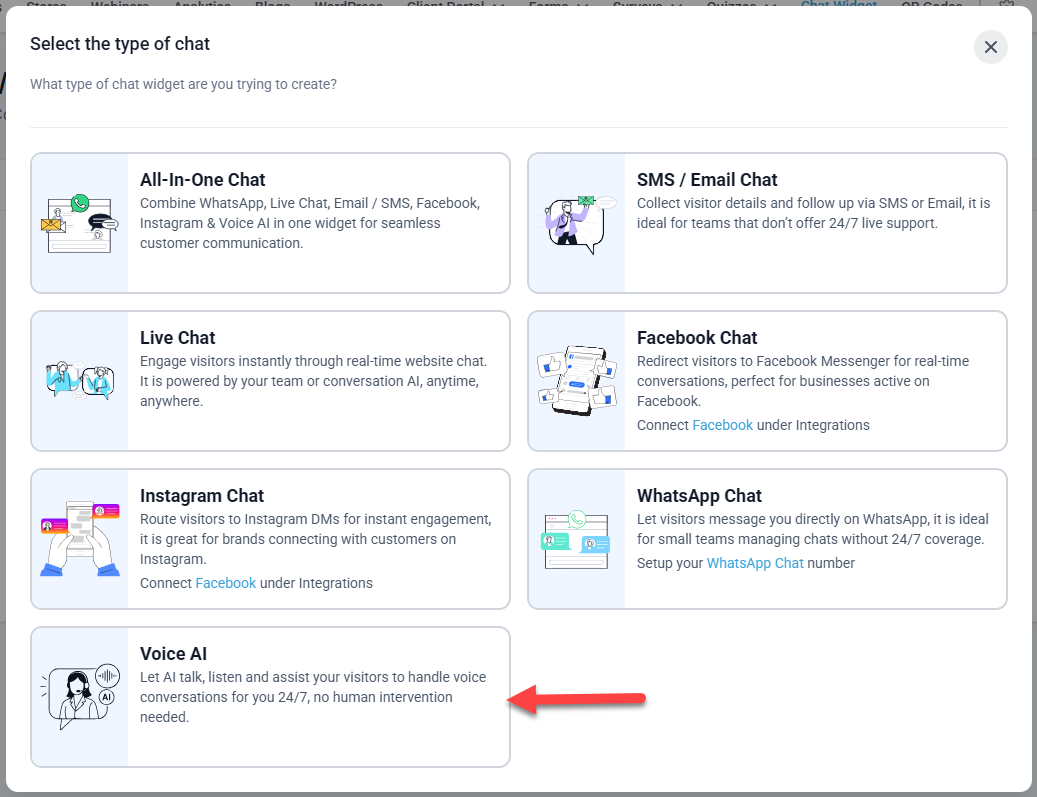
Go to Sites, Chat Widget, click + New, and choose Voice AI. You can also create or connect a widget from the Chat section of the agent's Deploy tab.
 Click to expand
Do not see a Voice AI option? HighLevel's widget article, updated August 2026, lists the Voice AI Chat Widget as a Labs feature: turn it on under Settings, Labs, for your sub-account.
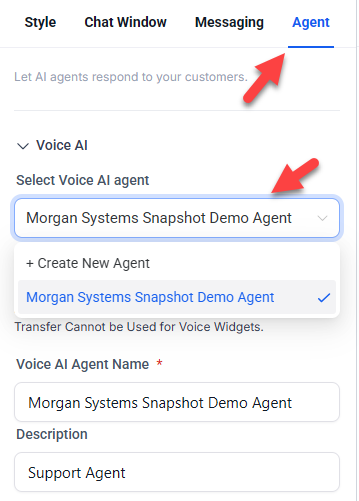
The builder has four tabs: Style, Chat Window, Messaging, and Agent. On Agent, choose your Voice AI agent and enter the Voice AI Agent Name visitors will see, such as "Front Desk."
 Click to expand
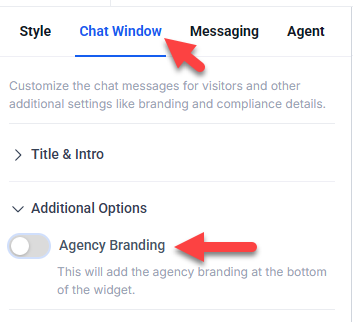
Give the widget a title visitors will understand, such as "Talk to us now," and decide whether to show the agency branding line.
 Click to expand
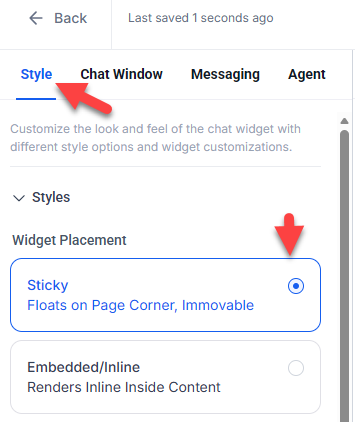
The Style tab decides where the widget sits:
- Sticky: a floating button fixed in the corner of every page, the version I used.
- Embedded / Inline: the widget sits inside the page itself, such as in a hero section or next to a booking form. HighLevel's embedded widget article adds two display modes, Avatar (a still image) or Visualiser (moving visuals as the agent talks, in small, medium, or large), and says it resizes for phones on its own.
 Click to expand
Click Save when you are done. You can run a sticky widget site-wide and several embedded ones on key pages, all connected to the same agent.
How do you add the HighLevel voice widget to your website?
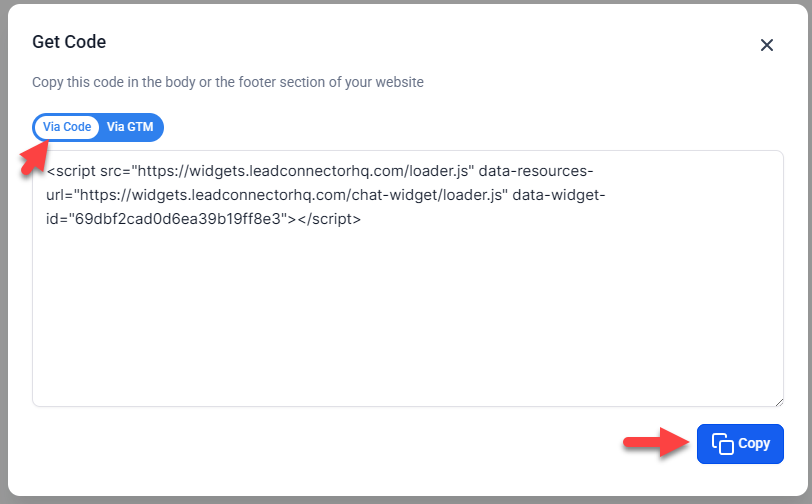
In the widget builder, click Get Code beside Save and copy the <script> tag.
 Click to expand
Where it goes depends on the site:
| Where your site lives | Where to paste the code |
|---|---|
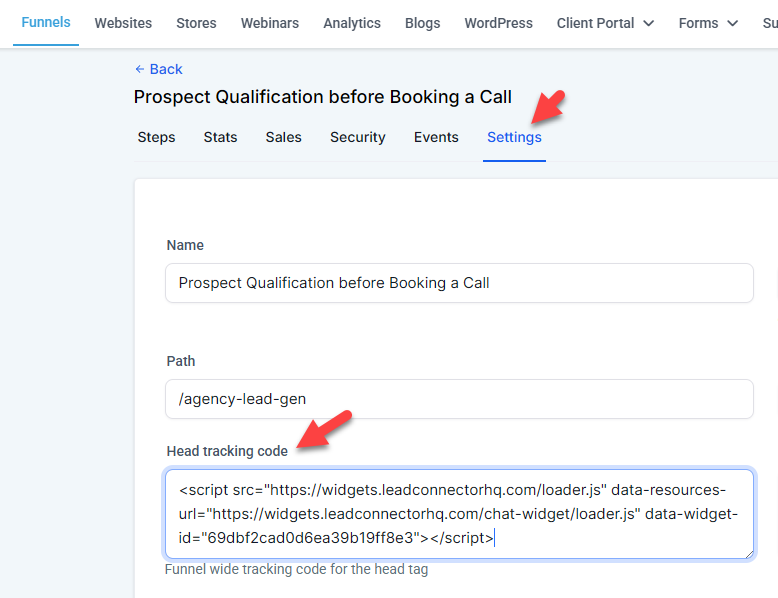
| HighLevel funnel or website | The funnel's Settings, in Head Tracking Code, for a sticky widget on every page; or a Code element on a page for the embedded version |
| WordPress | A header and footer code plugin for site-wide, or a Custom HTML block for one page |
| Wix | The site's Custom Code settings |
| Squarespace | Code Injection |
| Shopify | Your theme's code, in the head of the layout file |
| Any other site | The header or footer tracking code area |
HighLevel's widget articles cover HighLevel funnels and "the Header or Footer Tracking" of any site; the other rows are where those site builders put custom code, as of October 2026.
On a HighLevel funnel, this is the Head Tracking Code field, and the widget then shows on every page of that funnel:
 Click to expand
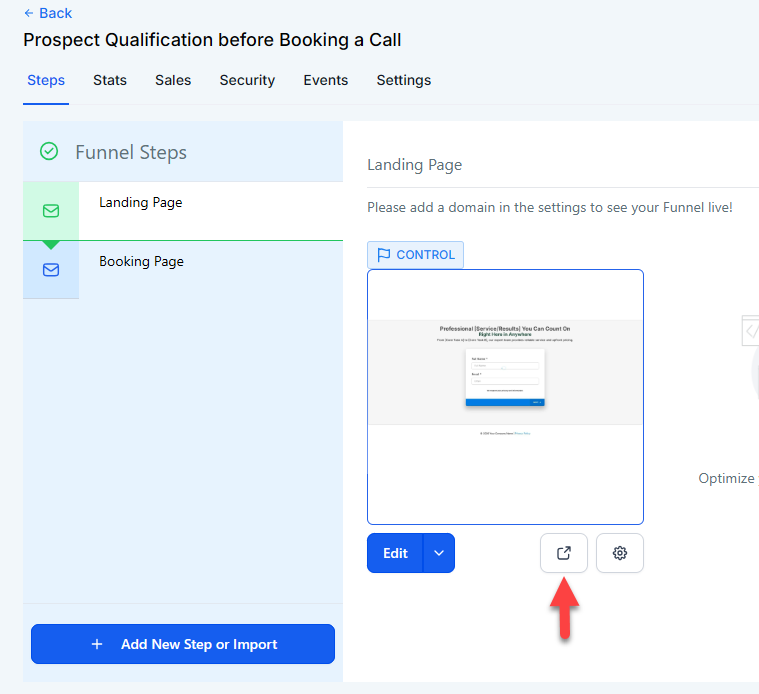
Publish, open the page in a new tab, click the widget, and allow the microphone. Here it is running on my funnel:
 Click to expand
What can the HighLevel voice widget do compared with a phone line?
It is the same agent, but the website and the phone line do not behave identically. HighLevel's widget article lists a few things the widget does not do yet:
| Website widget | Phone line | |
|---|---|---|
| Needs a phone number | No | Yes, LC Phone or Twilio |
| Answers questions, books, updates contacts | Yes | Yes |
| Transfers to a person | Not currently available | Yes, with a Call Transfer action |
| Recording | Not recorded; visitors see a notice | Recording and transcript in call history |
| Outbound calls | No | Yes, if you set them up |
| Phone charges | None | Yes, per minute on your number |
| Abuse protection | A reCAPTCHA check after 10 connects in 60 seconds | Your phone system's settings |
From HighLevel's How to Set Up and Use the Voice AI Chat Widget (updated August 26, 2026) and Overview of Voice AI Agents (updated September 17, 2026).
The missing transfer is the one to plan around. If a website visitor needs a person, have the agent take their details and trigger a workflow that alerts your team, or give them your phone number. Booking and the agent's other actions work the same as on the phone; see how the HighLevel AI Voice Agent books appointments.
Can you keep your business number with the HighLevel AI Voice Agent?
Yes. HighLevel's Voice AI only works with LC Phone (HighLevel's own phone service) or Twilio numbers in your account, but there are four ways to get there, and three of them keep the number customers already have:
| Option | How it works | Worth knowing |
|---|---|---|
| Buy a new number | Pick an LC Phone number, which you can do from the agent's Deploy tab | Fastest; good for a dedicated after-hours or ad-campaign line |
| Forward your existing line | Keep your carrier and set your line to forward calls to a HighLevel number | No porting; your carrier decides whether it forwards all calls or only missed ones |
| Port your number | Move your number to LC Phone with a letter of authorization and a recent bill | About 2 to 4 weeks for US numbers; keep your old carrier active until it is done |
| Import a Twilio number | Connect a number you already have on Twilio | For businesses already using Twilio |
From HighLevel's Porting Your Phone Number article (updated September 3, 2026), How to Create Voice AI Agents, and Overview of Voice AI Agents. Forwarding is set with your current phone carrier.
A few porting details from HighLevel's guide: the in-app porting flow is for US numbers, other countries go through HighLevel support, a bill must be under 90 days old with a name and address that match your carrier's records, and texting history does not come across. If you text customers from a US local number, HighLevel also needs A2P 10DLC registration for that number, which is a separate step.
A number already set up for something else, such as an IVR phone menu, cannot also be assigned to an agent. HighLevel also warns that if the agent is assigned to a number without call forwarding, it answers every call to that number, so think twice before assigning your sub-account's main number.
How do you choose which calls the HighLevel AI Voice Agent answers?
On the agent's Deploy tab, which was called Phone & Availability in my May 2026 build, HighLevel's Help Center lists these settings:
- Phone: one or more numbers, or a number pool, a group of numbers that all reach the same agent. Useful for separate numbers per location or per ad.
- Call routing: Answer Calls Directly, so the agent takes every call, or Use as Backup, so your team gets the first ring and the agent answers only if nobody picks up.
- Working hours: All Hours, or a custom schedule, which can run past midnight. An after-hours-only agent is a common way to start.
- Fallback: the number's own forwarding, timeout, and voicemail settings, for anything the agent does not handle.
With backup routing, the timeout decides how long HighLevel waits before handing the call to the agent. HighLevel's inbound call flow article recommends a short one, around one to three seconds, because if a call reaches a voicemail box first, HighLevel marks it completed and the agent never answers. You will find the setting under Phone System, Phone Numbers, Edit Configuration, Call Forwarding.
How do you test the HighLevel AI Voice Agent on your website and phone?
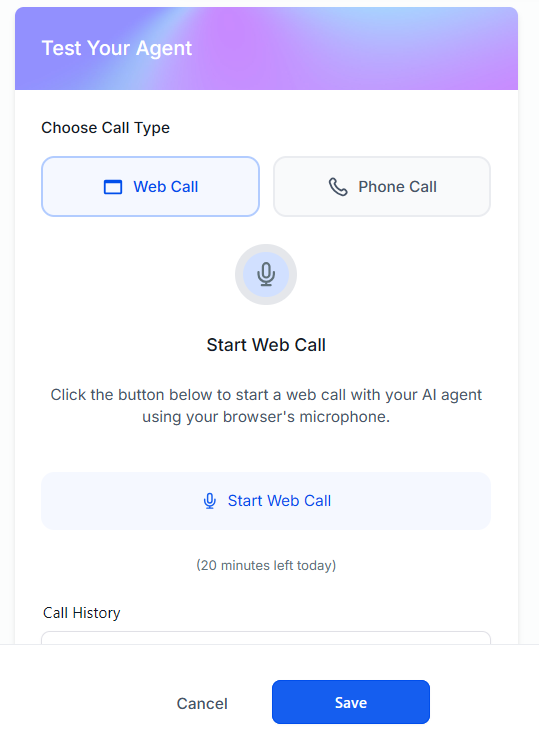
The agent's Test panel offers a Web Call in your browser or a Phone Call over real telephony. Then test the real thing: the widget on your live page and a call to your number from your own phone.
 Click to expand
| Test | A pass looks like |
|---|---|
| Widget on a phone browser | It asks for the microphone, connects, and fits the screen |
| Call during working hours, backup routing | Your phone rings first, then the agent answers if you let it ring out |
| Call after hours | The agent answers and behaves as your after-hours rules say |
| "Can I speak to someone?" | On the phone it transfers; on the widget it takes details or gives your number |
| A booking on each channel | The appointment and the contact appear in HighLevel |
HighLevel notes that call transfers do not run in Web Call tests, so test transfers with a Phone Call or a real call.
Which website and phone setup fits your business?
Starting out: the website widget only
No number, no porting, and no phone charges. Watch how it answers real visitors for a few weeks before you trust it with your phone.
Busy owner on the tools: backup on your existing line
Forward your number to HighLevel or port it, set routing to Use as Backup with a short timeout, and the agent only takes the calls you cannot.
After-hours coverage: a custom schedule
Answer directly, but only outside your working hours, so your team handles the day and the agent handles nights and weekends.
Several locations or campaigns: a number pool
One agent answering a pool of numbers, with call logs showing which number each caller dialed.
To set this up in your own account, join the free bootcamp and start a 30-day HighLevel trial; the widget and a test number are enough to try every step on this page. Not on HighLevel? The ElevenLabs version of this setup is in our ElevenLabs website widget guide.
The bottom line: a HighLevel AI Voice Agent reaches customers through a Voice AI chat widget on your website and an LC Phone or Twilio number on your phone line. Start with the widget, then add the phone by forwarding, porting, or buying a number, and use backup routing with a short timeout if you want your team to get the first ring. Once calls are coming in, see what happens after the HighLevel AI Voice Agent takes a call, and for the full picture, head back to the HighLevel AI Voice Agent review and setup guide.
Frequently Asked Questions
Sources
HighLevel Support Portal (help.gohighlevel.com), checked October 2026: How to Set Up and Use the Voice AI Chat Widget (updated August 26, 2026), How to Create an Embedded Voice AI Chat Widget, How to Create Voice AI Agents (updated October 1, 2026), Voice AI: How to Configure Inbound Call Flow (updated June 29, 2026), Porting Your Phone Number to a Sub-Account (updated September 3, 2026), Overview of Voice AI Agents (updated September 17, 2026), and HighLevel's changelog entry on number pool support. Screenshots are from my own HighLevel account, May 2026.