
How to Add an ElevenLabs Voice Agent to Your Website
The voice agent in the corner of this page is an ElevenLabs widget I set up myself. Here is every step, from the widget settings to a two-line snippet that works on any website, and how to load it on every page at once.
Goes straight to ElevenLabs' pricing page, including the free plan and any promotions running now.
What's Inside
How do you add an ElevenLabs voice agent to a website?
You copy two lines of code from the agent's Widget settings and paste them into your site. One is a small HTML tag that carries your agent's ID; the other loads ElevenLabs' widget script. Once the code is on a page, a button appears in the corner that visitors can click to talk to your agent, or type to it if you allow text. There is no phone number to buy and nothing to install on your server.
Before you paste, two settings matter: the agent has to be public for the widget to reach it, and the allowlist in the agent's Security settings should name your domain so nobody can run your agent, and your usage, from their own site. Any site that lets you add custom code can run it, and most let you place it once so it loads on every page. This site runs on WordPress, where a code snippets plugin does that job.
I built the agent in the corner of this page, configured its widget, and added it to this WordPress site myself, so the steps and screenshots below come from my own ElevenLabs account. Widget options and code details were checked against ElevenLabs' widget documentation and its own WordPress guide in October 2026. ElevenLabs updates its dashboard often, so a label may have moved by the time you read this.
Usage costs are kept off this page; see the AI voice agent pricing hub for numbers.
What do you need before adding an ElevenLabs widget?
The widget is only the front door. Behind it you need:
- A working agent. Its knowledge base, system prompt, first message, and voice decide what visitors hear. The guided setup that builds one is walked through screen by screen in our ElevenLabs review.
- A public agent. ElevenLabs' documentation says the widget needs the agent to be public, with authentication turned off in the agent's Advanced settings. That is why the allowlist in step 5 matters.
- Access to your site's code. On self-hosted WordPress that means a code snippets plugin or a Custom HTML block. ElevenLabs' own WordPress guide notes that WordPress.com sites need a Business or Commerce plan to add custom scripts.
- An HTTPS site. Browsers only let a web page use the microphone over a secure connection, so the voice side of the widget needs your site on HTTPS, which almost every site is today.
Every conversation through the widget uses your ElevenLabs plan's usage the same way a phone call would, which is another reason to lock the widget to your own domain. It is also worth setting a maximum conversation length in the agent's settings, so one very long or abusive session on a public widget cannot run up your usage.
How do you set up and embed the ElevenLabs widget?
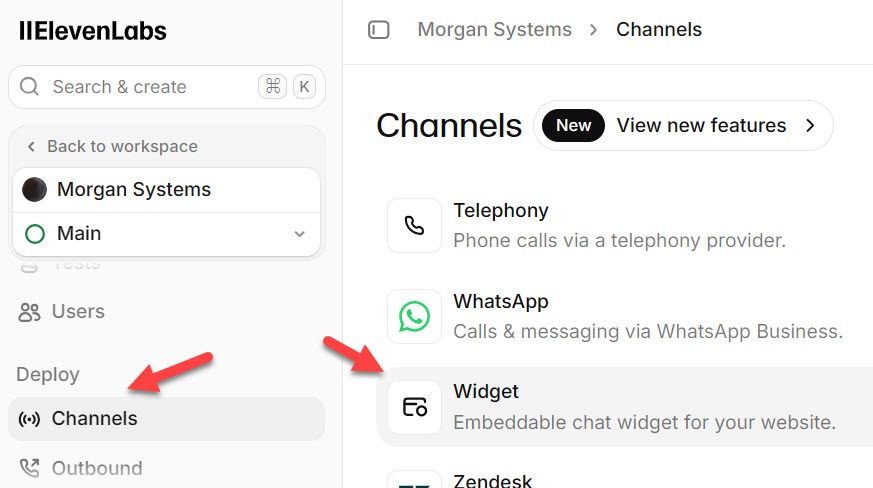
Open your agent and look for the Deploy section of the left-hand menu. Under Channels you will see every place the agent can live: Telephony and WhatsApp at the top, then Widget, then help desk channels such as Zendesk. Click Widget to open its settings.
 Click to expand
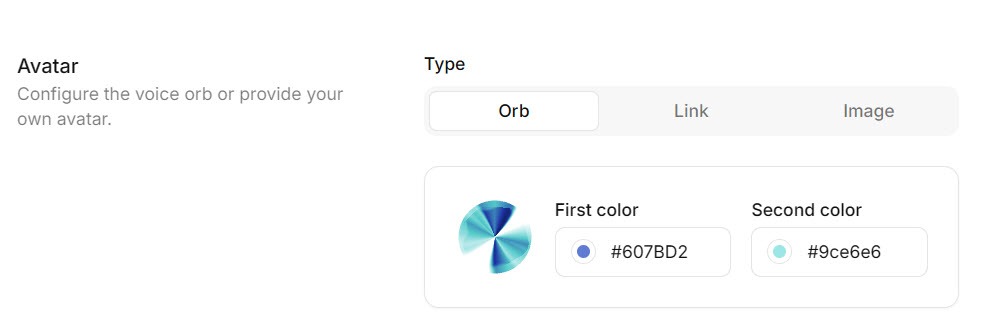
The top of the Widget settings controls how the button looks: colors and the avatar, which can be an animated orb in your colors or your own image. Match your brand colors and the widget reads as part of your site rather than a bolted-on tool.
 Click to expand
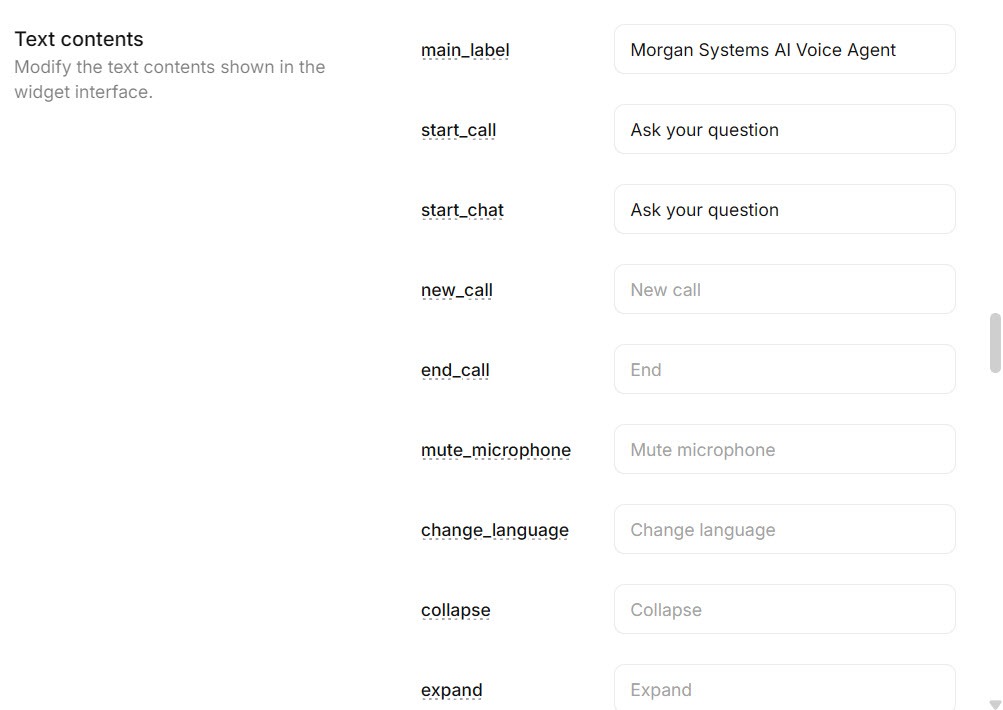
Further down, you set the labels visitors see, such as the start and end call text, and choose the interface mode: voice only, voice and text, or chat (more on that choice in section 4). ElevenLabs' documentation lists the other groups here too: feedback, terms that visitors accept before talking, a language selector, muting, and a shareable page that hosts the agent at its own link.
 Click to expand
A short line telling visitors they are talking to an AI, and that the conversation may be recorded, belongs in the widget's terms. Disclosure rules for AI agents vary by location, so check what applies where your customers are.
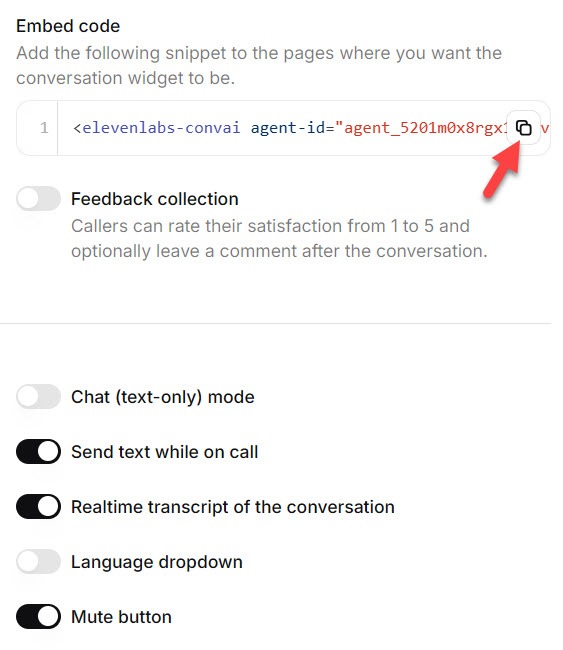
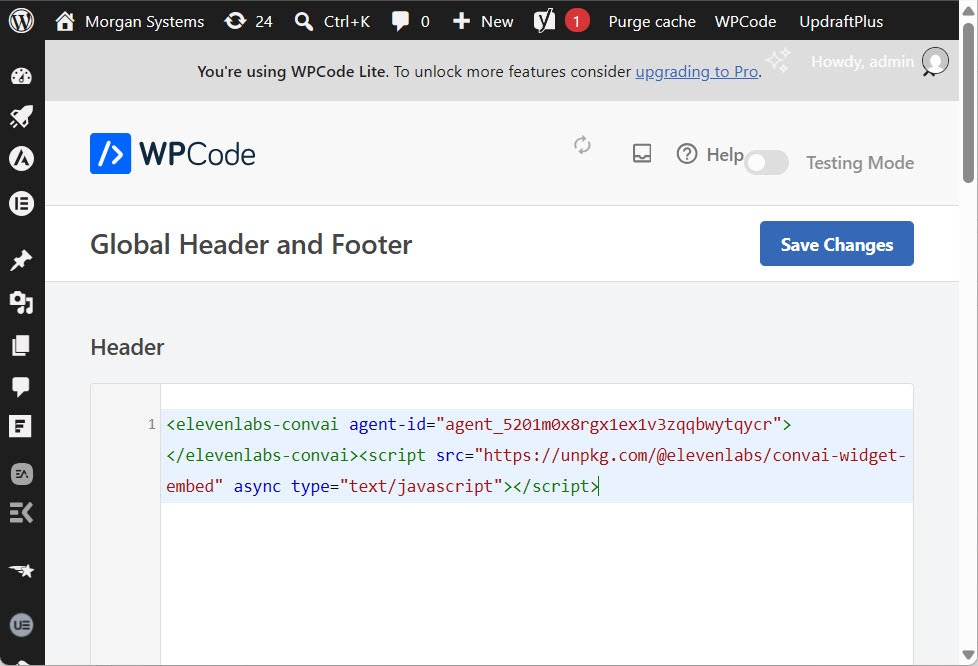
The embed code is two lines: an elevenlabs-convai tag with your agent's ID in it, and a script tag that loads the widget from ElevenLabs. The agent ID is not a secret, since it appears in your page source for anyone to see, which is exactly why step 5 exists.
 Click to expand
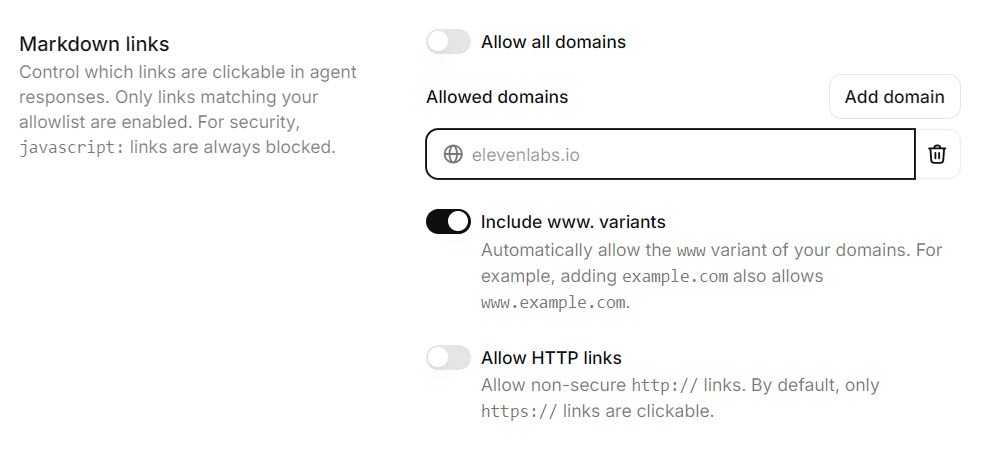
In the agent's Security settings, the allowlist sets which websites may run the widget. Add your own domain, and anyone who copies your embed code onto their site gets nothing. Without it, a public agent can run anywhere its code is pasted, on your usage.
 Click to expand
If your site redirects between www and non-www, make sure the allowlist covers the version visitors actually land on. A mismatch here is one of the quickest ways to end up with a widget that silently does nothing.
The widget floats in the corner of the page, so it does not need to sit inside your content. That means you can place it once, site-wide, instead of adding it to every page. On this site I used the WPCode plugin: one snippet holding both lines, set to load in the site-wide header, and the widget appears on every page, including pages published later.
 Click to expand
This is one way to do it, not the only one. Section 5 covers putting the widget on a single page instead, and adding it to other site builders.
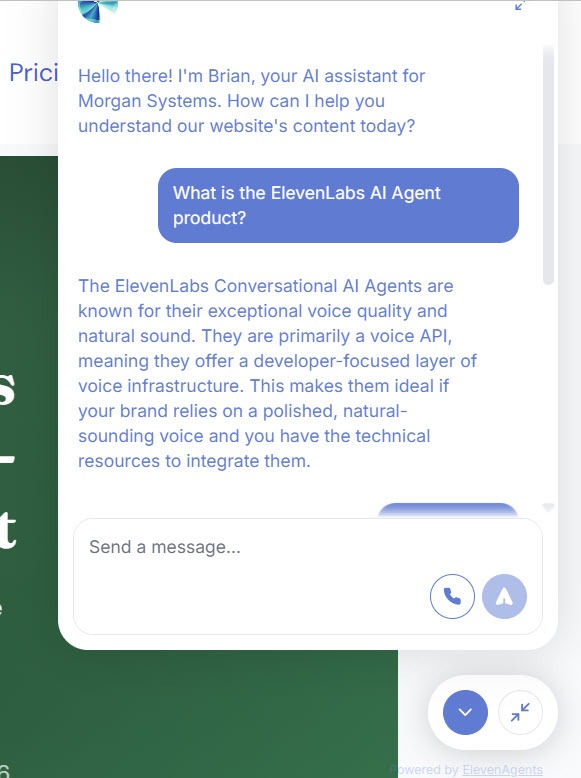
Open your site in a fresh browser window and start a conversation. The first time, the browser asks permission to use the microphone; visitors see the same prompt. Interrupt the agent, ask it something off topic, and check that it answers from your knowledge base rather than guessing.
 Click to expand
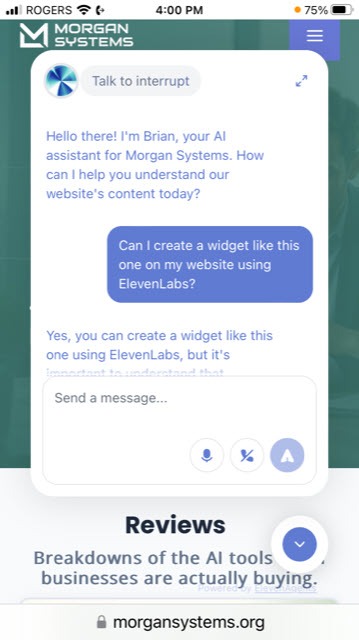
Then do the same on a phone, where most small-business website visitors arrive. Check that the widget button does not cover your own call or booking buttons.
 Click to expand
Every widget conversation lands in the agent's conversation history in the ElevenLabs dashboard, alongside any phone calls. Reading through it in the first few weeks shows you what visitors really want to know, and which questions your knowledge base does not cover yet. Our guide to the ElevenLabs agent knowledge base, guardrails, and testing covers how to turn those gaps into fixes.
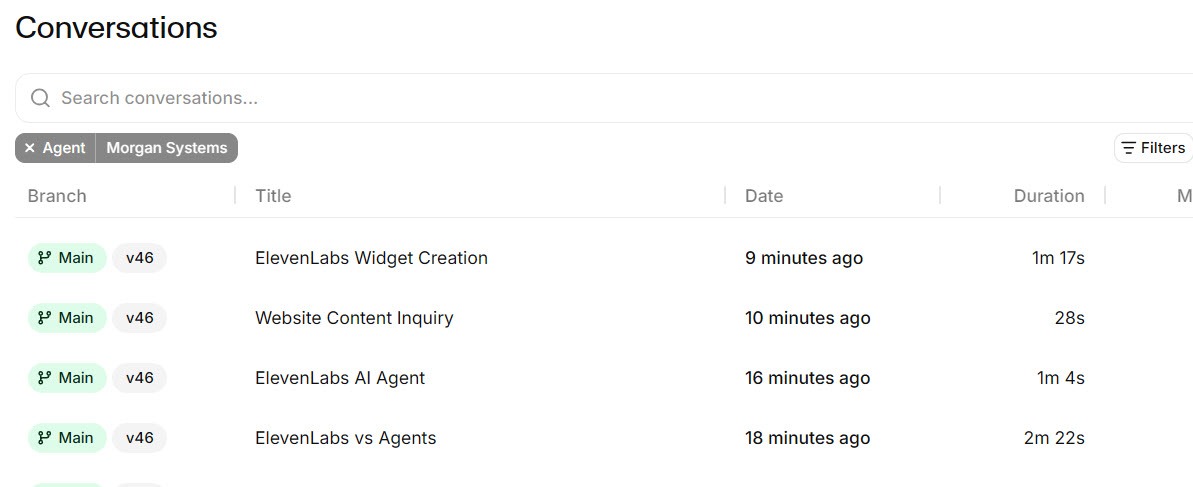 Click to expand
Should the ElevenLabs widget use voice, text, or both?
ElevenLabs offers three interface modes for the widget. The right one depends on who visits your site and where they are when they do.
| Mode | How it works | Best for |
|---|---|---|
| Voice only | Visitors talk; the agent talks back. The default. | Showing off the voice, hands-busy visitors |
| Voice + text | Visitors can switch between talking and typing mid-conversation. | Most small business sites |
| Chat mode | Starts as a text chat when the visitor types first. | Visitors in offices, transit, or quiet places |
Mode names from ElevenLabs' widget documentation, October 2026. Separately, the agent's own setup has a Chat Only option that turns voice off for the whole agent.
A lot of people browse with the sound off, at work or on a bus, and will never press a microphone button. Voice and text covers them without losing the main reason to choose ElevenLabs, which is how the agent sounds when someone does talk to it. The voices themselves took a step forward with Eleven v4.
What are the other ways to add the widget to a site?
The site-wide snippet suits most businesses, but there are other routes depending on how you want the widget to behave and what your site runs on:
- One page only: in the WordPress block editor, add a Custom HTML block to that page and paste the code. Useful if you only want the agent on a contact or booking page.
- ElevenLabs' own WordPress method: its guide splits the code, loading the script site-wide with a header and footer plugin and placing the widget tag on the pages where you want it. It works the same way; it is just two placements instead of one.
- Your theme files: pasting the code into the theme's footer works, but a theme update can wipe it. A snippets plugin survives updates.
- Dedicated plugins: third-party WordPress plugins built for ElevenLabs agents exist in the plugin directory. They add settings screens, but they are another plugin to keep updated for what is only two lines of code.
- Other site builders: most builders, including Wix, Squarespace, Shopify, and Webflow, have a custom code or embed area. Wherever a builder lets you add code site-wide, the same two lines work.
Developers can go further. The widget accepts optional attributes that override the first message, prompt, voice, or language on a particular page, and dynamic variables that pass in details such as a page name. A small business rarely needs these, but they make it possible to greet visitors differently on, say, a pricing page.
Why is the ElevenLabs widget not showing on my website?
When the widget does not appear, or appears but will not connect, the cause is usually one of these:
- The script is not loading. Check that both lines are in place and that the snippet is active. Performance plugins that delay or combine JavaScript can hold the widget script back; exclude it from those settings.
- Your page cache is stale. Clear the caching plugin and any host or CDN cache after adding the code.
- The allowlist does not match. The domain in the allowlist has to match the address in the browser, including www or not.
- The agent is not public. If authentication is on, the widget cannot start a conversation.
- The microphone is blocked. If a visitor declined the permission prompt, the browser remembers. They can allow it from the padlock icon in the address bar, or type instead if text is enabled.
- Your site's security settings block it. If your site uses a content security policy, often set by a security plugin or your host, it may need to allow ElevenLabs' widget script and connection. Your browser's developer console shows a blocked-script error when this is the cause.
- It is covered or covering something. Floating chat buttons, cookie banners, and back-to-top arrows compete for the same corner. Check on a phone and move whichever matters less.
Is an ElevenLabs website widget enough on its own?
For some businesses it is the whole answer, and for others it is the first step. Here is how I would think about it.
Start with the widget if most leads find you online
If people discover you through search and arrive on your site with questions, a widget answers them on the spot, at any hour, with no phone setup. It is the quickest way to get an ElevenLabs agent in front of customers.
Add a phone line if most leads still call
Trades and home services still win most work by phone. The same agent can answer a business number through a telephony provider such as Twilio or SIP, but that is a separate setup step on top of the widget, covered in our ElevenAgents phone setup guide.
Plan for booking and follow-up
A widget that answers questions is useful; one that books the visit is better. ElevenAgents has no calendar or CRM of its own, so booking and lead capture come from connecting tools you already use. See how an agent books appointments through Google Calendar, Cal.com, or Calendly, and how to send every conversation to your CRM.
If you want to try it, you can build an agent on ElevenLabs and have a widget live on a test page the same day. If you would rather not build anything, ElevenLabs' ready-made Reception.ai comes with its own web widget, phone number, and booking page. For running costs, see the AI voice agent pricing hub.
The bottom line: adding an ElevenLabs voice agent to a website takes two lines of code, a few minutes in the widget settings, and one allowlist entry. Paste the code once with a snippets plugin and it appears on every page. Then spend your time where it matters: reading the conversations and improving what the agent knows. The widget in the corner of this page is the live example, so talk to it and judge for yourself. For everything else ElevenLabs offers, head back to the ElevenLabs review.
Frequently Asked Questions
Sources
ElevenLabs documentation, ElevenAgents section, checked October 2026: the widget customization pages, the WordPress integration guide, and the agent security and allowlist settings. Screenshots are from my own ElevenLabs account and the agent running on this site.
To review these sources and more, go to ElevenLabs and click the Docs link on that page, which opens the ElevenAgents section of the help center.