
Can ElevenLabs Agents Book Appointments? Google Calendar, Cal.com, and Calendly
Yes. ElevenAgents has no calendar of its own, but it now connects natively to Google Calendar, Cal.com, and Calendly, so an agent can check your availability and book a caller in while they are still on the line. Here is how to connect each one, which to choose, and what to test before a real customer books.
Goes straight to ElevenLabs' pricing page, including the free plan and any promotions running now.
What's Inside
Can an ElevenLabs agent book appointments?
Yes, through a calendar you connect. In an agent's Tools, the Scheduling category offers three native integrations: Google Calendar, Cal.com, and Calendly. Each one gives the agent tools to check availability and create a booking, so on a call it can find an open time, offer it, confirm the caller's details, and put the appointment straight into your calendar.
The choice between them matters more than it looks. Google Calendar is a calendar, so the agent writes events into it directly and any booking rules have to live in the agent's instructions. Cal.com and Calendly are booking tools, so the appointment length, buffers, and notice you set there are applied for you.
The screenshots below come from my own ElevenLabs account and show every step on the ElevenAgents side of connecting a calendar. I did not connect a live Google, Cal.com, or Calendly account, so the steps inside those services, and the details of what each tool does, come from ElevenLabs' documentation, checked in October 2026.
Usage costs are kept off this page; see the AI voice agent pricing hub for numbers.
Should an ElevenLabs agent use Google Calendar, Cal.com, or Calendly?
| Calendar | How it connects | What the agent can do | Best for |
|---|---|---|---|
| Google Calendar | Sign in with Google | Check availability, create, list, update, and delete events | Businesses that already run their day in Google Calendar |
| Cal.com | API key | Find open slots and book within an event type's rules | Set appointment lengths, buffers, and notice rules |
| Calendly | Personal access token | Check availability, book, list, and cancel | Businesses already sending Calendly links |
Integrations shown in my ElevenAgents account; connection methods and capabilities from ElevenLabs' integration documentation, October 2026.
If you already use one of these, use that one; the agent works best on the calendar you actually check. If you are starting from scratch, Cal.com or Calendly gives you booking rules without writing them into a prompt, while Google Calendar is the simplest if your appointments are all much the same.
How do you connect a calendar to an ElevenLabs agent?
All three calendars are added the same way, as a tool on the agent. Connect a copy of your agent first if the original is already answering customers.
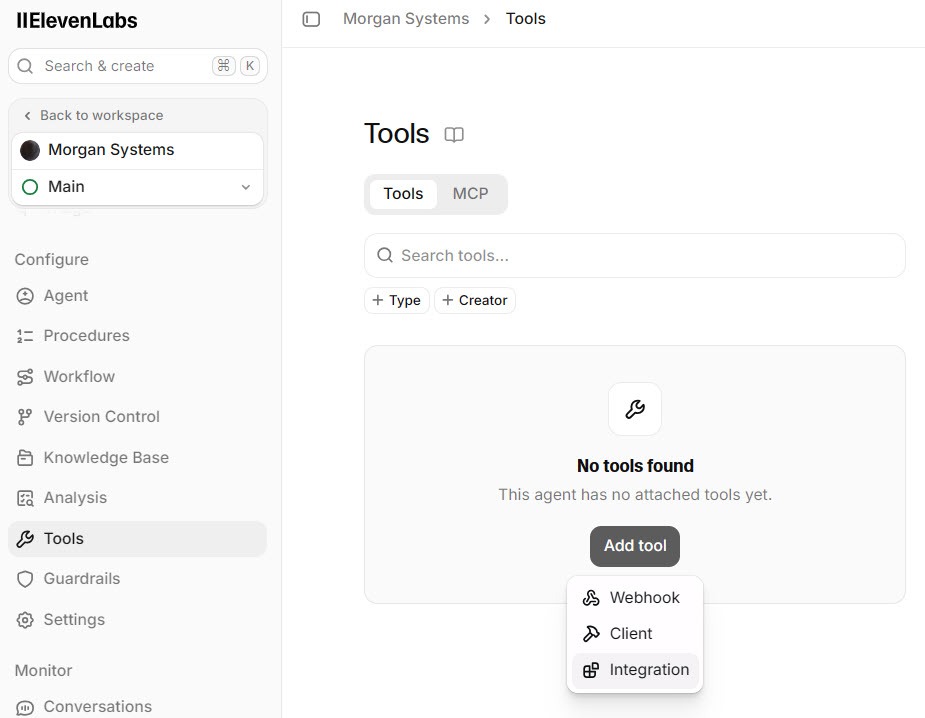
Open the agent's Tools page, click Add Tool, and choose Integration. The other two options, Webhook and Client, are for custom connections you build yourself.
 Click to expand
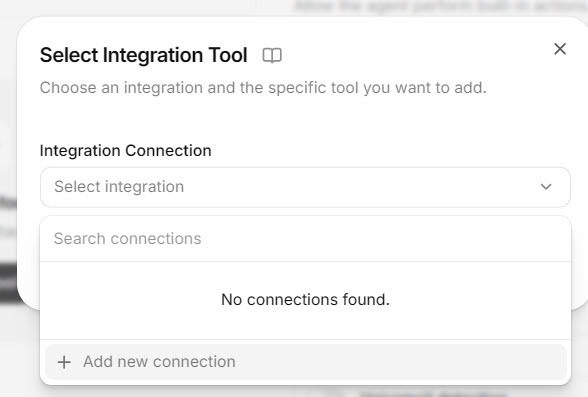
In the Select Integration Tool window, click Add new connection.
 Click to expand
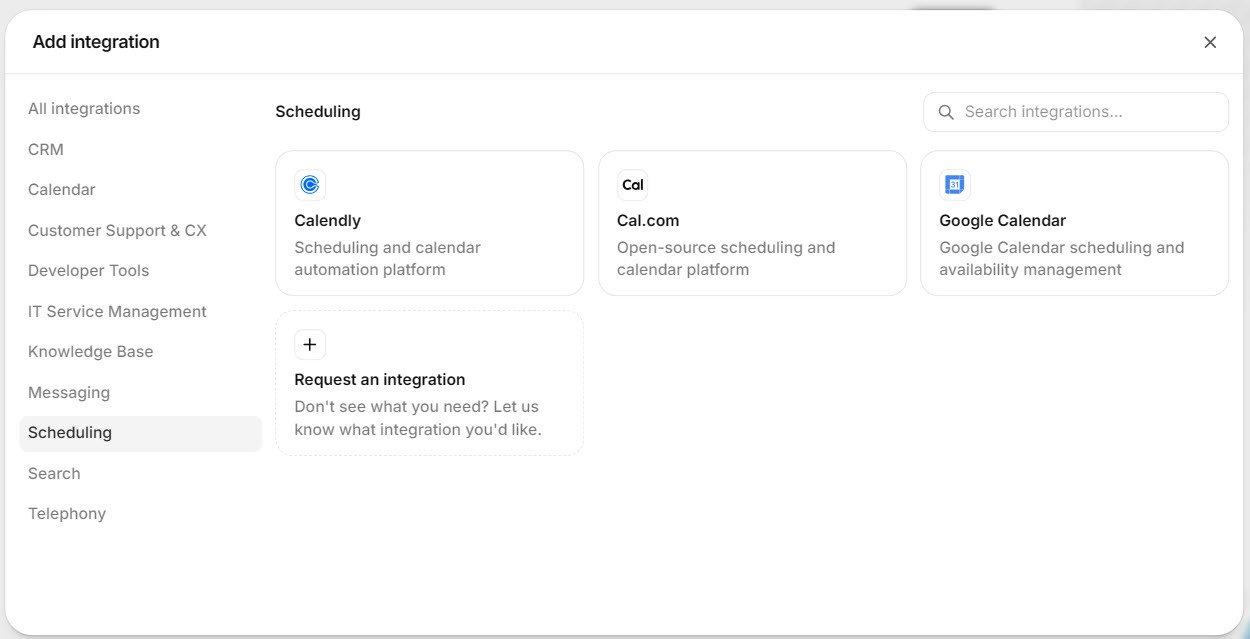
The Add integration window groups connections by category. Under Scheduling, my account showed Calendly, Cal.com, and Google Calendar.
 Click to expand
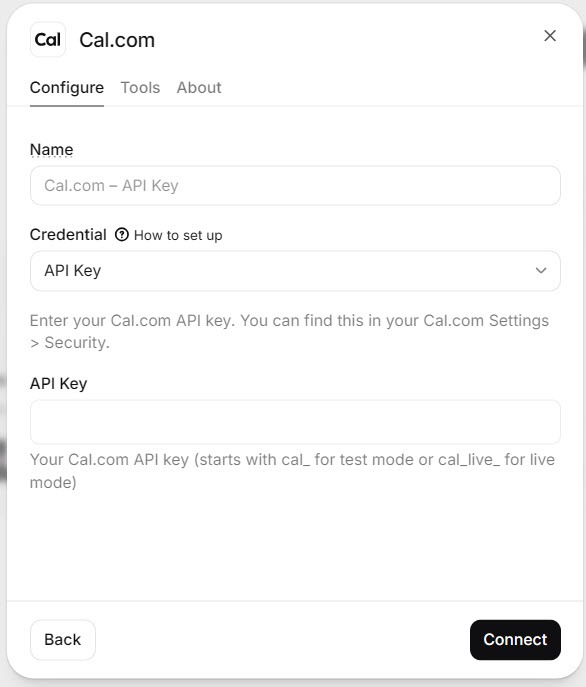
Each integration window has three tabs: Configure, Tools, and About. For Cal.com, Configure asks for an API Key.
 Click to expand
ElevenLabs' guide says to create the key in Cal.com under Settings, Developer, API Keys, and to copy it straight away, because Cal.com shows it only once. Use a live key, which starts with cal_live_; a test key cannot see your real calendar.
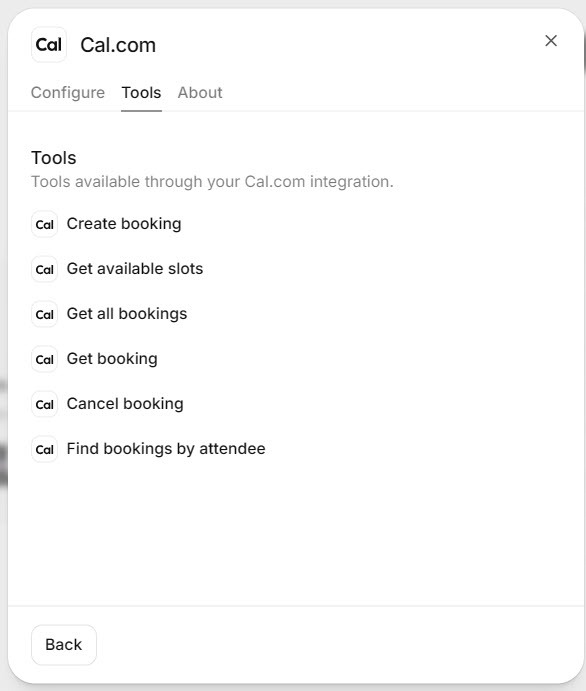
The Tools tab then lists the "Tools available through your Cal.com integration," such as Create booking. Each tool is one action the agent can take in Cal.com once you connect. The list is a reference, not a set of switches: the agent gets these abilities with the connection, and your prompt decides which ones it uses and when (section 4).
 Click to expand
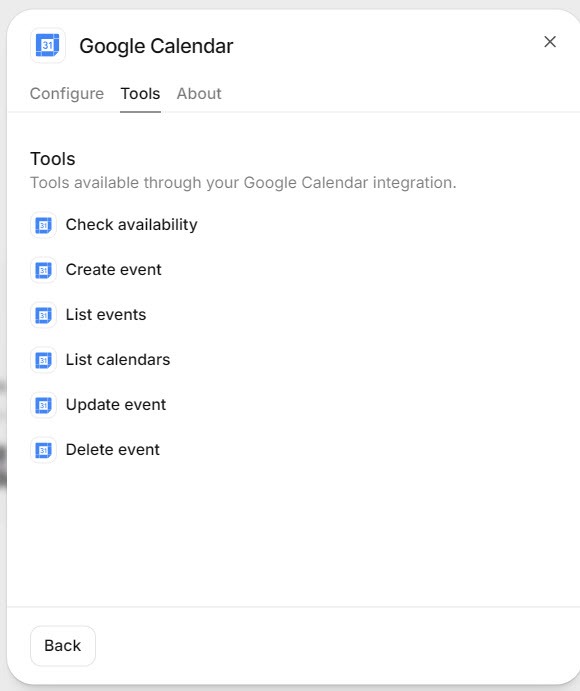
Google Calendar connects through a Google sign-in rather than a key: click Connect, choose the Google account, and allow the permissions. ElevenLabs' documentation lists what it asks for: managing events on calendars you own, viewing your calendar list, and checking free and busy times. Its tools include checking availability, Create event, listing events and calendars, and updating or deleting events.
 Click to expand
ElevenLabs' documentation warns that the Google Calendar update and delete tools act with the connected account's full calendar access, so anyone talking to the agent could change or cancel any event, not just their own. It advises enabling them only on agents that verify who the caller is, never on a public agent such as a website widget, and notes that an instruction in the prompt is not a security control. For a public agent, the practical way to follow that advice is to book through Cal.com or Calendly instead, and keep the Google Calendar connection for agents that verify callers.
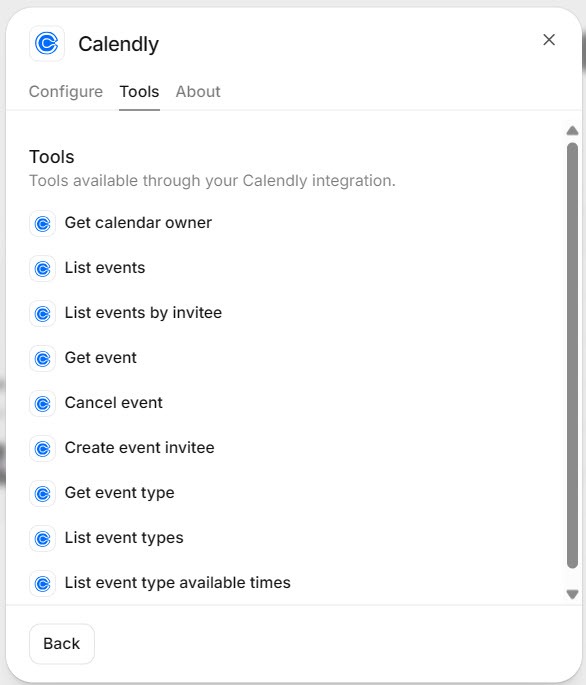
For Calendly, ElevenLabs' guide says to create a personal access token in Calendly under Integrations & Apps, then API and Webhooks, and paste it into the integration. Copy it straight away, since Calendly shows it only once. The Tools tab lists what the agent can do, such as Create event.
 Click to expand
How do you get an ElevenLabs agent to book correctly?
Connecting the calendar gives the agent the ability to book. Two more things decide whether it books well:
- Confirm the time zone. If any callers are in a different time zone from you, have the agent confirm theirs before offering times; ElevenLabs' Cal.com guide builds this into its booking flow, and it prevents a 2pm booking that means 2pm somewhere else.
- Tell it today's date. ElevenLabs' Cal.com guide points out that an agent does not know the current date or time by default, so "tomorrow" or "next Tuesday" can go wrong. Its documentation describes adding the date and time with a time tool or through the agent's variables; do this before anything else.
- Write the booking steps into the prompt. Under a
# Toolsheading, spell out the order: check availability before offering any time, offer two or three options, confirm the caller's name, phone number, and reason, read the time back, and only then create the booking. - Add your rules if you use Google Calendar. Because Google Calendar has no event types, put appointment length, working hours, and minimum notice in the prompt, such as "appointments are one hour, between 8am and 4pm on weekdays, at least 24 hours ahead."
- Say what to do when nothing fits. Offer the next available time, or take a message for a callback, rather than leaving the caller without an answer.
Our guide to the ElevenLabs agent knowledge base, guardrails, and testing covers prompt structure and how to write tool-call tests for exactly this flow.
What should you test before an ElevenLabs agent takes real bookings?
| Caller says | A pass looks like |
|---|---|
| "Can you do tomorrow at 10?" | It works out the right date, checks it, and books or offers alternatives |
| A time you are already busy | It says that time is taken and offers the nearest open slots |
| A time outside your hours | It declines and offers a time within your hours |
| A name that is easy to misspell | It spells the name back before booking |
| "Actually, can we make it Friday?" | It changes the time before booking, rather than booking twice |
| "Nothing this week works" | It offers next week or takes a message |
After each test, open your calendar and check the booking landed at the right time with the right details. Then delete the test bookings.
Will an ElevenLabs agent double-book you, and does it send confirmations?
An agent that checks availability before booking will not book over something it can see. The risk is what it cannot see. With Google Calendar, it checks the calendars it has access to, so a personal calendar it is not connected to will not block anything. With Cal.com and Calendly, availability comes from whichever calendars you have connected to those services, plus your event type rules.
Confirmations depend on the calendar too. Cal.com and Calendly send their own booking emails, set up in those services. With Google Calendar, ElevenLabs' documentation notes that attendees are notified when an event is updated or deleted, so add the caller as an attendee if you want them to get the invitation. The agent itself does not send text reminders; for those, use Cal.com's or Calendly's own reminder features, send them from an automation that receives the agent's post-call webhook (covered in our CRM integrations guide), or look at Reception.ai, which has reminders built in.
Which booking setup fits your business?
Simple appointments, already in Google: Google Calendar
If your appointments are similar and you already live in Google Calendar, connect it directly and put your hours and appointment length in the prompt. On a public agent, such as a website widget, read the security note in step 5 first.
Different services or strict rules: Cal.com or Calendly
Event types handle different lengths, buffers, and notice periods, and both send their own confirmations. Use whichever you already have; Cal.com if you are choosing fresh.
Staff, services, and a booking page built in: Reception.ai
ElevenLabs' ready-made receptionist has its own scheduling, staff calendars, reminders, and booking page. Our Reception.ai setup guide shows how it works. If your jobs already live in Jobber, Jobber's own AI Receptionist, a separate product from ElevenLabs, can book straight into your Jobber schedule once online booking is set up.
If you want to build it yourself, you can build an agent on ElevenLabs, connect a test copy to your calendar, and run the tests above before any customer calls. To capture each caller as a CRM contact as well, see our guide to ElevenLabs CRM integrations.
The bottom line: an ElevenLabs agent can book appointments through Google Calendar, Cal.com, or Calendly, each connected in a few clicks from the agent's Tools page. Choose the calendar you already use, give the agent today's date, write the booking steps into its prompt, and test the awkward requests before a real caller makes them. The same agent can take those bookings on your website or your phone line. For the rest of the ElevenLabs lineup, head back to the ElevenLabs review.
Frequently Asked Questions
Sources
ElevenLabs documentation, ElevenAgents section, checked October 2026: the Google Calendar, Cal.com, and Calendly integration pages and the Cal.com booking guide. Screenshots are from my own ElevenLabs account.
To review these sources and more, go to ElevenLabs and click the Docs link on that page, which opens the ElevenAgents section of the help center.