
How to Connect an ElevenLabs Agent to Your CRM
ElevenAgents, ElevenLabs' platform for building your own voice agent, has no CRM of its own, so every lead your agent takes has to be sent somewhere. Here is how to connect HubSpot or Salesforce directly, how to reach Pipedrive, Zoho, Jobber, and thousands of other apps through Zapier, and when your CRM's own AI agent is the better choice.
Goes straight to ElevenLabs' pricing page, including the free plan and any promotions running now.
What's Inside
Can an ElevenLabs agent connect to a CRM?
Yes, three ways. HubSpot and Salesforce have ready-made connections inside ElevenAgents, so the agent can create a contact while the caller is still on the line. Almost any other CRM, including Pipedrive, Zoho, and Jobber, can be reached through a Zapier MCP server, which gives the agent actions in thousands of apps. And a post-call webhook can send the transcript and the details the agent collected to any system you like once each call ends.
Before setting any of that up, check one thing: if you already pay for an upper tier of HubSpot or Salesforce, your CRM may have its own AI voice agent, and keeping everything in one system can be the simpler choice.
The screenshots below come from my own ElevenLabs account and show every step on the ElevenAgents side of a HubSpot connection. I did not connect a live HubSpot account, so the HubSpot side, including how to create the access token, is described from HubSpot's and ElevenLabs' documentation, checked in October 2026, along with the Zapier, webhook, and built-in CRM agent details.
Usage costs are kept off this page; see the AI voice agent pricing hub for numbers.
Does your CRM already have its own AI voice agent?
The big CRMs are adding voice agents, but so far on their upper tiers:
- HubSpot Customer Agent now handles inbound phone calls as well as chat, email, WhatsApp, and Messenger, and hands calls to your team when needed. HubSpot says it requires a Professional or Enterprise edition, so it is not part of the free CRM or the starter tiers.
- Salesforce Agentforce Voice brings AI voice agents to Salesforce's contact center product, aimed at teams already running their service operation in Salesforce.
If you are on one of those tiers already, try the built-in agent first: every call lands in the CRM with no connection to build or maintain. A separate ElevenLabs agent makes more sense when you are on a free or low-cost CRM tier, when your CRM has no voice agent at all, or when you want ElevenLabs' voices and full control over how the agent behaves.
Which way should you connect your CRM?
| Path | Works with | When it runs | Setup |
|---|---|---|---|
| Native integration | HubSpot, Salesforce | During the call | Paste a token or sign in |
| Zapier MCP | Pipedrive, Zoho, Jobber, and thousands more | During the call | A Zapier account and one server URL |
| Post-call webhook | Anything that accepts a webhook, often via Zapier, Make, or n8n | After the call ends | An automation that receives it |
CRM connections shown in my ElevenAgents account, October 2026; Zapier MCP and webhook details from ElevenLabs' documentation.
During-the-call paths let the agent look a caller up or create a record while they are still talking. The webhook is simpler and catches every conversation, but nothing reaches your CRM until the call is over. Many businesses end up using both: a native tool to create the contact, and a webhook to attach the full summary.
How do you connect HubSpot to an ElevenLabs agent?
The HubSpot connection is built as a tool the agent can use. If you plan to try it on an agent that already answers customers, make a copy first and connect the copy.
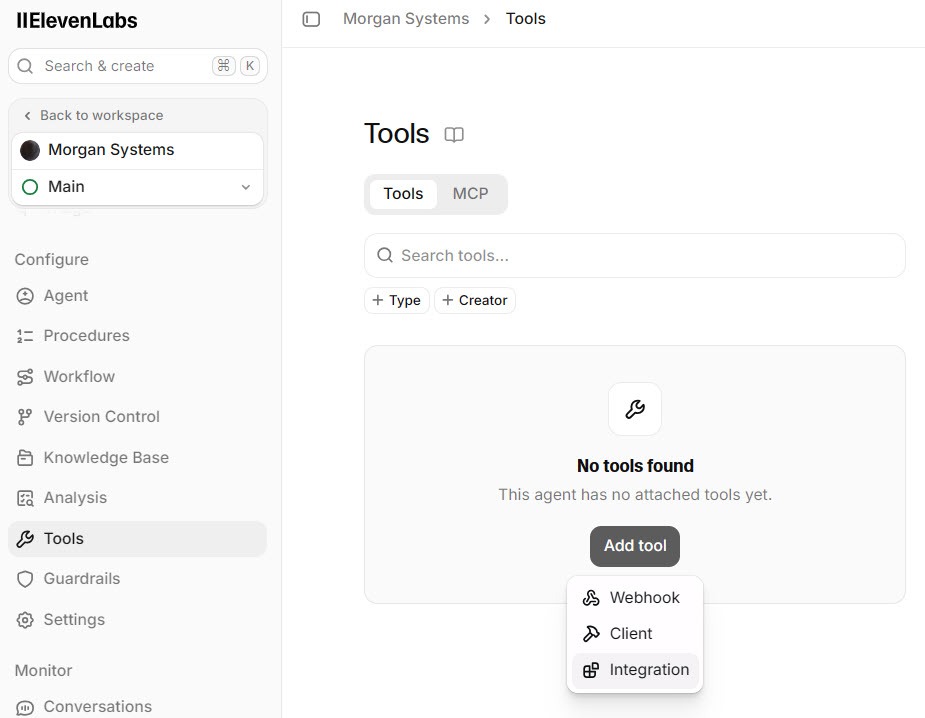
Open your agent's Tools page and click Add Tool. The menu offers three kinds of tool: Integration for ready-made connections, Webhook for calling your own web address, and Client for actions on your website. Choose Integration.
 Click to expand
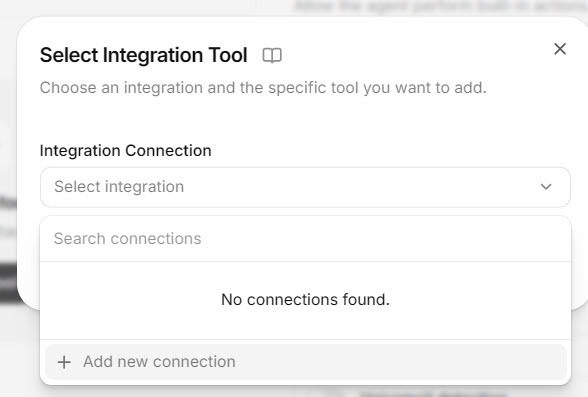
A small Select Integration Tool window lists any connections you already have. For your first one, click Add new connection.
 Click to expand
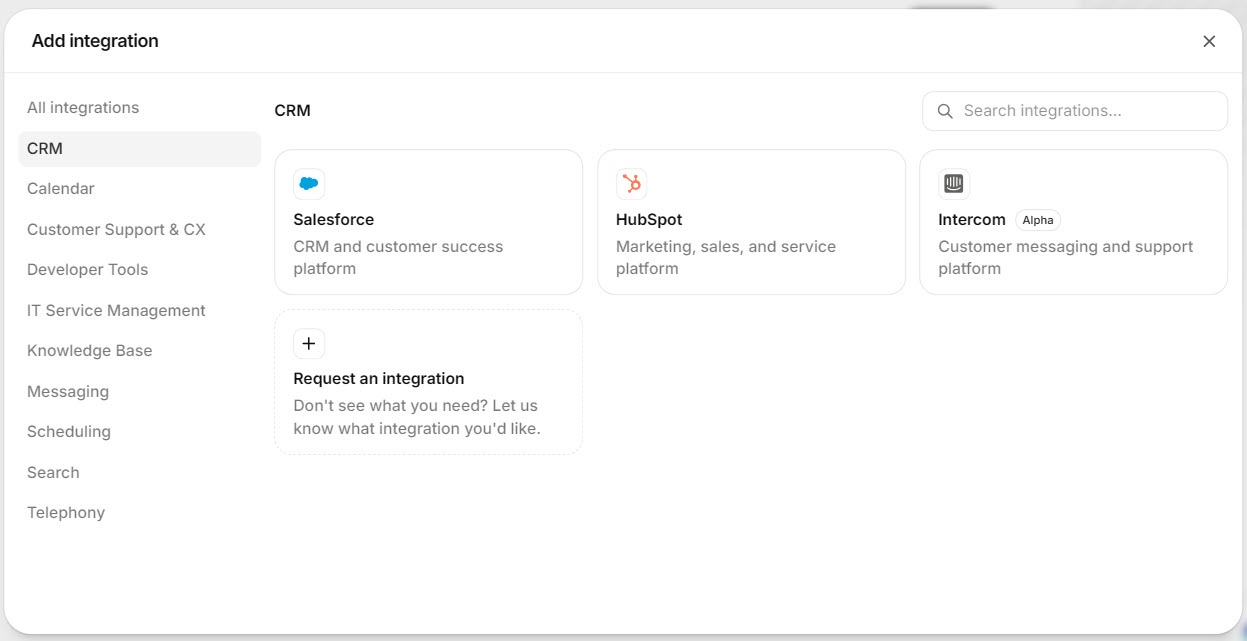
The Add integration window groups connections by category down the left. Under CRM, my account showed Salesforce and HubSpot. Click HubSpot.
 Click to expand
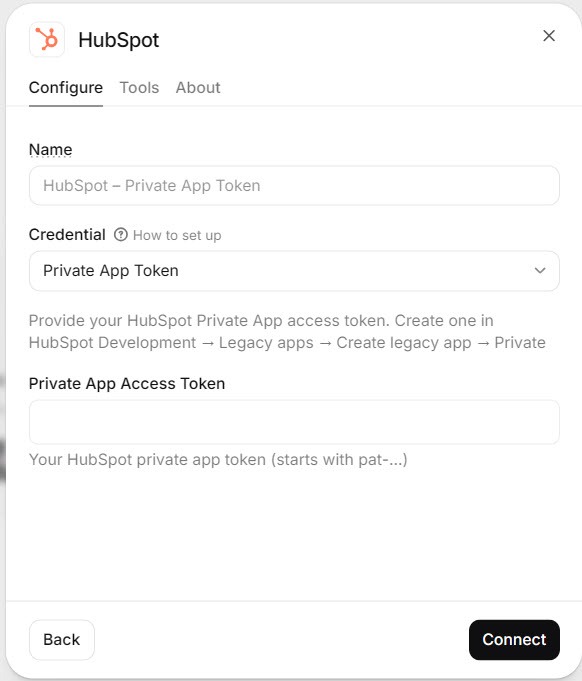
The HubSpot window has three tabs: Configure, Tools, and About. Configure asks for a Private App Access Token, with a Connect button.
 Click to expand
You create that token in HubSpot. ElevenLabs' guide describes the steps: in HubSpot, go to Development, then Legacy apps, click Create legacy app, and choose Private. Give it the CRM permissions your agent needs, such as reading and writing contacts, then copy the access token it generates, which starts with pat-. Treat it like a password.
ElevenLabs' documentation says this integration currently supports only HubSpot accounts hosted in the US. Tokens from EU-hosted accounts, which start with pat-eu1-, are not yet supported. Check your account's data hosting location in HubSpot before you rely on it, especially if your business is outside the US. If your account is EU-hosted, use the Zapier route in section 5 instead.
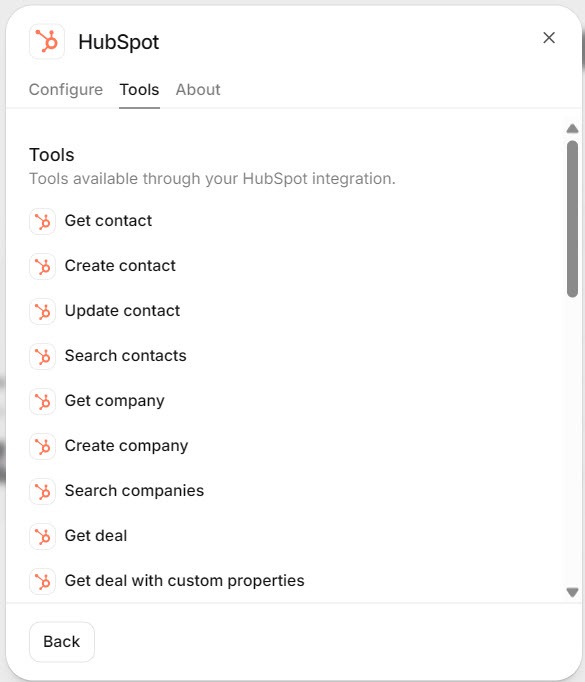
The Tools tab lists the "Tools available through our HubSpot integration," such as Create contact. It is a reference list rather than a set of switches: it shows what the agent can do once connected, and your prompt in the next step decides which actions it uses. For a small business, creating a contact for each new caller is the useful start; looking up existing contacts helps if you get a lot of repeat customers.
 Click to expand
A connected tool does nothing until the agent knows when to reach for it. Add a short instruction to the system prompt, under a # Tools heading, such as: "After you have the caller's name, phone number, and reason for calling, create a HubSpot contact. Confirm the spelling of their name and email first." Our guide to the ElevenLabs agent knowledge base, guardrails, and testing covers prompt structure and tool-call tests.
Run a test conversation, give the agent a made-up name and an email you control, and check that the contact appears in HubSpot with the details spelled correctly. Then try a caller who refuses to give an email, so you know what the agent does when it cannot complete the record.
Salesforce sits in the same CRM category and follows the same pattern: add it as an integration tool, connect your Salesforce account, choose its actions, and tell the agent when to use them.
How do you connect Pipedrive, Zoho, or Jobber to an ElevenLabs agent?
For CRMs without a ready-made connection in ElevenAgents, the usual route is a Zapier MCP server. MCP (Model Context Protocol) is an open standard that lets an AI agent use another service's actions. In Zapier you choose which actions to expose, such as "create a person in Pipedrive" or "add a lead in Zoho CRM", and Zapier gives you a server address. In ElevenAgents, ElevenLabs' documentation describes adding it from the MCP server integrations screen: click Add Custom MCP Server, enter a name and the server URL, save, and attach it to your agent.
- Keep the URL secret. A Zapier MCP address can include a key, so ElevenLabs advises storing it as a secret, like a password.
- Set approvals deliberately. MCP tools can be set to ask before use, auto-approve, or be disabled. ElevenLabs suggests auto-approving read-only lookups and requiring approval for anything that changes data, so test how each setting behaves on a call.
- Check your compliance settings. ElevenLabs' documentation says MCP is not available to workspaces using Zero Retention Mode or requiring HIPAA compliance.
No CRM yet? You do not need one to start. The same Zapier route can add each caller as a row in a Google Sheet or an Airtable base (Airtable is also in ElevenLabs' integrations directory, alongside Monday.com), and send a Slack message or email the moment a new lead comes in. For a very small business, an instant alert often matters more than the record.
A note on Jobber. Through Zapier, an agent can add a new client or request to Jobber, but that is not the same as booking a visit into the schedule. If your business runs on Jobber, Jobber's own built-in AI Receptionist can book straight into your Jobber schedule once online booking is set up; our Jobber AI Receptionist review covers it. For calendar booking with an ElevenLabs agent, see our guide to booking appointments with ElevenLabs agents.
How do you send every ElevenLabs call to your CRM?
A post-call webhook sends a package of information to a web address you choose after every conversation. According to ElevenLabs' documentation, the transcription webhook includes the full transcript, call details such as timing and phone numbers, and the analysis: the summary, evaluation results, and every data collection field the agent filled. A separate webhook can send the call audio.
- Where to set it: in the ElevenAgents settings, for every agent in the workspace.
- What receives it: usually a "catch webhook" step in Zapier, Make, or n8n, which then creates or updates the CRM record. No code is needed for that part.
- Security: each webhook is signed so the receiving end can check it really came from ElevenLabs.
- Reliability: your endpoint has to reply with a success code; one that keeps failing is switched off automatically, so watch for errors in the first week.
The webhook is only as useful as the details the agent collects. Set those up as data collection fields on the agent's Analysis tab, as shown in step 6 of the knowledge base and guardrails guide.
What should an ElevenLabs agent send to your CRM?
Keep the record short enough that someone will actually read it before calling back:
- Who: name, phone number, and email, with the spelling confirmed on the call.
- What: the service they need and, if relevant, the address or area.
- How urgent: a simple yes or no for "needs a call back today."
- What happened: the call summary as a note on the contact, so nobody has to listen to the recording.
- Where it came from: phone or website, so you know which channel is working. Our guides to putting an agent on your phone line and adding one to your website cover both.
Which CRM option fits your business?
On a free or low-cost CRM: connect an ElevenLabs agent
Use the native HubSpot or Salesforce connection if you can, Zapier MCP for anything else, and a post-call webhook to attach every summary. You get ElevenLabs' voices without upgrading your CRM.
Already on HubSpot Professional or above: try its own agent first
HubSpot's Customer Agent answers calls inside the CRM you already pay for. Choose ElevenLabs only if you need more control over the voice or the call flow.
Want no setup at all: Reception.ai
ElevenLabs' ready-made receptionist lists HubSpot, Salesforce, and Zoho CRM as ready-made connections, with no tools or prompts to write. Our Reception.ai setup guide shows where they are, and the Reception.ai review covers the rest.
If you want to build it yourself, you can build an agent on ElevenLabs and connect a test copy to your CRM before it takes a real call. For running costs, see the AI voice agent pricing hub.
The bottom line: an ElevenLabs agent can feed almost any CRM. HubSpot and Salesforce connect natively in a few clicks from the agent's Tools page, everything else goes through Zapier, and a post-call webhook makes sure no conversation goes unrecorded. Check whether your CRM already includes its own voice agent before you build, confirm a HubSpot account is US-hosted, and test with a made-up caller before the first real one. For the rest of the ElevenLabs lineup, head back to the ElevenLabs review.
Frequently Asked Questions
Sources
ElevenLabs documentation, ElevenAgents section, checked October 2026: the HubSpot integration guide, Model Context Protocol (MCP) tools, post-call webhooks, data collection, and the integrations directory. HubSpot's Customer Agent product page and Salesforce's Agentforce Voice pages, checked October 2026. Screenshots are from my own ElevenLabs account.
To review these sources and more, go to ElevenLabs and click the Docs link on that page, which opens the ElevenAgents section of the help center.