
How to Set Up Reception.ai, Step by Step
Reception.ai, ElevenLabs' AI receptionist, builds a first draft of itself from your website in minutes. Getting it ready for real customers takes a little longer. Here is every screen to check after the setup wizard, in order: business details, knowledge, services, staff, call handling, notifications, integrations, your booking page, and your phone number.
14 days free, no credit card, with a real phone number to test. Goes straight to Reception's plans so you can compare before you start.
What's Inside
How do you set up Reception.ai?
Let the wizard scan your website, then check what it built. The wizard creates a working receptionist and phone number from your site in a few minutes; for this site the scan took about a minute. What it cannot know is how you actually run your business: which services need a visit first, who does what, how far ahead people can book, and when a caller should reach a person. That is what the settings below are for.
Work through four areas in order: your business details, what the receptionist knows, how it answers, and the pieces that put it in front of customers. Then test it with a real phone call before you point your business number at it.
I set up Reception.ai for this website during its free trial in October 2026, and every screenshot below comes from my own account. Default values, limits, and options I did not change myself, such as booking rule choices and SMS rules, come from Reception's documentation, checked in October 2026. Reception updates its dashboard often, so a label may have moved by the time you read this.
Prices are kept off this page; see the AI voice agent pricing hub for numbers.
What do you need before setting up Reception.ai?
The setup wizard itself, from website scan to first test call, is covered screen by screen in our Reception.ai review. This guide picks up once you are in the dashboard. Have these to hand and the rest goes quickly:
- Your services, with how long each takes, and which ones need a quote or a visit before you can price them.
- Who does the work, with their working hours and which services each person handles.
- Your booking rules: how far ahead people can book, how much notice you need, and your cancellation policy.
- Anything callers ask that is not on your website, such as parking, service area edges, or what to have ready before a visit.
- Your current business number and who provides it, if you want Reception to answer it.
How do you set up your business details in Reception.ai?
Click your business name in the left menu to open the settings area, which has its own menu: Overview, Services, Assets, Products, and FAQ.
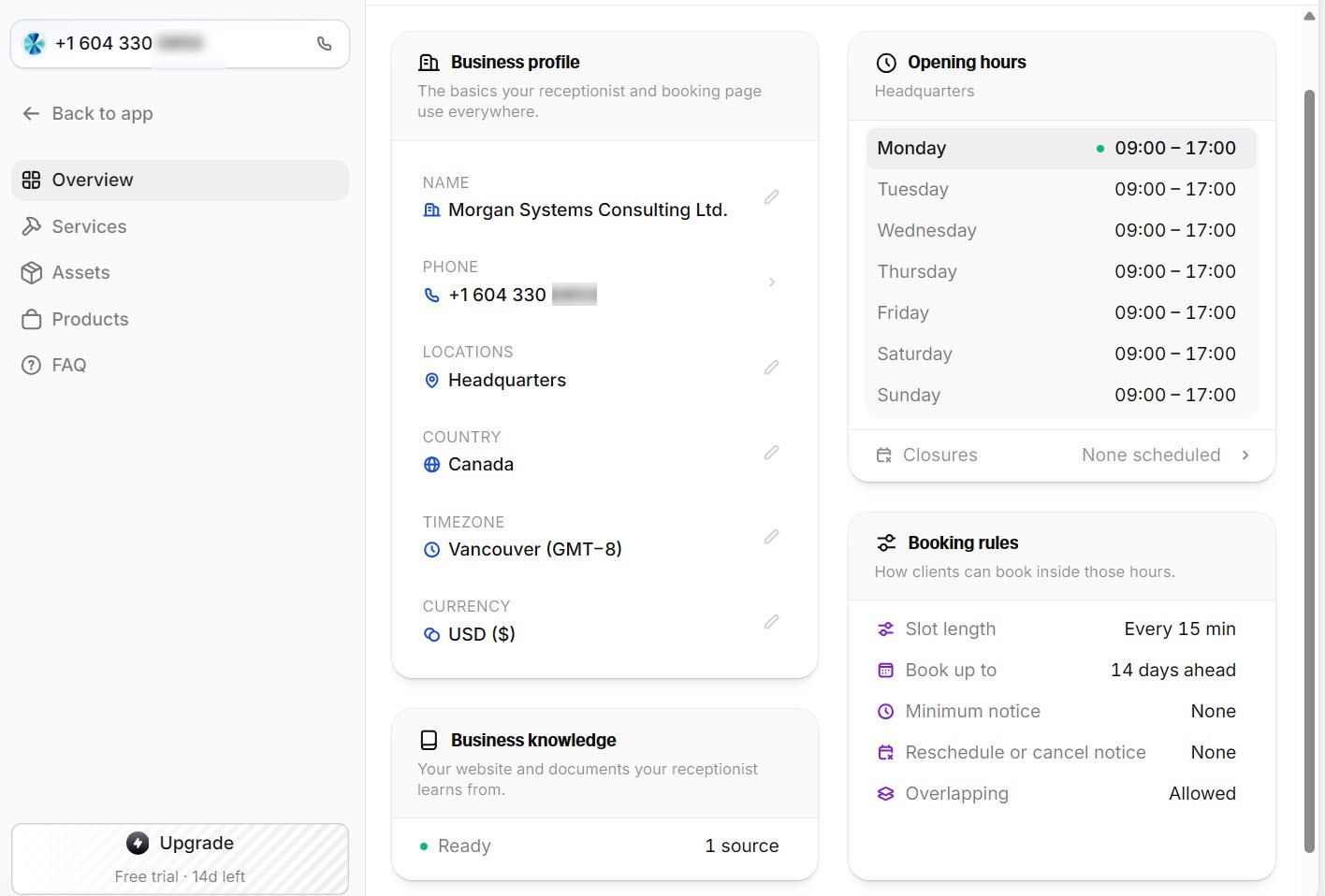
The Overview page shows four cards, each editable with a click. Business Profile holds your name, phone (set to the number the wizard created), country, time zone, and currency. Opening Hours and Business Knowledge come next, then Booking Rules.
 Click to expand
Booking rules decide what the receptionist and booking page can offer. According to Reception's documentation, slot length defaults to 15 minutes (options from 10 to 60), bookings open 14 days ahead (up to 365), and there is no minimum notice and no reschedule or cancel notice unless you set one. Add your holidays as closures while you are here; Reception will not let you add time off over existing bookings without moving them first.
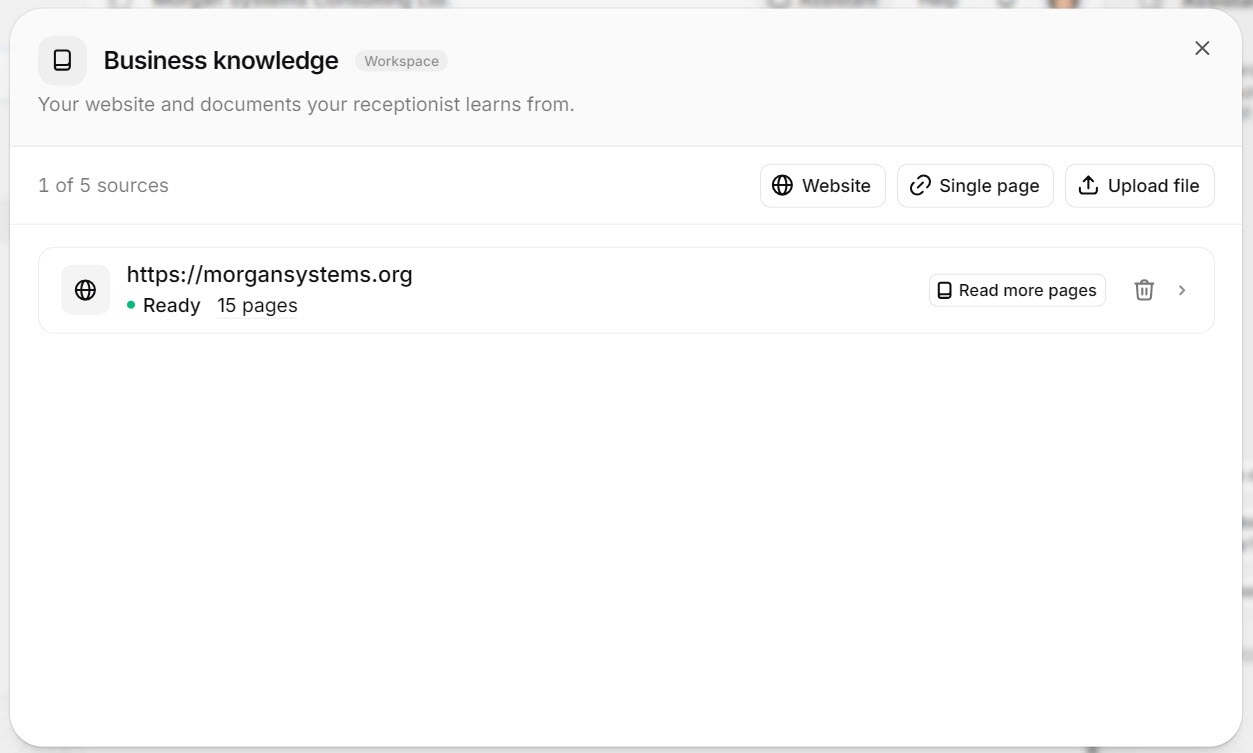
Clicking Business Knowledge opens a window titled "Your website and documents your receptionist learns from." Your website is the first source, with the number of pages crawled; click the row to see every page, or use Read more pages to pull in more. Three buttons above it add another Website, a Single page, or an uploaded File.
 Click to expand
Upload a file for anything callers ask that your website does not answer well: a price sheet for fixed-price jobs, your service area, or what customers should do before you arrive.
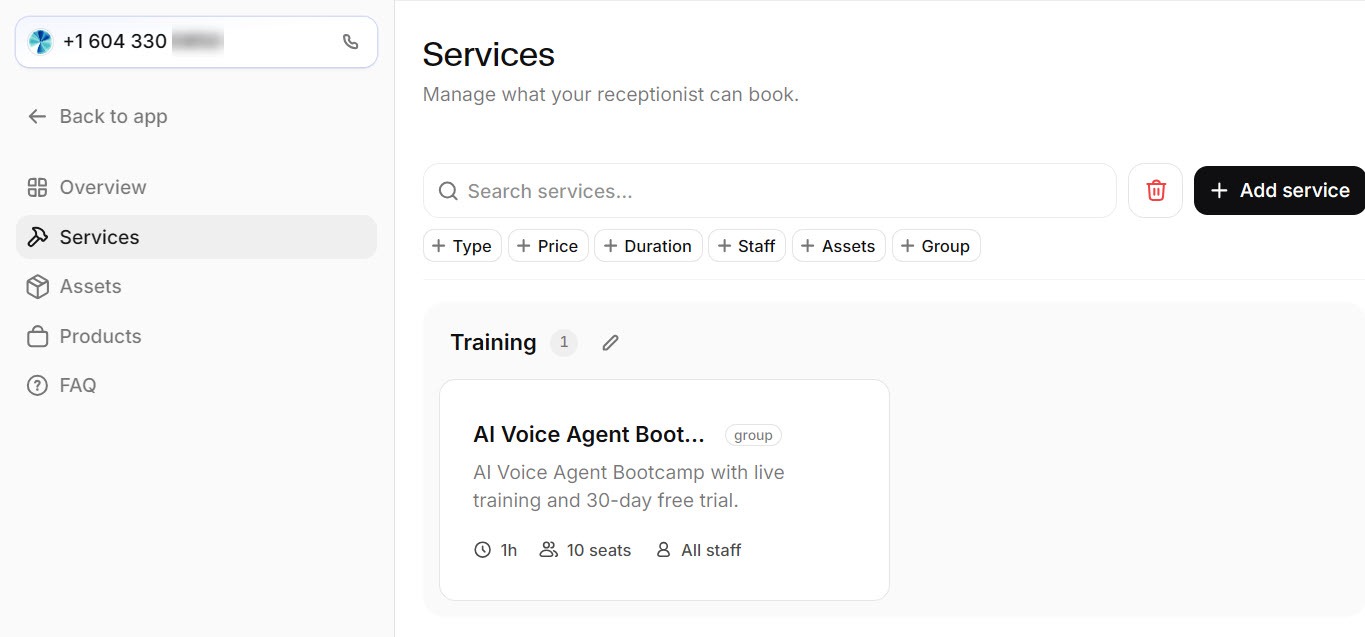
Services lists what the scan detected, with an Add service button and the option to delete anything wrong. Check this page carefully: on this site, the scan listed a partner program I link to as a service I offer, an understandable guess from how it appears on the homepage, but not one I would want booked.
 Click to expand
Each service can have several variants with their own duration and price, a buffer after each appointment, and specific staff or locations. For work you cannot price over the phone, Reception's documentation describes a quote-only option ("Price set later"), which makes the receptionist and booking page collect a quote request instead of booking. Leaving the price empty shows "Price on request" instead.
The next menu item, Assets, is for bookable resources, in Reception's words "like rooms or equipment," that a service needs. Add them so bookings reserve the right one; skip it if your services only need a person.
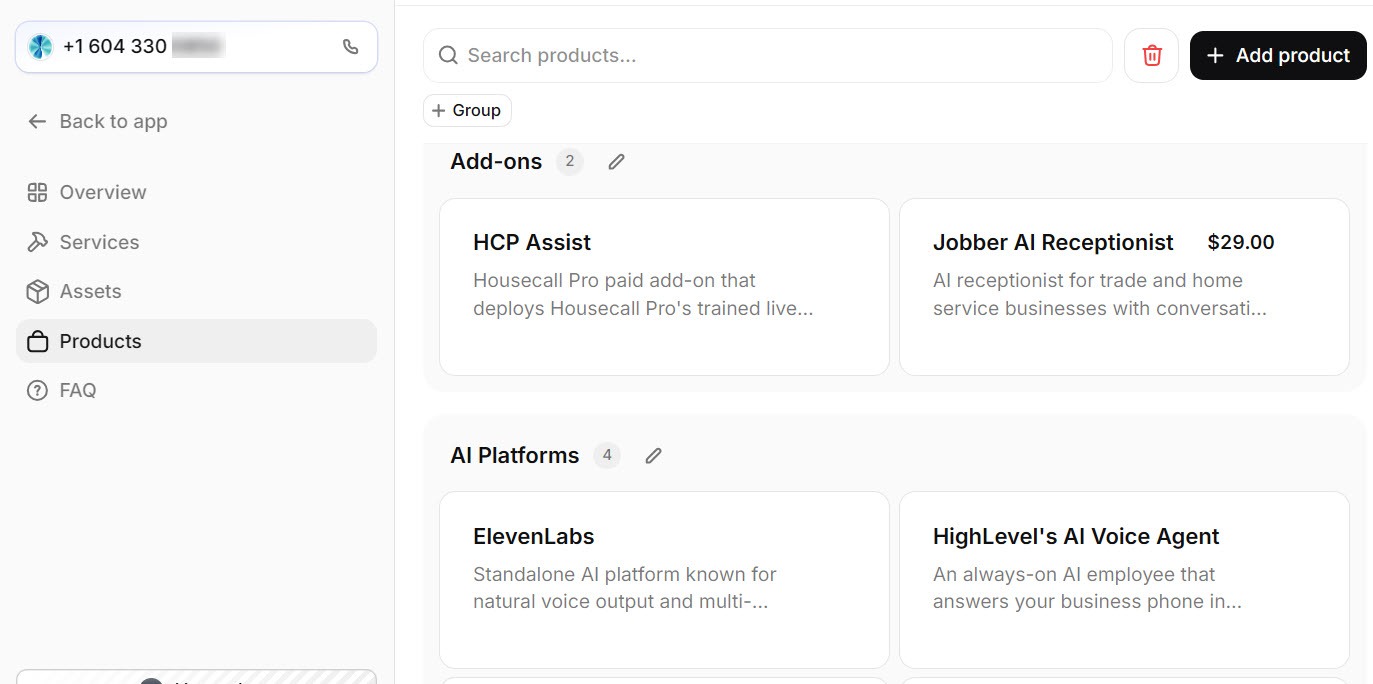
Products works the same way. For this site, the scan found every product I review. If you sell physical items, this is what the receptionist draws on to answer questions about them or take orders.
 Click to expand
The last settings item, FAQ, collects every question the receptionist could not answer, linked to the call it came from. It starts empty. Check it weekly once calls come in and write the answers; Reception uses them on future calls. The FAQ section of our review shows the page and explains why it matters.
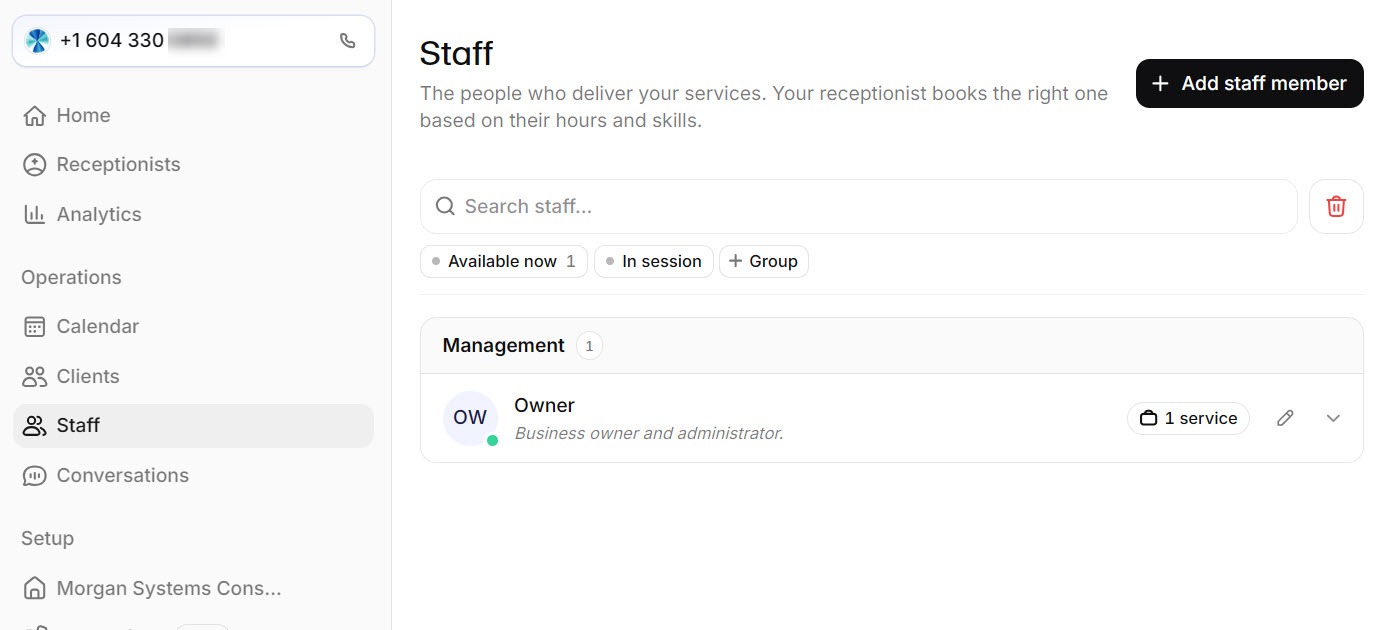
Use Back to app above the settings menu to return to the main dashboard, then open Staff: "The people who deliver your services. Your receptionist books the right one based on their hours and skills."
 Click to expand
Give each person their hours, or let them follow your opening hours, and turn off "Any staff can do it" on services that only certain people handle. Staff do not get dashboard access. Each person can connect their own Google Calendar so their busy times block bookings and new bookings land in their calendar.
How do you set up how the Reception.ai receptionist answers?
Open Receptionists in the main menu. From the top, you will find the greeting, an On the call card with who answers first and transfers to a human, an Instructions card, and at the bottom, cards for how it works and communications.
Edit the greeting the wizard wrote so it says the caller is talking to your business's AI assistant and that calls are recorded; Reception's documentation suggests keeping it under 15 words, and an option to always finish the first message stops callers talking over it. Then choose who answers first: the receptionist straight away (the default), or your own phone first with the receptionist as backup. Transfer rules, written in plain English with a phone number each, send callers to a person when they need one. The call handling section of our review shows this screen, including a country limit on staff-first answering.
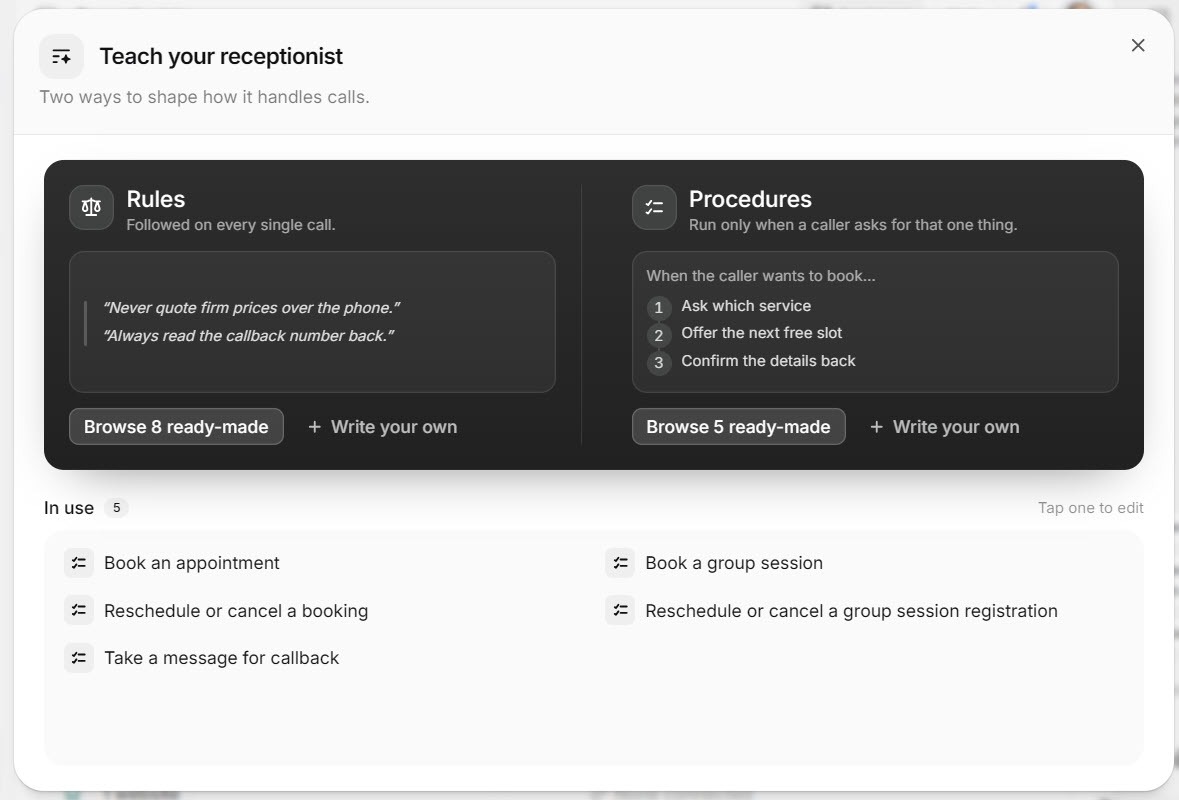
The Instructions card links to your procedures; mine started with five. Clicking it opens Teach your receptionist, split into two cards. Rules apply on every call, such as "always confirm the caller's phone number before booking." Procedures are step-by-step flows that only run when a caller asks for that thing, such as handling an urgent repair. Each card offers ready-made options to browse (eight rules and five procedures in my account) and a Write your own link.
 Click to expand
Start from the ready-made ones and edit them to match how you work. Good first rules for a service business: never promise an arrival time the schedule has not confirmed, and never quote a firm price for work that needs a visit. A useful first procedure: what to do with an urgent call, such as a leak or no heat.
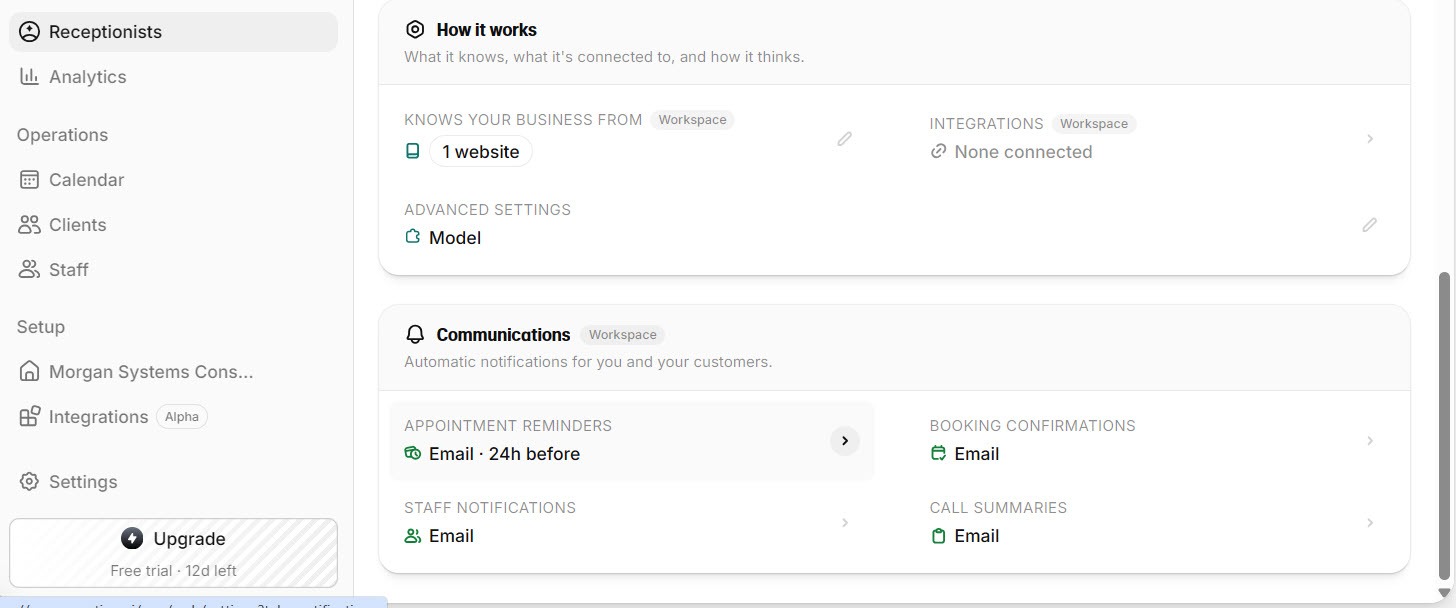
At the bottom of the Receptionists page, the How it works card is another route to the knowledge base, plus links to Models and integrations. Models lets you change the AI model, its reasoning effort, and response speed (Eager, Normal, or Patient). The defaults are a sensible start; change them only if testing shows replies are too slow or too hasty.
 Click to expand
The Communications card holds appointment reminders, staff notifications, booking confirmations, and call summaries. According to Reception's documentation, reminders go out by email 24 hours ahead by default and can ask the client to confirm; call summaries go to the account owner and up to ten more addresses. For text messages, a Reception-provided Canadian number can send SMS, but a Reception-provided US number cannot, so US businesses need their own Twilio number for SMS. Clients only receive texts if they have opted in.
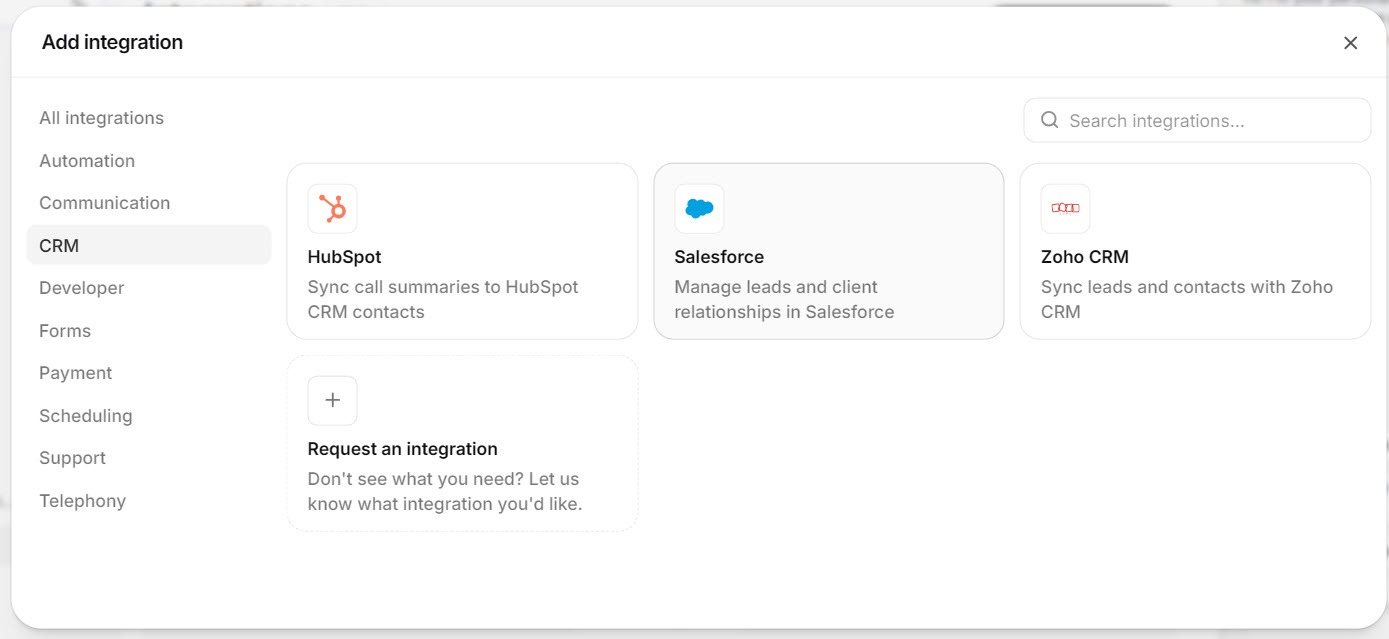
The integrations window groups connections by category. Under CRM, my account offered HubSpot, Salesforce, and Zoho CRM, with a Request an Integration button for anything missing. These are ready-made connections; on ElevenAgents, the same CRMs connect natively or through Zapier and webhooks, as our guide to ElevenLabs CRM integrations explains. Reception's documentation also lists Google Calendar, Calendly, Cal.com, Zapier, webhooks, and an MCP server.
 Click to expand
Pick one calendar approach. Google Calendar works with Reception's own scheduling, per staff member. If you already book through Calendly or Cal.com, Reception can use those instead, and their own scheduling settings then apply; Google Calendar is not available while either of those is connected. The difference from an agent built on ElevenAgents is what sits around the calendar: ElevenAgents also connects to Google Calendar, Cal.com, and Calendly, but Reception adds its own services, staff schedules, and booking rules on top. Our guide to booking appointments with an ElevenLabs agent covers the ElevenAgents side.
How do you set up the Reception.ai booking page and web widget?
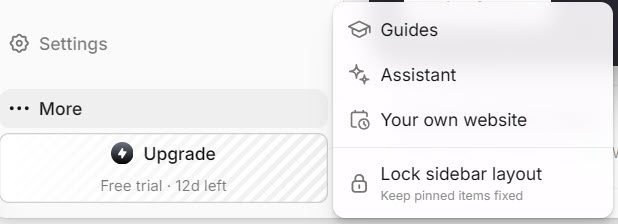
Click More in the main menu. The pop-up lists Guides, Assistant (AI help with Reception itself), and Your own website, which is where the booking page and web widget live.
 Click to expand
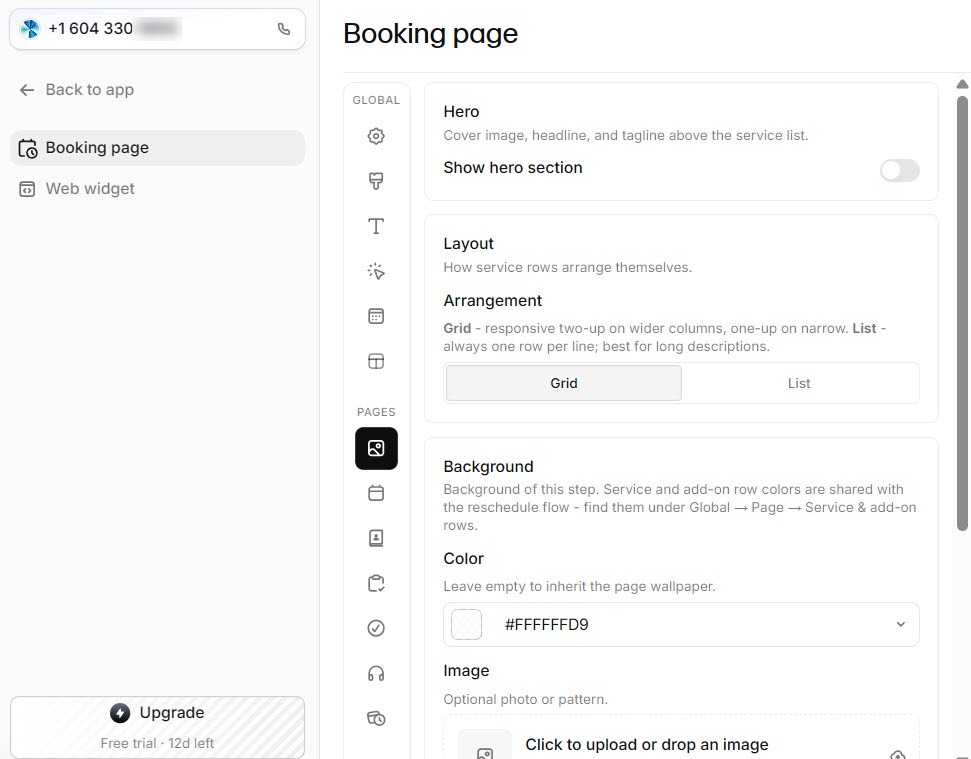
The Booking page tab shows the page customers use to book, reschedule, or cancel, with settings for colors, fonts, layout, header, the text on each booking step, and whether the receptionist appears on the page.
 Click to expand
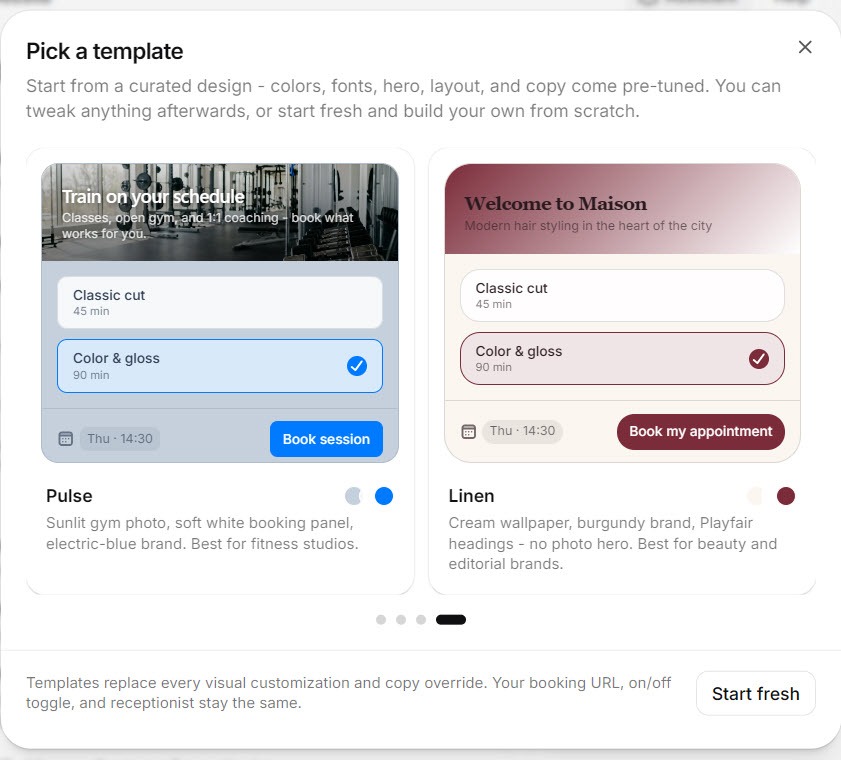
The quickest start is a template, each with a set color scheme and layout.
 Click to expand
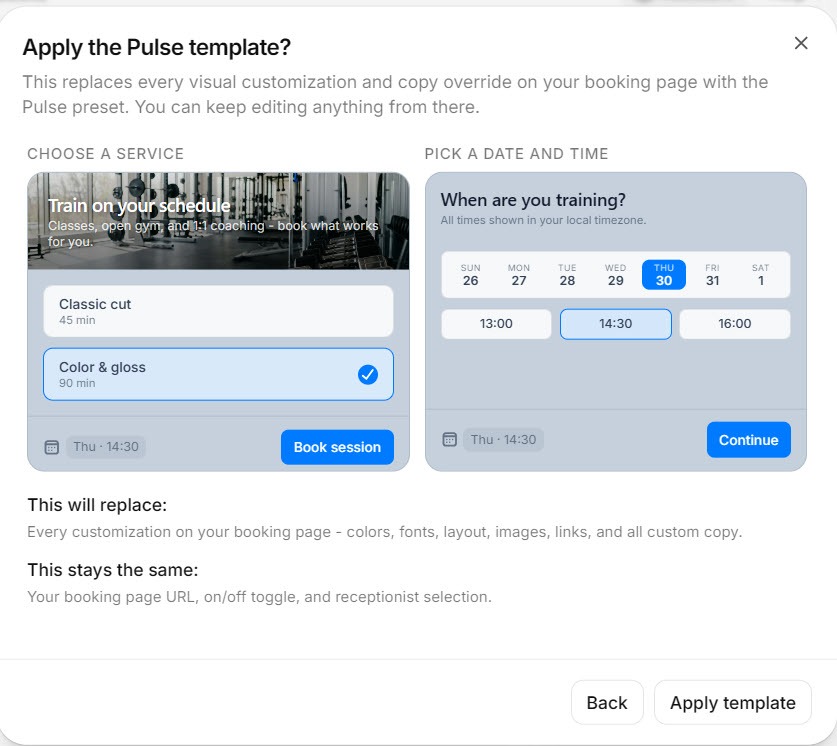
Selecting one shows a larger preview with an Apply template button. After applying it, adjust the colors to match your brand.
 Click to expand
Add your cancellation policy on the confirm step; Reception's documentation says it also appears in confirmation emails. Every booking gets its own link for the customer to reschedule or cancel without logging in.
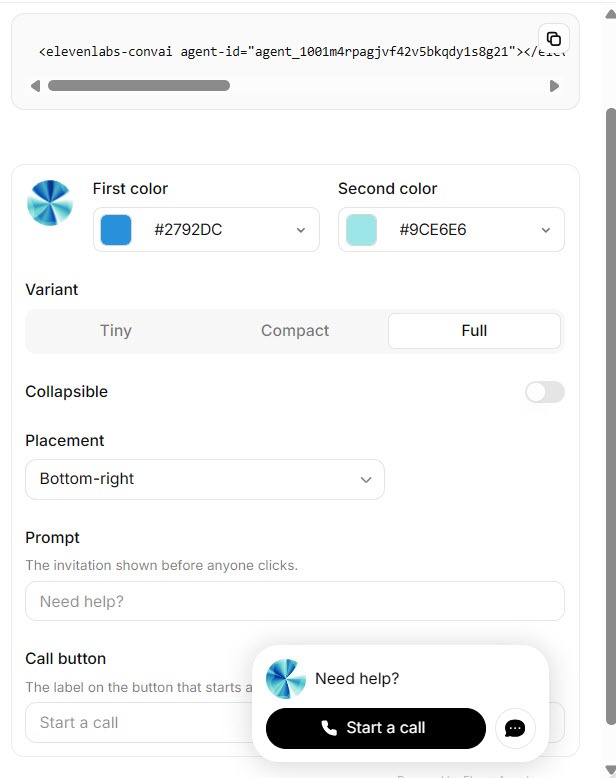
The Web widget tab puts your receptionist on your own website as a button visitors click to start a conversation. Choose its size and corner position, set its colors and labels, then copy the embed code into the <head> section of your site, or a site-wide code area if your website builder has one.
 Click to expand
Widget conversations use web minutes rather than phone minutes. If you are weighing this against building a widget agent on ElevenAgents, our guide to adding an ElevenLabs voice agent to your website shows the do-it-yourself version.
Can Reception.ai answer your existing business number?
Yes, and you do not have to give up your number to do it. Reception's documentation describes three routes:
- Forward calls from your current line. Use your phone provider's forwarding codes to send unanswered, busy, or unreachable calls to your Reception number, so you still answer when you can. Your provider controls how many rings before it forwards, and may charge for forwarded calls.
- Forward everything. Most phone providers also offer unconditional forwarding, which sends every call to Reception. That suits evenings, weekends, or a busy season.
- Connect your own number through a Twilio account or a SIP trunk. This also unlocks SMS from US numbers, caller ID on transfers, and numbers in countries Reception does not offer directly. Reception's documentation also lists about 50 more countries where you can get a number through a regulatory request with your business details.
For comparison, an agent built on ElevenAgents has no phone number of its own and always needs Twilio or a SIP trunk; our ElevenAgents phone setup guide covers that route.
Use the test button in the sidebar to try a browser call or chat, then call your Reception number from a phone; transfers and staff-first answering only work on real phone calls. Try a booking, a question your website does not cover, and a request for a person. Then open the conversation in the dashboard and read the transcript before you forward your business line.
Reception's documentation says that when trial credits run out, the receptionist stops answering until you upgrade, so do not leave your business line forwarded to a trial without watching usage. Releasing a Reception number is permanent: it goes back to a shared pool and may be given to someone else. And if you cancel, numbers are held for 14 days before release.
Which Reception.ai defaults should you check?
| Setting | Default | Change it if |
|---|---|---|
| Book up to | 14 days ahead | You book further out, or want a shorter window |
| Slot length | 15 minutes | Your jobs start on the hour or half hour |
| Minimum notice | None | You cannot take a job booked minutes before it starts |
| Reschedule or cancel notice | None | You have a cancellation policy |
| Who answers first | Receptionist | You want to take calls yourself when free |
| Staff per service | Any staff can do it | Only certain people do certain jobs |
| Calls at once | Set by plan: 1 on Basic, 3 on Plus, 10 on Premium | Two customers often call at the same time |
| Appointment reminders | Email, 24 hours ahead | You want texts or a confirm-or-cancel reply |
Book-up-to window from my own account; other defaults from Reception's documentation, October 2026.
Is setting up Reception.ai worth the time?
Yes, if you book appointments by phone
An hour in these settings turns a quick website-based draft into a receptionist that books the right person, follows your rules, and reminds customers. The wizard does the typing; you supply the judgment.
Keep it simple if you mainly need messages
If you only want calls answered and messages taken, check the greeting, the knowledge base, and call summaries, and skip services, staff, and the booking page for now.
Look at ElevenAgents for custom flows
If your calls need logic Reception's settings cannot express, building on ElevenAgents gives you full control at the cost of more setup. The ElevenLabs review compares the two.
If you are ready to try it, you can start Reception's free trial and follow this guide with your own business. For the hands-on verdict, read our Reception.ai review; for running costs, see the AI voice agent pricing hub.
The bottom line: Reception.ai's wizard gets you a working receptionist from your website in minutes, and the settings behind it are where you make it yours. Correct the services the scan found, add staff and their calendars, tighten the booking rules, teach it a few rules and procedures, set your greeting to say it is an AI, and test with a real call before you forward your business number. After that, the FAQ list tells you what to teach it next.
Frequently Asked Questions
Sources
My own Reception.ai free trial, October 2026, plus ElevenLabs' Reception documentation, checked October 2026: the quickstart, services, hours and booking rules, staff, call handling, rules and procedures, notifications, booking page, Google Calendar, bring your own number, and testing pages. Screenshots are from my own Reception account.
To review these sources and more, go to ElevenLabs and click the Docs link on that page; Reception's documentation sits in the same help center.