
What Happens After Housecall Pro CSR AI Books a Job?
CSR AI's work ends when the job is on your schedule. From there, the rest of the Housecall Pro workflow takes over: the customer's texts, their portal, your Pipeline, the invoice, the payment, and the reminder that brings them back. Here is that path, screen by screen.
Takes you to Housecall Pro's homepage. Click Pricing in the top menu, answer a few quick questions to find your plan, then book a demo for exact pricing, including the CSR AI add-on. Rather not book a demo? The Get in touch section at the bottom of that page has a phone number and email for questions.
What's Inside
What happens to a job after Housecall Pro CSR AI books it?
It runs through the same Housecall Pro workflow as every other job. A booking made by CSR AI is an ordinary job or estimate on your schedule, attached to the customer's record with the call summary. From that moment, Housecall Pro's own tools carry it: the confirmation and reminder texts, the "on my way" text, the Customer Portal, your Pipeline board, the invoice and the payment, and finally the review request and the reminder to book again.
This is the real argument for an AI receptionist that is built into your job software. The call that came in at 9pm does not end as a message on a notepad; it ends as a paid invoice with nobody retyping anything. That only works if the steps after the booking are switched on, which is what this page covers.
The screenshots come from the settings and menus of my own Housecall Pro free trial. I have not run a real customer job from a CSR AI booking through to payment, so how each step works comes from Housecall Pro's Help Center, checked October 2026. Plan names are from Housecall Pro's pricing page; prices are not on this page.
For costs, see the AI voice agent pricing hub.
Where does Housecall Pro CSR AI's job end?
At the booking. Housecall Pro describes CSR AI as answering calls and website chats, booking jobs and estimates, rescheduling and canceling them if you allow it, and logging each conversation. It does not send invoices or take payments. Those belong to the rest of Housecall Pro:
| Step | Who handles it | Where you set it up |
|---|---|---|
| Answering and booking | CSR AI | Team, AI Team, CSR AI, and the Booking settings |
| Confirmation, reminder, and "on my way" texts | Housecall Pro notifications | Settings, Notifications |
| Customer self-service | The Customer Portal | Settings, Customer Portal |
| Tracking the job's progress | Your team, on the Pipeline board | Pipeline |
| Invoice and payment | Housecall Pro Payments | Money, Payments |
| Reviews and repeat visits | Review requests and service plans | Notifications, Service plans |
CSR AI's scope from Housecall Pro's CSR AI Overview; menu locations from my Housecall Pro trial, October 2026.
How the booking itself works, including what CSR AI puts on the job, is covered in our guide to whether Housecall Pro CSR AI books jobs into your schedule.
What texts does Housecall Pro send a customer after a booking?
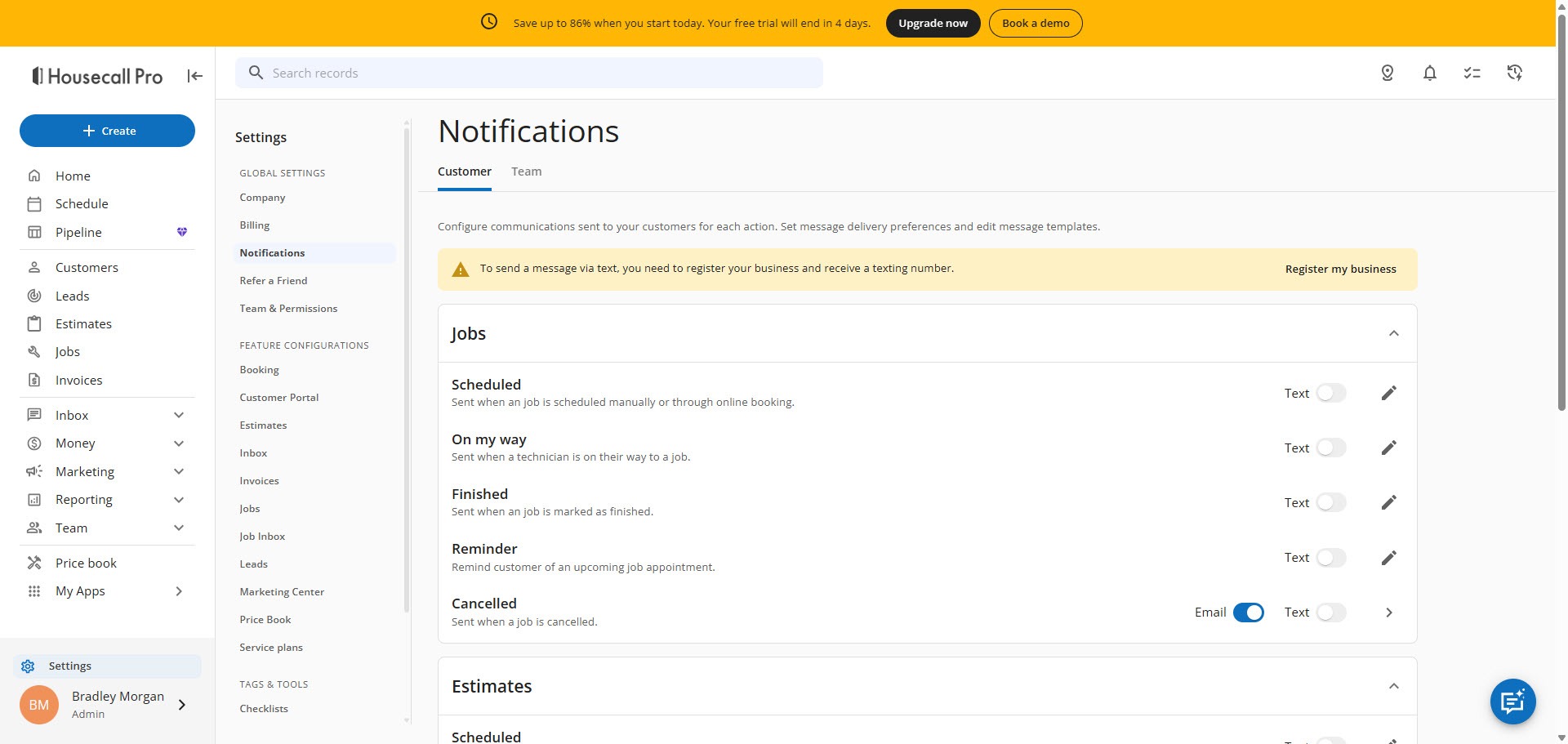
Housecall Pro's article on AI booking says that once the job is created, the customer gets a confirmation. The messages themselves are set under Settings, Notifications. My trial listed five job notifications, each with a switch to send it by text and a pencil icon to edit the wording:
 Click to expand
| Notification | When it goes out |
|---|---|
| Scheduled | When the job is booked, confirming the date and time |
| Reminder | Ahead of the appointment, on the schedule you set |
| On my way | When your tech heads to the job |
| Finished | When the job is marked done |
| Cancelled | When the appointment is cancelled |
From Housecall Pro's Customer Notifications in Settings article, updated September 2026.
Estimates have their own set, with a Sent message in place of Reminder, and invoices have Sent, payment Reminder, Refund, and Receipt messages. Each can go by text or email. To edit one, click the pencil, write the message with variables such as the customer's name and the appointment time, preview it, and save. A few are marked as required and cannot be switched off.
For a customer who booked with CSR AI, the Scheduled text is the first message from your business they will read. Rewrite it in your own voice, and check your first few CSR AI bookings to make sure it went out.
What can customers do in the Housecall Pro Customer Portal?
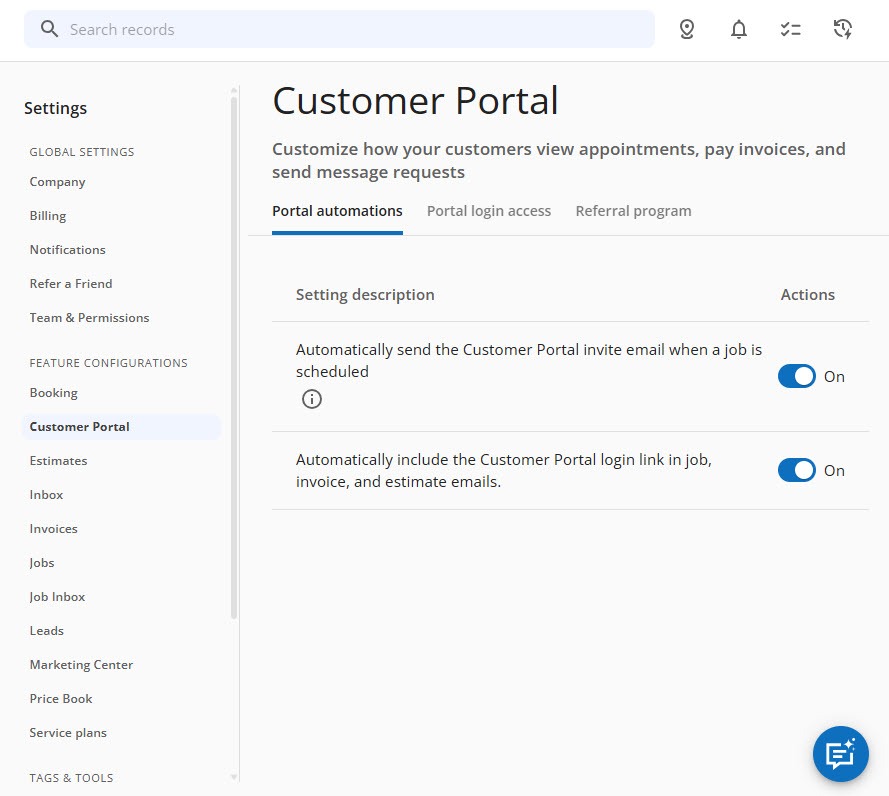
The Customer Portal is a page where your customers see their own appointments and pay. Its settings say it lets you "customize how your customers view appointments, pay invoices, and send message requests," and the Portal automations tab has two switches: send the portal invite email automatically when a job is scheduled, and include the portal login link in job, invoice, and estimate emails.
 Click to expand
Turn on the first switch and every customer CSR AI books gets an invite. Housecall Pro's portal guide lists what they can do once in:
- See appointments, upcoming and past.
- Pay invoices, with a banner when one is unpaid.
- Approve estimates, and look back at old ones.
- Ask for changes with "Send a Message": a new appointment, a reschedule, or a cancellation, which you then act on. This needs a custom SMS number and a registered business.
- Book again with a Book Online button, if online booking is set up.
- Keep a card on file and share a referral link.
Customers log in with a magic link instead of a password; each link lasts seven days, and a fresh one is sent if an old one is clicked. One clarification, because Housecall Pro's pages read differently on it: customers ask for a reschedule or cancellation through the portal, but they do not cancel a booking themselves. On a call, CSR AI can reschedule or cancel for an existing customer if you have switched that on.
How do you track a CSR AI booking on the Housecall Pro Pipeline?
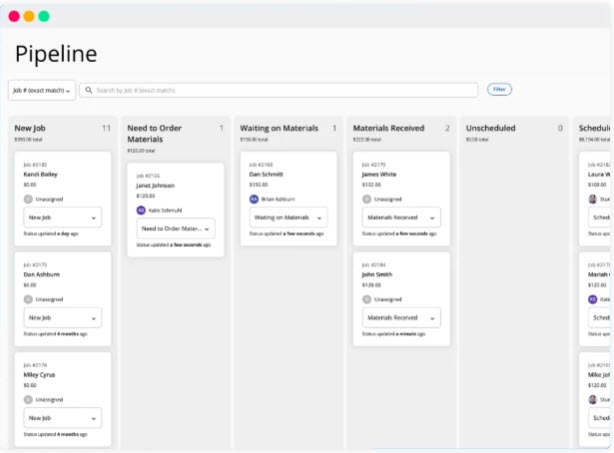
The Pipeline is a board of cards in columns, one card per job, estimate, or lead, which you drag from column to column as the work moves. My trial's board had columns such as New job, Need to Order Materials, Waiting on Materials, Materials Received, and Scheduled.
 Click to expand
The Pipeline does not create anything; it organizes what already exists, so a CSR AI booking appears on it like any other job. Housecall Pro's Pipeline guide lists the standard job stages as Unscheduled, Scheduled, In Progress, Completed, Invoice Sent, and Invoice Paid, with separate stages for estimates and leads.
Pipeline automations move some cards for you, such as moving a sent estimate to a follow-up stage or archiving paid jobs, and most are on by default. You can build your own with a starting stage, a delay, and conditions that include job type, tags, and lead source. Since CSR AI shows up as a lead source in Housecall Pro, that is one way to give AI-booked jobs their own follow-up, such as a check that the details it captured are complete.
How do you get paid for a job CSR AI booked?
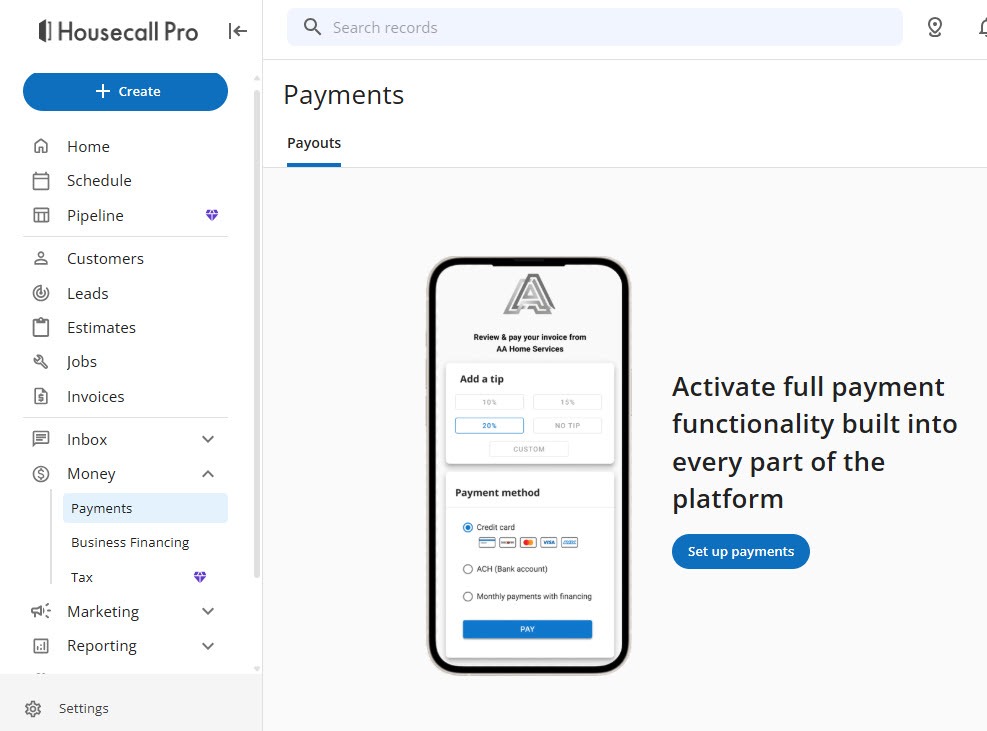
Through Housecall Pro Payments, which you activate under Money, then Payments. In my trial the page showed what a customer sees when paying on their phone, next to "Activate payment functionality built into every part of the platform" and a Set up payments button. Business Financing and Tax sit under the same menu.
 Click to expand
Setting up means connecting your business bank account and verifying your business details. After that, Housecall Pro's payment processing guide lists these ways to collect:
- Pay online from the invoice, by card, digital wallet, or bank (ACH), through the link in the invoice or in the Customer Portal.
- Tap to Pay, which turns an iPhone or Android phone into a contactless card terminal, or a card reader for chip and swipe.
- Consumer financing, so a customer can pay over time on a large job while you are paid in full when it is complete.
- Klarna, PayPal, and Venmo, as optional extras.
Card payments typically reach your bank in two business days and bank payments in one to two, with processing fees taken out first. The invoice Reminder and Receipt notifications from section 3 handle the chasing and the paperwork.
How does Housecall Pro bring a customer back for the next job?
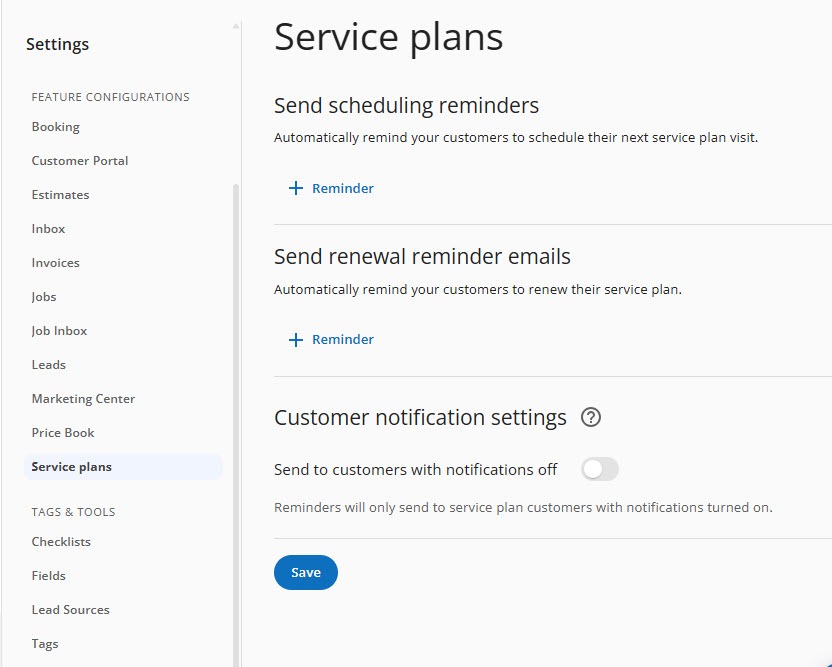
Two ways. First, a review request goes out after the job is completed or paid, if you switch it on, which builds the online reviews that bring in the next caller. Second, for maintenance work, service plans. Under Settings, Service plans, "Send scheduling reminders" automatically reminds customers to book their next plan visit; the + Reminder link adds one, and a separate switch decides whether reminders also go to customers who have notifications turned off.
 Click to expand
Housecall Pro's service plan guide says reminders can go out by text or email from two months to one day before a visit is due, you can stack several, and they stop once the visit is booked. Renewal reminders go out before a plan ends. When the customer calls to book that visit, CSR AI can take the call, which closes the loop. Housecall Pro's pricing page lists recurring service plans on its Max plan.
Which Housecall Pro apps matter after a booking?
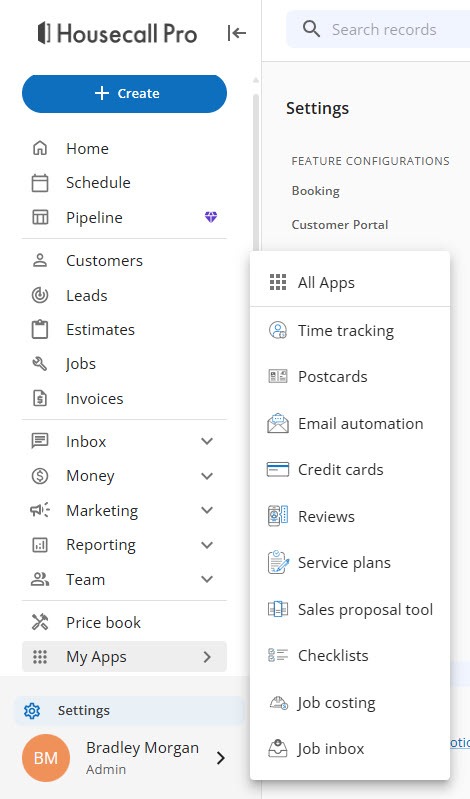
The My Apps menu shows the apps in your account; my trial listed the ones below, plus All Apps, the catalog where CSR AI itself is added.
 Click to expand
| App | What it does | Plan or cost |
|---|---|---|
| Reviews | Asks customers for a review after the job | Every plan |
| Job costing | Shows what a job cost you against what you charged | Every plan |
| Checklists | Step lists your techs complete on the job | Essentials and Max |
| Service plans | Maintenance agreements with visit and renewal reminders | Max |
| Sales proposal tool | Builds proposals with options for bigger jobs | Max |
| Credit cards | Takes card payments on invoices and in the field | Processing fees per payment |
| Postcards | Mailed postcard campaigns, one-off or after a job is finished | Charged per postcard, postage included |
| Email automation | Automated email campaigns to your customers | Not listed on the plan cards |
| Time tracking | Records your team's hours on each job | Not listed on the plan cards |
| Job inbox | Collects leads from online booking, Google, and partners | Not listed on the plan cards |
App list from my Housecall Pro trial; descriptions from Housecall Pro's Help Center; plan availability from the plan cards on Housecall Pro's pricing page, October 2026. Ask Housecall Pro to confirm anything marked not listed.
Job costing and time tracking are also how you work out whether CSR AI's bookings make you money, which is covered in our guide to seeing what Housecall Pro CSR AI books.
What should you switch on first after CSR AI starts booking?
Everyone: the texts and the portal invite
Rewrite the Scheduled, Reminder, and On my way messages in your own words, and turn on the automatic portal invite. Every CSR AI booking then gets a confirmation, a reminder, and a place to pay.
Maintenance businesses: service plans
HVAC tune-ups, pest control, pool and lawn care: a first job booked by CSR AI can turn into a plan with automatic visit reminders. That needs the Max plan, so weigh it in your quote.
Getting paid on the spot: Payments and Tap to Pay
Activate Payments early, so the invoice for that first AI-booked job carries a pay-online link and your techs can take a card at the door.
Not running your jobs in Housecall Pro
None of this follows a booking unless your jobs live in Housecall Pro. If yours run elsewhere, Jobber has its own path from booking to paid; see what happens when the Jobber AI Receptionist creates a request.
To see these screens with your own business details, start a Housecall Pro free trial and walk through Notifications, Customer Portal, and Payments before you decide on the CSR AI add-on.
The bottom line: once Housecall Pro CSR AI books a job, Housecall Pro handles the rest of the trip: confirmation and reminder texts, the Customer Portal, the Pipeline, the invoice, the payment, the review request, and the service plan reminder that books the next visit. Switch those on and every call CSR AI answers can end as a paid job without anyone retyping it. To set up how CSR AI answers and hands off calls, see how calls reach CSR AI, and for the full picture, head back to the Housecall Pro CSR AI review.
Frequently Asked Questions
Sources
Housecall Pro Help Center, checked October 2026: CSR AI Overview, Customer Notifications in Settings, Using the Customer Portal, Getting Started with Pipeline, Housecall Pro Payment Processing Options, Automatic Scheduling and Renewal Reminders for Service Plan Customers, Postcard Campaigns FAQ, and Online Booking FAQs. Also Housecall Pro's pricing page and its article on AI booking and dispatch (August 2026). Screenshots are from my own Housecall Pro trial account.
To review these sources and more, go to Housecall Pro, scroll to the very bottom of the page, and click Housecall Pro Help (beside Pro Login, below the app store badges), which opens the Help Center.