
How Housecall Pro Online Booking Works, and How CSR AI Books Through It
Housecall Pro online booking is one set of booking rules with two front doors: a booking page customers use themselves, and CSR AI on your phone and website chat. Set the rules up once and both doors book into your schedule. Here is every setting, in order.
Takes you to Housecall Pro's homepage. Click Pricing in the top menu, answer a few quick questions to find your plan, then book a demo for exact pricing, including the CSR AI add-on. Rather not book a demo? The Get in touch section at the bottom of that page has a phone number and email for questions.
What's Inside
How do Housecall Pro online booking and CSR AI fit together?
They share one set of rules. Online booking is the part of Housecall Pro that decides what can be booked, when, and with whom: which services are bookable, your booking hours, how long each job takes, which of your team can do it, and where you work. Customers reach it two ways. They can book themselves through your booking button, booking link, or Google listing. Or they can call or chat, and CSR AI, Housecall Pro's AI receptionist, books for them using the same rules.
Housecall Pro says you do not need one to use the other. You can run CSR AI without ever sharing a booking page, or run the booking page without CSR AI. But CSR AI can only book services marked "Show this service in online booking," and it follows the hours and rules set on the Booking settings page. So if you are thinking about CSR AI and have never set up online booking, this is the setup you will be doing, and you get a self-serve booking page out of it too.
The screenshots are from the Booking settings, Price Book, and Marketing menu in my own Housecall Pro free trial, before I had enabled any bookable services. I did not publish a booking page or take a live booking. What each setting does comes from Housecall Pro's Help Center, checked October 2026.
Costs are kept off this page; see the AI voice agent pricing hub for numbers.
Where are the Housecall Pro online booking settings?
In two places. The first time you set it up, Housecall Pro walks you through it from Marketing in the left menu, then Online Booking, which is also where bookings made online show up afterwards. After that, the settings live under the gear icon: Settings, then Booking, which opens on four tabs.
| Booking tab | What you set there | Does CSR AI use it? |
|---|---|---|
| General | Booking preferences, booking hours by day, arrival window, earliest availability | Yes, these decide the times it can offer |
| Services & Pricing | Which services and pricing forms are bookable, and their order | Yes, it books only services enabled here |
| Online Booking | Booking page options: multiple services, photos, duplicate matching, prices, payments | Mostly for the booking page; CSR AI has its own pricing setting |
| Reserve with Google | The Book Online button on your Google listing | No, this is a booking page door |
Tabs as shown in my Housecall Pro trial; what each controls from Housecall Pro's online booking Help Center articles, October 2026.
The services themselves are set up in the Price Book, and the CSR AI Permissions tab links straight here: its "Setup online booking" link opens the Services & Pricing tab. Our guide to whether Housecall Pro CSR AI books jobs into your schedule covers the CSR AI side of the settings.
How do you make a service bookable in Housecall Pro?
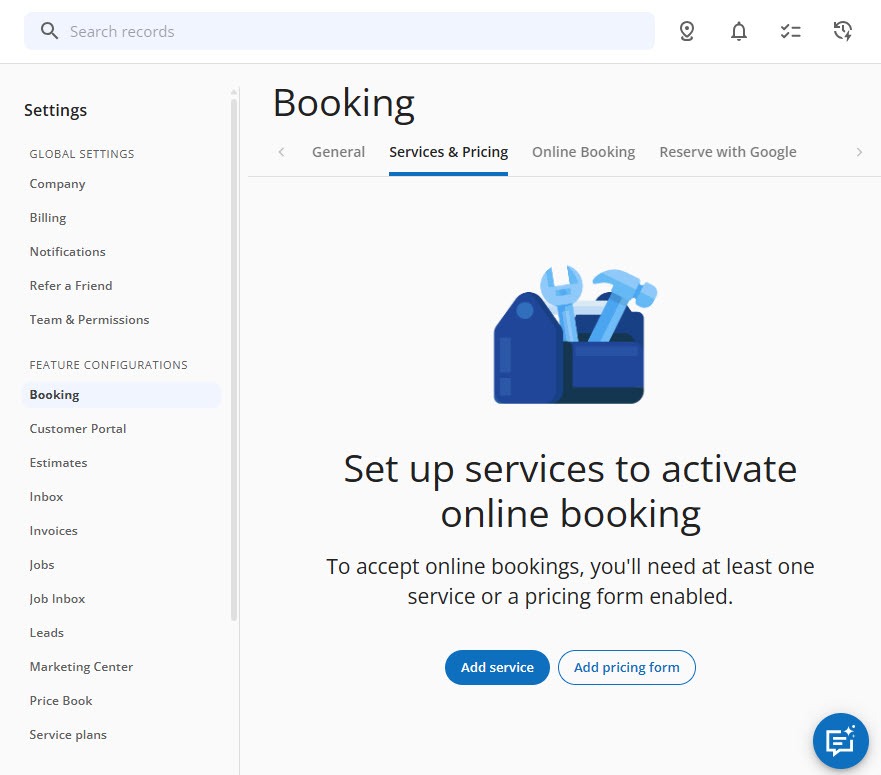
Until at least one service is bookable, nothing can be booked by either door. The Services & Pricing tab says so plainly: "To accept online bookings, you'll need at least one service or pricing form enabled," with buttons to Add service or Add pricing form.
 Click to expand
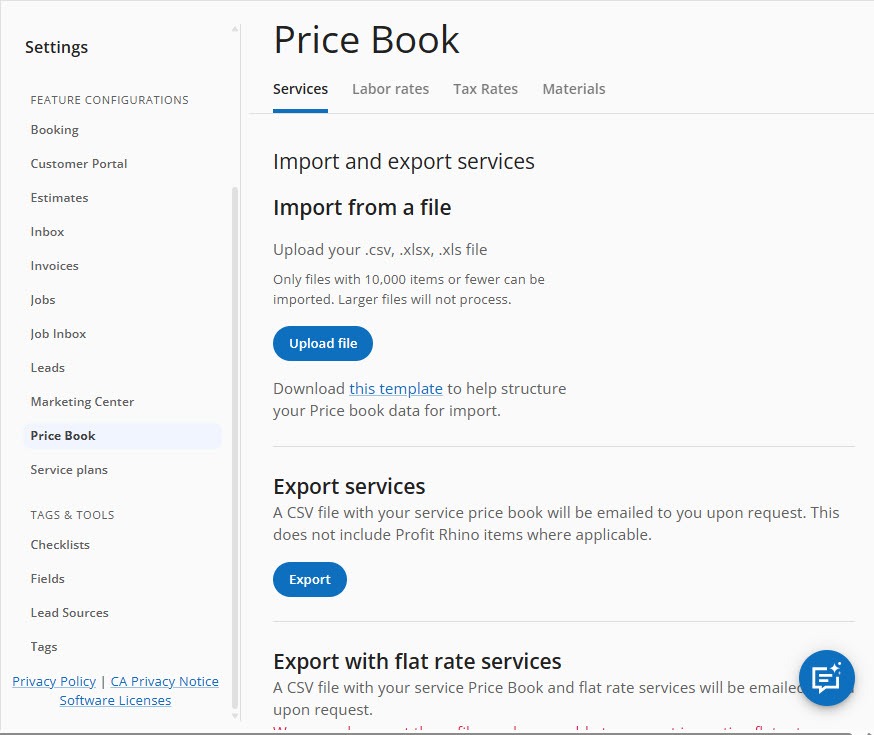
Services come from your Price Book, under Settings. It has tabs for Services, Labor rates, Tax rates, and Materials, and you can import services from a .csv, .xlsx, or .xls file or export them to edit in a spreadsheet, which is the quick way to clean up a long list.
 Click to expand
Open a service and find its Booking section. Housecall Pro's setup guide lists what you set there:
- Show this service in Online Booking. The on switch. Without it, the service is invisible to your booking page and to CSR AI.
- Book as a job or an estimate. One or the other. Fixed-price work books as a job; work you price on site books as an estimate.
- Duration. How long the booking blocks on the schedule. Customers do not see it, but a two-hour service only appears where two hours are free.
- Assigned employees. One or more people, or an employee tag, who can do the work. Only their availability is checked.
- Troubleshooting questions. Up to two questions shown after a customer picks the service on the booking page, such as "Is the unit making a noise?"
Pricing forms are the other kind of bookable item. They build a price from inputs such as square footage, number of rooms, hours, frequency, and add-ons, and Housecall Pro recommends them for recurring work like home, window, and carpet cleaning. Housecall Pro's CSR AI articles describe it booking services and do not mention pricing forms, so if your phone bookings depend on one, test that with Housecall Pro before relying on it.
Housecall Pro's CSR AI best practices are worth following even for the booking page. Keep descriptions short and say what the price covers, but leave the price itself out of the description. Be specific: "Plumbing Service Call," not "Service Call," and "Repair - Dishwasher" rather than two items both called "Dishwasher." If a service shows $0, say why, such as a free estimate followed by a quote. And fewer, clearer services get matched more reliably than a long list.
How do you set booking hours in Housecall Pro?
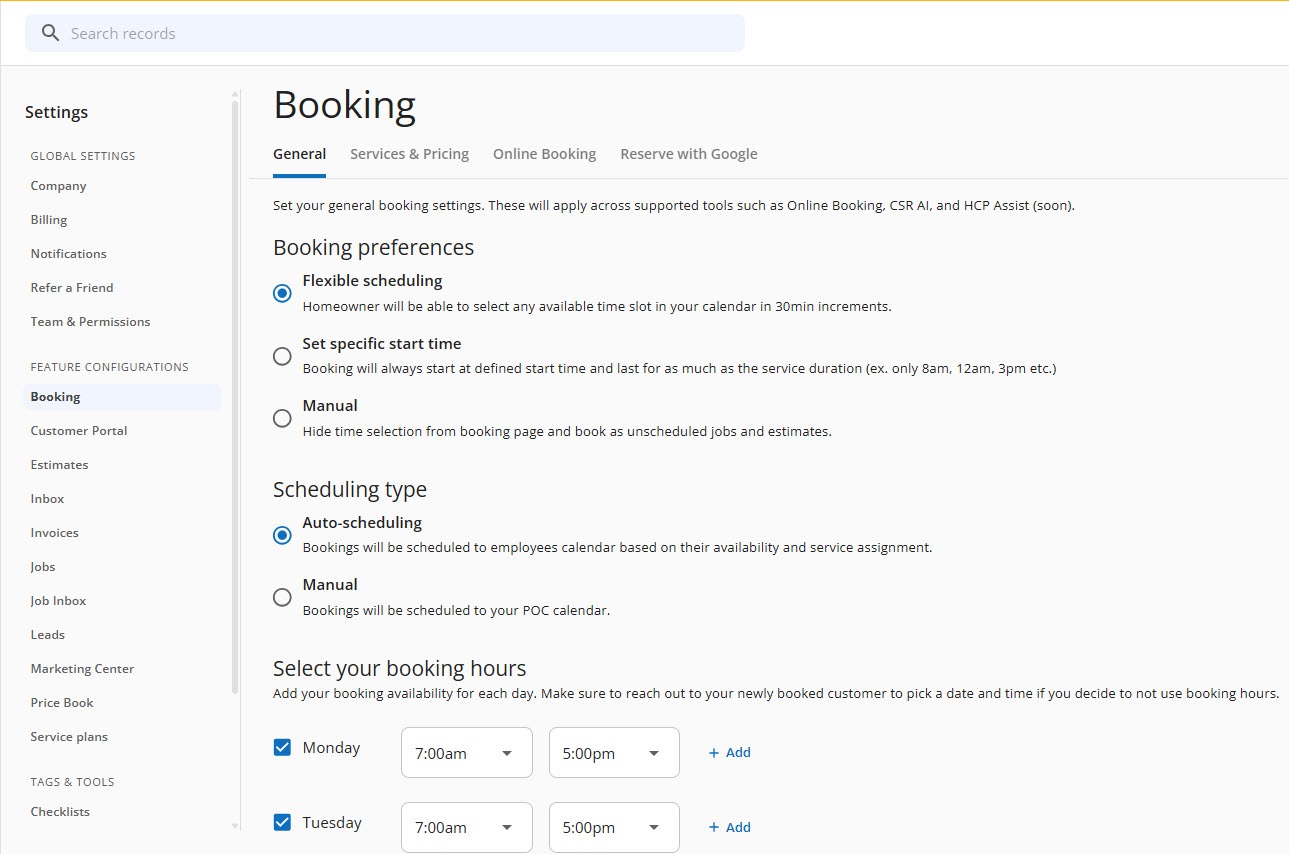
On the General tab. At the bottom, "Select your booking hours" lists each day of the week with a checkbox to turn it on and the hours to book within; my trial showed 7:00am to 5:00pm on Monday and Tuesday. You can add more than one time slot to a day, and a gap between slots blocks online booking in that gap, which is how you keep a lunch hour or a standing weekly meeting free.
 Click to expand
Above the hours are the booking preferences, the most important choice on the page:
| Booking preference | What the customer picks | Good for |
|---|---|---|
| Flexible scheduling | Any open time, offered in 30-minute steps | Short jobs with predictable lengths |
| Set a specific start time | One of the fixed start times you set | Morning and afternoon slots, or set daily start times |
| Manual | No time; they pick the service and give their details | Owners who want to place every job themselves; creates unscheduled jobs or estimates |
From Housecall Pro's Getting Started with Online Booking and Online Booking Overview articles, July 2026.
A few more settings shape which times appear:
- Arrival window. The window you promise customers, such as 8am to 10am. Whatever you set becomes the company default for all jobs and estimates, not just online ones, and it can be set to none.
- Earliest availability. How far ahead bookings must be: same day, or one, two, or three days, or a week out.
- Events. Block holidays and company closures with an Event on the schedule, so neither door books into them.
- Who gets the booking. With manual scheduling, bookings go to the employee marked as Point of Contact to dispatch. With auto-scheduling, they go straight onto the calendar of an available employee assigned to that service. Either way, each employee's online booking availability has to be switched on for them to count.
Which Housecall Pro online booking options should you turn on?
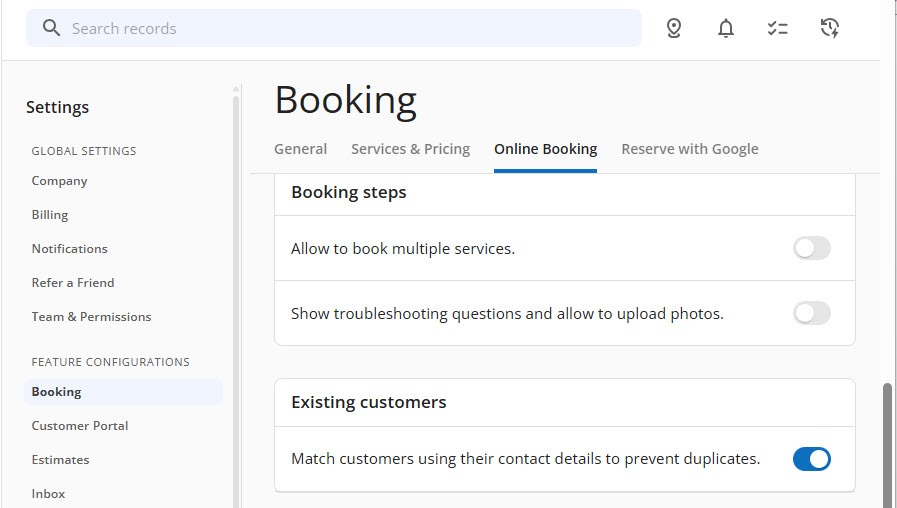
The Online Booking tab holds the options for the self-serve booking page. My trial showed three switches near the top:
 Click to expand
- Allow to book multiple services. Lets a customer add more than one service to a single booking, such as a furnace tune-up and a duct cleaning.
- Show troubleshooting questions and allow upload of photos. Shows the questions you wrote for each service and lets the customer attach photos. For a leak, a cracked panel, or a stain, a photo before you arrive is worth having.
- Match customers using their contact details to prevent duplicates. Links a booking to an existing customer when the first name, last name, phone number, and email all match. If they do not, a new customer is created.
Further down the same tab are the Pricing setting, "Show service prices in online booking," for hiding prices on the booking page, and Payments & deposits. Once your account is connected to your bank through Housecall Pro's Connect My Bank step, you can require full payment upfront, a deposit as a fixed amount or a percentage, or nothing at booking. If you turn on your service area, the booking form adds a step to check the customer's address.
Where can customers book you online with Housecall Pro?
Anywhere you can put a button or a link. Housecall Pro offers four ways to share the booking page:
- Booking button. Embed code for your website that opens the booking form in a pop-up, so customers never leave your site.
- Booking link. A direct link hosted on Housecall Pro's domain, for social media, your email signature, texts, and invoices.
- Reserve with Google. A Book Online button on your Google Search and Maps listing. It needs a verified Google Business Profile with matching name, phone, and address, and the button can take up to 24 hours to show. Bookings arrive as leads in the Google channel of your Job Inbox.
- Booking redirect. Points customers to a booking address on your own website domain instead of Housecall Pro's.
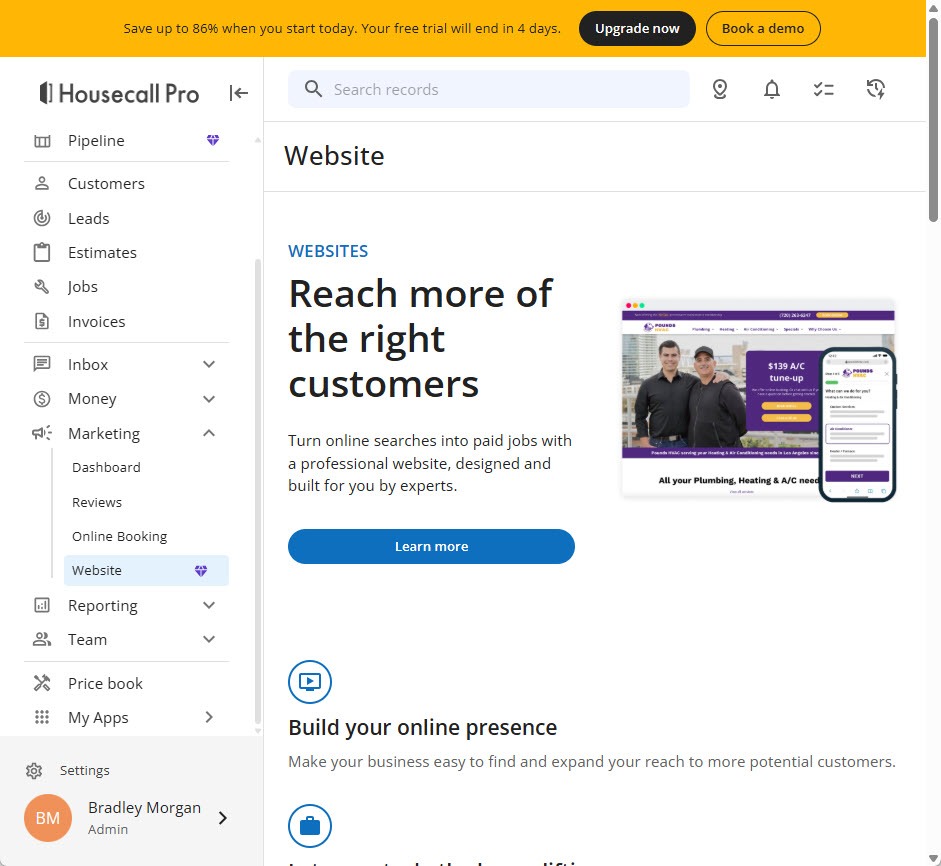
No website? Housecall Pro sells one. Under Marketing, alongside Dashboard, Reviews, and Online Booking, the Website page offers "a professional website, designed and built for you by experts," with the booking form built in.
 Click to expand
When a customer finds no time that suits them, the booking page offers Send request instead. That creates a lead in your Job Inbox, not a booked job, so check that channel daily.
How is booking through CSR AI different from the Housecall Pro booking page?
The rules are the same; the experience is not. A customer filling in a form chooses everything themselves. A customer on the phone has CSR AI asking the questions, matching what they say to a service, and offering times. Here is where the two doors differ:
| Online booking page | CSR AI | |
|---|---|---|
| How customers reach it | Button, link, or Google listing | Phone call or website chat |
| Services and open times | Your bookable services and booking rules | The same services and rules |
| Prices | Shown or hidden with one switch | Set in its own Pricing Guidance card |
| Deposits | Full, deposit, or none, once your bank is connected | Not described in Housecall Pro's CSR AI articles |
| Photos | Customers can upload them if you allow it | Not on a phone call |
| Changes and cancellations | Housecall Pro's FAQ says customers contact you to cancel | Can reschedule or cancel for existing customers, if you allow it |
| When nothing fits | A Send request lead in your Job Inbox | A text and inbox notice to call the customer back |
Compiled from Housecall Pro's online booking and CSR AI Help Center articles, October 2026.
The practical upshot: the booking page suits customers who like to book at midnight without talking to anyone, and CSR AI suits the ones who would rather pick up the phone, which in the trades is still how plenty of work arrives. Because both check the same schedule and rules, you can offer both without running two calendars. What happens to the job after either door books it is covered in what happens after CSR AI books a job.
What are the common Housecall Pro online booking setup mistakes?
| What you notice | The likely cause and fix |
|---|---|
| The booking page shows no services | No service has "Show this service in Online Booking" on; turn it on in the Price Book |
| A long job never finds a time | Its duration does not fit inside your booking hours or between your time slots; shorten the duration or widen the hours |
| Every booking lands on the owner's calendar | Manual scheduling sends bookings to the Point of Contact; switch to auto-scheduling and assign employees to services |
| An employee is never offered | Their online booking availability is off, or they are not assigned to the service |
| Bookings on a holiday | Add an Event to the schedule to block the day |
| No Book Online button on Google | Wait up to 24 hours, remove any preferred booking links on your Google profile, and make sure your name, phone, and address match |
| Duplicate customers | Matching needs an exact first name, last name, phone, and email; check new customers against existing ones |
| No deposit option | Connect your bank through Connect My Bank first |
From Housecall Pro's Online Booking FAQs, Reserve with Google, and Card Payments in Online Booking articles, July 2026.
Before going live, use the Preview in the online booking setup to walk through the booking page as a customer would, then role-play a caller with Housecall Pro's Test CSR AI option and ask for the same services. If both doors offer the same times, your rules are working.
Which online booking setup fits your business?
No online booking yet: set it up once, get both doors
If you take every booking by phone today, the online booking setup is the price of admission for CSR AI anyway. Do it properly and you also get a booking page for your website and Google listing.
Cleaning and priced-by-size work: pricing forms
Square footage, rooms, and frequency are what pricing forms are for, and customers get a real price as they book. Confirm with Housecall Pro how CSR AI handles them before relying on it for phone bookings.
Jobs you need to see first: estimates or Manual
Set those services to book as estimates, or choose the Manual booking preference and place each request yourself. You keep control of the schedule and still capture the customer.
Not on Housecall Pro
CSR AI only books through Housecall Pro's own booking rules. Jobber works the same way with its own engine; see how Jobber online booking works with its AI Receptionist.
To see these screens in your own account, start a Housecall Pro free trial, load a few of your real services into the Price Book, and preview the booking page before you decide on CSR AI.
The bottom line: Housecall Pro online booking is the rulebook behind both your booking page and CSR AI. Make your services bookable with the right durations and people, set your hours and booking preference, choose the booking page options you want, and share the page wherever customers find you. Get that right and the AI on your phone books by the same rules your website does. For what happens on the call itself, see our guide to how calls reach CSR AI, and for the full picture, head back to the Housecall Pro CSR AI review.
Frequently Asked Questions
Sources
Housecall Pro Help Center, checked October 2026: Getting Started with Online Booking, Online Booking Overview, Online Booking FAQs, Set Up Online Booking Services, Using Pricing Forms in Online Booking, Card Payments in Online Booking, Reserve with Google Integration, Getting Started with CSR AI, and CSR AI Best Practices and FAQs. Also Housecall Pro's online booking product page. Screenshots are from my own Housecall Pro trial account.
To review these sources and more, go to Housecall Pro scroll to the very bottom of the page, and click Housecall Pro Help (beside Pro Login, below the app store badges), which opens the Help Center.